You will need: nothing but a few minutes. Find your problem below and work through the fix.
-
1
Follow Along does not hear you
Ultimate Piper needs your microphone to follow you. If access is off, the calibration screen says Microphone access denied. TapTapClick Open Settings and turn it on, or go to Settings ▸ Privacy & Security ▸ Microphone on your iPhoneSettings ▸ Privacy & Security ▸ Microphone on your iPadSystem Settings ▸ Privacy & Security ▸ Microphone yourself.
If headphones with a microphone are connected, your iPhone listens through them rather than its own microphone. Disconnect them if they are not where you play.If headphones with a microphone are connected, your iPad listens through them rather than its own microphone. Disconnect them if they are not where you play.Ultimate Piper listens through your Mac's current input. Check it in System Settings ▸ Sound ▸ Input, and speak to see its level move. With no microphone at all, the calibration screen offers Open Sound Settings.
-
2
Follow Along waits and does not start
On bagpipes, Follow Along waits for you to strike in. Hold a steady E for two seconds, and it starts following. If you would rather start on another note, taptapclick Skip. The practice chanter needs no strike-in.
If the score shows Calibration Required, your instrument has not been calibrated yet. TapTapClick the calibrate button and play each note when asked; it takes about a minute. The calibration guide walks you through it.
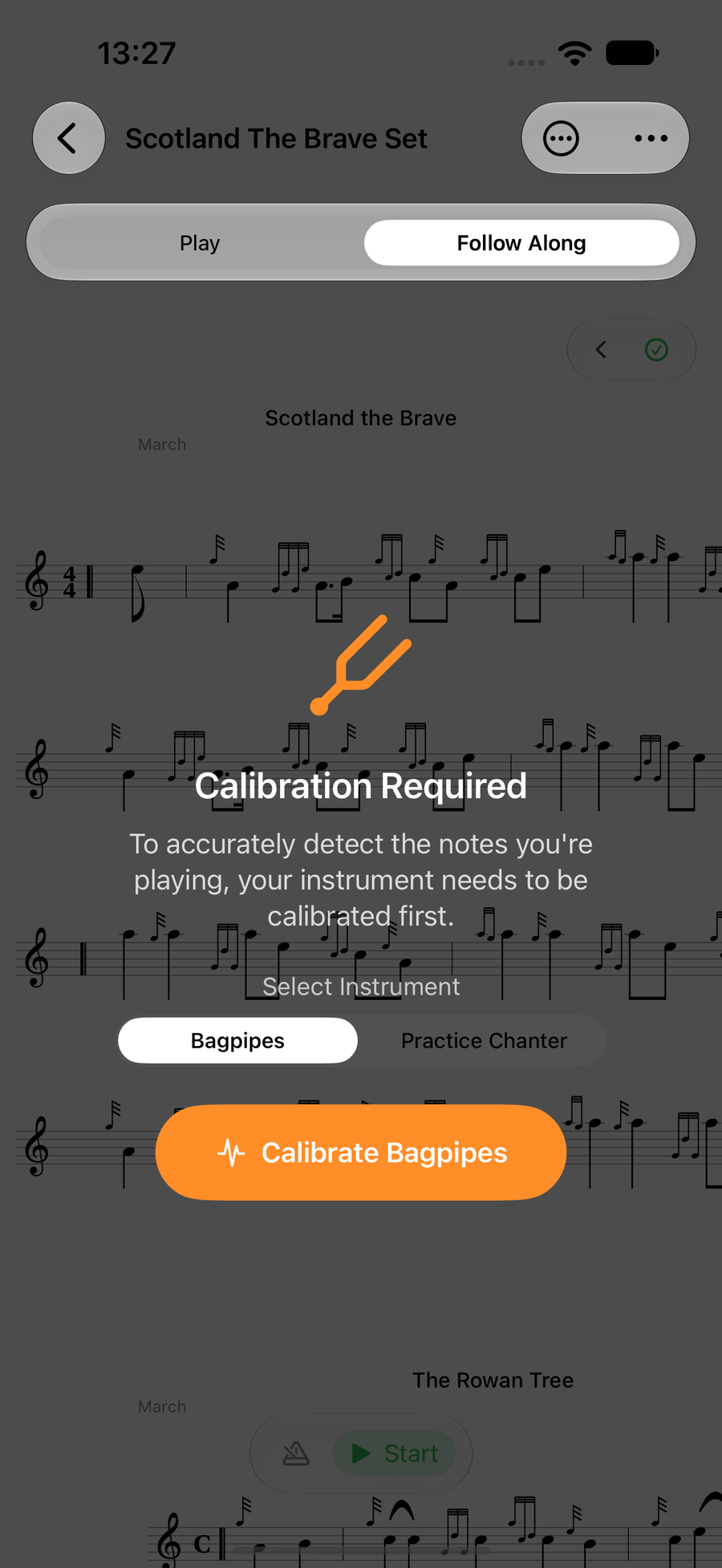
Calibration Required, shown before Follow Along can start -
3
Follow Along picks up the wrong notes
Recalibrate. While Follow Along is listening, taptapclick the gear at the left end of the bar at the foot of the score, then Recalibrate. In the same place, check that Instrument Type matches what you are playing, and that the right instrument is chosen if you have more than one. On the Mac, the Playback menu has Recalibrate too.
If the app warns that two notes are too close, choose Recalibrate Full Scale. Calibrating where you usually play, with your pipes or chanter warmed up, gives the best results.
You can see and manage every instrument in SettingsSettingsUltimate Piper ▸ Settings ▸ Instruments ▸ My Instruments.
-
4
The tuner reads sharp or flat
The tuner measures against a target Low A, 480 Hz unless you change it. At the foot of the tuner, taptapclick the button that shows your tuning scheme and pitch, such as GHB Standard · 480 Hz. There you can set Target Low A anywhere from 430 to 500 Hz, and change the tuning scheme.
To tune your drones to your chanter instead of a number, play a steady note and taptapclick Tune to my chanter.
If the tuner says Microphone access denied, turn on microphone access as described in the first step.
-
5
You hear no sound
Tunes play even with your iPhone's silent switch on, so check the volume buttons first.Check your iPad's volume first.Check your Mac's volume and output first.
Then taptapclick … in the bar at the foot of the score to open the playback settings. Under Metronome, check the melody is not set to Melody Muted, which leaves you with only the metronome.
If you play with your own sample pack, any note you did not record is played by the built-in chanter instead. You can add the missing notes from the pack in SettingsSettingsUltimate Piper ▸ Settings ▸ Sample Packs.
-
6
Your library is out of date or empty
First check the sync status, under the Library titleunder the title at the top of the sidebarby hovering over the iCloud icon above the sidebar. It tells you if you are Offline or Not signed into iCloud; your tunes come from your Apple Account, so sign in with the same one on every device.
Pull down on the library to check iCloud again.Pull down on the library to check iCloud again.Click the iCloud icon to check iCloud again.
Still out of step? Go to SettingsSettingsUltimate Piper ▸ Settings ▸ Data ▸ Force Full Sync and choose Download Again. Ultimate Piper forgets what it has downloaded and fetches your whole library from iCloud again. Nothing is deleted and nothing is uploaded, but a big library can take several minutes, so use Wi-Fi.
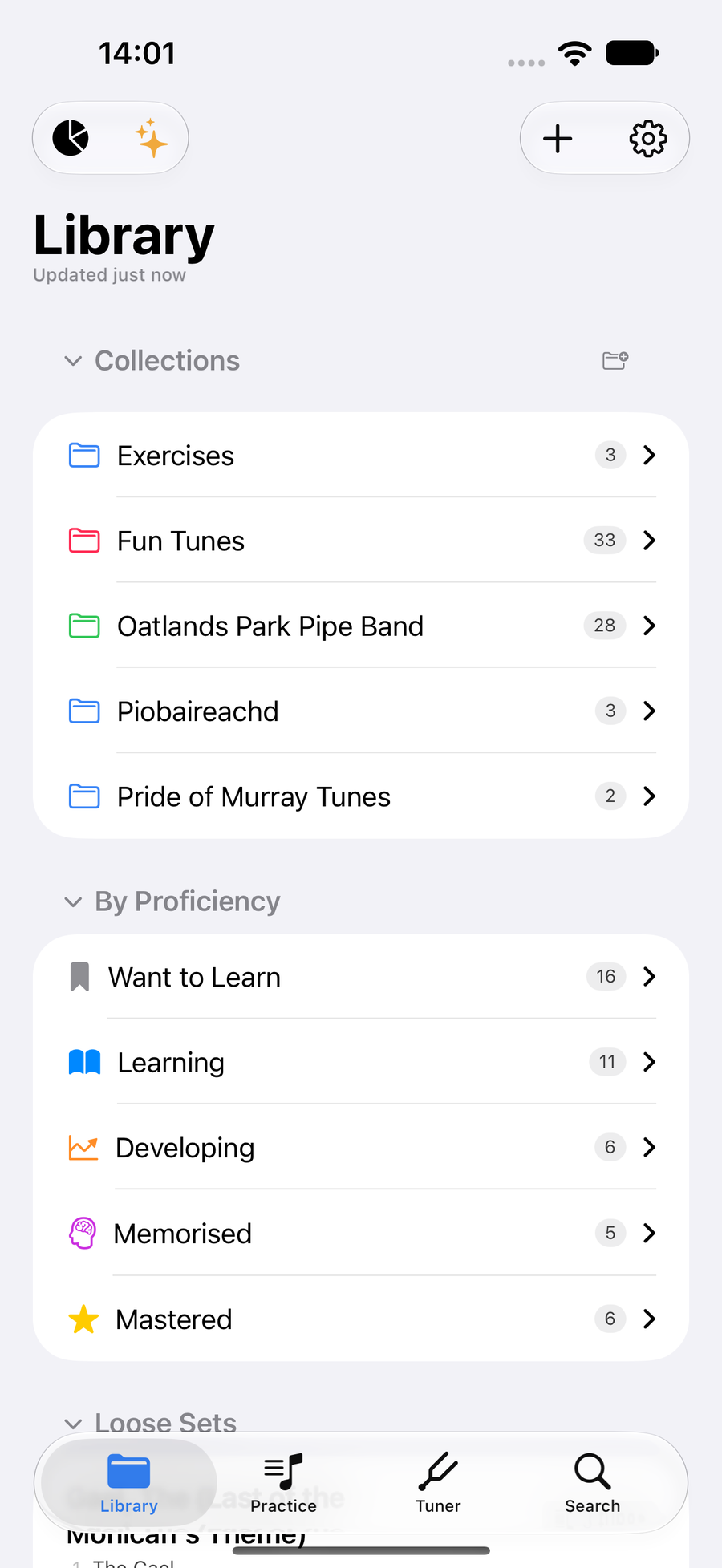
The sync status -
7
You deleted a tune by mistake
Deleted tunes are kept. Go to SettingsSettingsUltimate Piper ▸ Settings ▸ Data ▸ Recently Deleted and taptapclick the restore button beside the tune.
Tunes stay there until you restore them or delete them for good. Take care with Empty Trash: it deletes everything there straight away, with no second question.
-
8
You are asked to resolve conflicts
Resolve Conflicts appears when the same tune was changed in two places before they could sync, often in a shared folder. For each tune, choose:
Keep Mine to keep your version, Keep Theirs to use the other version, or Keep Both to save a copy of yours so nothing is lost. If you are not sure, Keep Both is the safe choice.
-
9
You are running out of space
Go to SettingsSettingsUltimate Piper ▸ Settings ▸ Storage. Clear Cache removes the tunes stored on this device; they download again from iCloud when you open them. Your recordings, sample packs and calibrations are not touched.
Follow Along recordings are removed after 90 days by themselves. To free that space sooner, use Clear Recordings, which cannot be undone.
-
10
A scanned tune has mistakes
Scanning takes seconds for a typical tune, but it can miss the odd note, barline or time signature, so compare the result with the original. A few things trip it up more often than others:
- Pages with text or photos. Crop to just the music before you scan. Blocks of text and pictures on a full page can confuse it. When scanning with the camera, drag the corners of the scan to fit the staves.
- Harmonies. Tunes with a harmony line can come out with mistakes in either part, so check both closely.
- Second-time brackets across two staves. A first- or second-time bracket that starts at the end of one stave and carries on to the next doesn't read properly yet, so check those bars and fix them in the editor.
- Curved pages. Hold the page as flat as you can, since curves bend the staves.
A PDF usually reads best of all.
To fix a mistake, open the tune and choose Edit Tune. The editor guides show how.
-
11
Your MIDI chanter is not used
Ultimate Piper supports the Blair Digital Chanter and Fagerström Technopipes. Connect the chanter and the app switches to it by itself; the gear at the left end of the Follow Along bar turns into green piano keys, and its menu shows the MIDI Device. Disconnect it, and the app goes back to the microphone.
Technopipes players: choose GHB as the instrument on the chanter itself, so the notes map correctly. The MIDI chanter guide has more.
-
12
Premium is not unlocked
Go to SettingsSettingsUltimate Piper ▸ Settings ▸ Subscription and choose Restore Purchases. If it says Nothing to Restore, check this device is signed in with the Apple Account that bought the subscription.
-
13
Still stuck?
Email support@ultimatepiper.com. Tell us which device you are on, what you did and what happened, and we will help.
Next
- Calibrate your instrument from the start.
- How your library syncs through iCloud.
- Your first ten minutes in Ultimate Piper.