You will need: Ultimate Piper installed, and ideally your iCloud account signed in on the device, so your library syncs. Nothing else.
-
1
Your library
Ultimate Piper opens on your library. On a new install it holds a Sample Tunes folder with a few marches and a piobaireachd, so there is something to play straight away. Sign in to iCloud and the library follows you to every device; without it, tunes stay on the one you are using.
On iPhone the library is the first tab, with Practice, the Tuner and Search beside it.
On iPad the library sits down the side, with the same Library, Practice, Tuner and Search tabs as on iPhone at its foot, and the tune you open fills the rest of the screen.
On the Mac the library is the sidebar, with Practice above your folders.
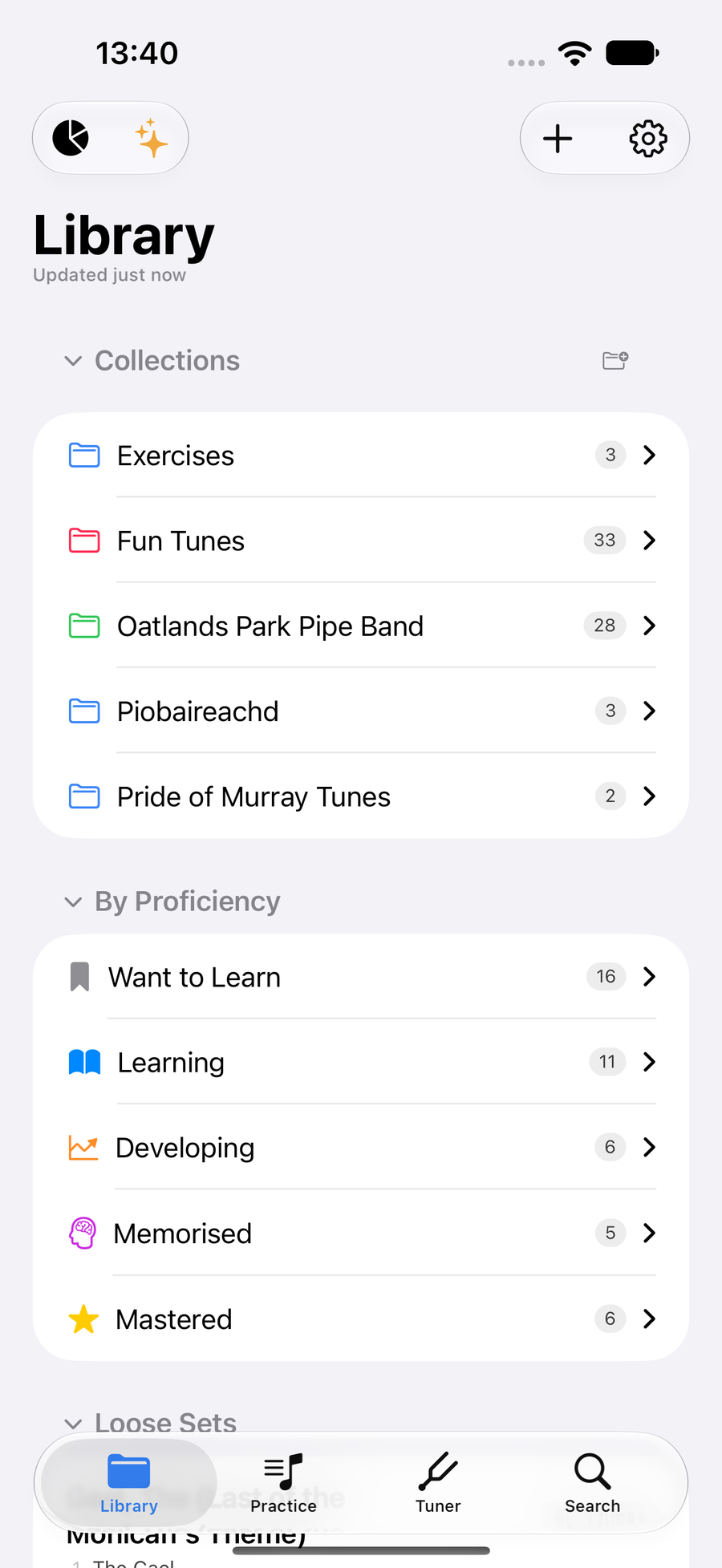
The library with its folders -
2
Open a tune and play it
Tap a tune and it opens in Play, the first choice above the score. To hear it, press in the bar at the foot of the score; pauses it and stops it.
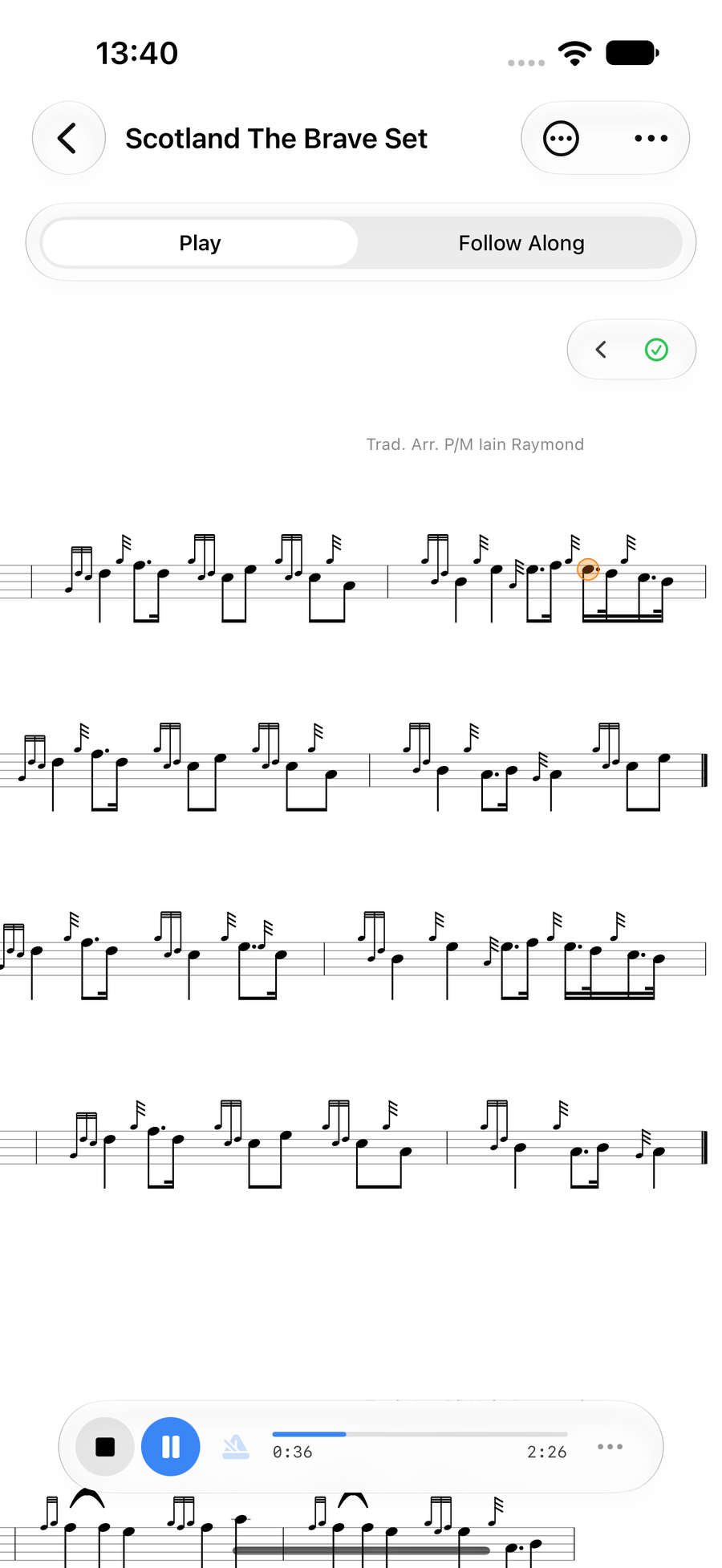
A tune playing, with the cursor on the score -
3
Change the sound and speed
TapTapClick the at the end of the play bar. Under Instrument, choose Bagpipes or Practice Chanter. Tempo shows each tune's speed; turn on Override to set your own and slow a tune down while you learn it. The Metronome can click along.
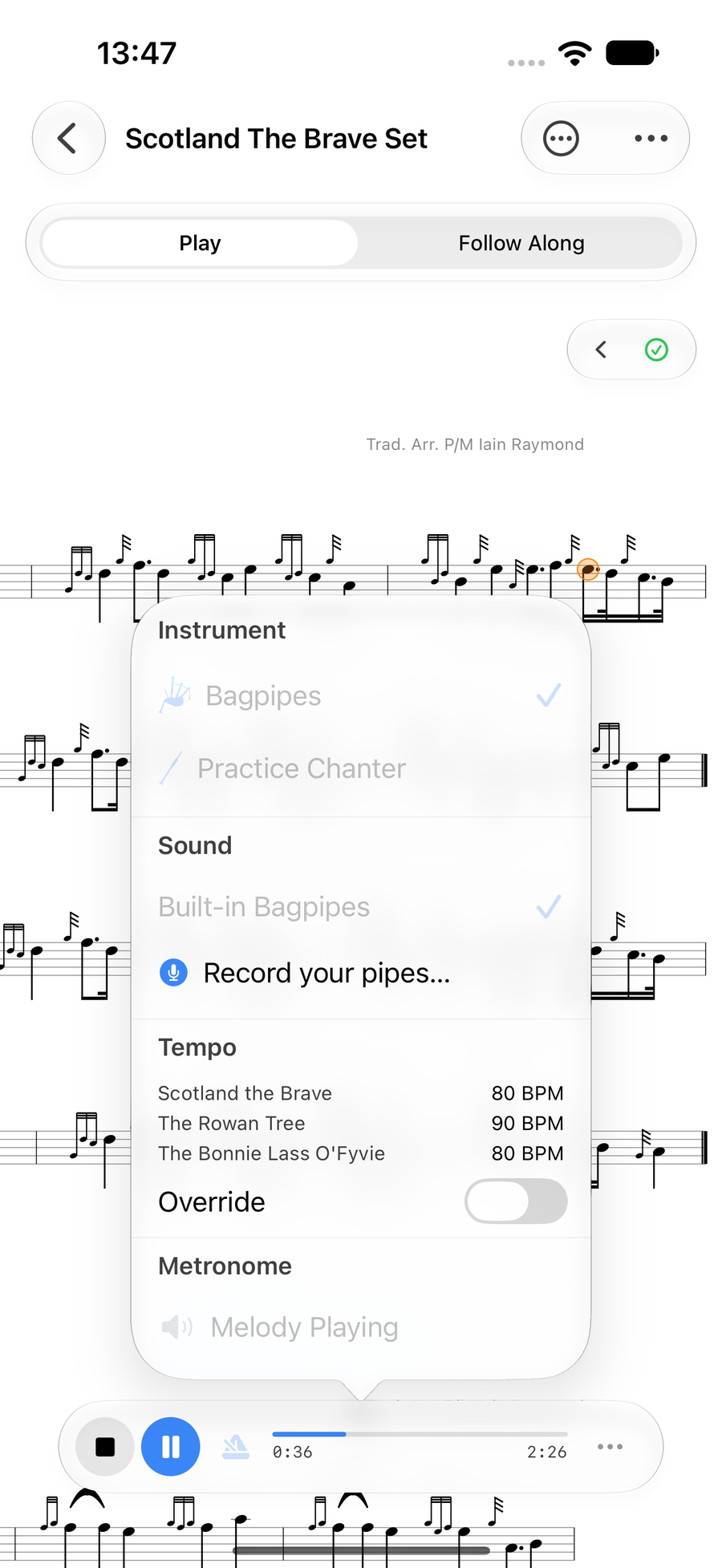
The playback settings: instrument, tempo and metronome -
4
Add a tune
The Add button at the top of the library is where new tunes come from. Create New Tune opens the editor on a blank page. Import Tune File takes a tune someone has sent you. Scan Sheet Music reads a page through the camera or from a PDF.Scan Sheet Music reads a page through the camera or from a PDF.Import from PDF / Image reads a page from a file.
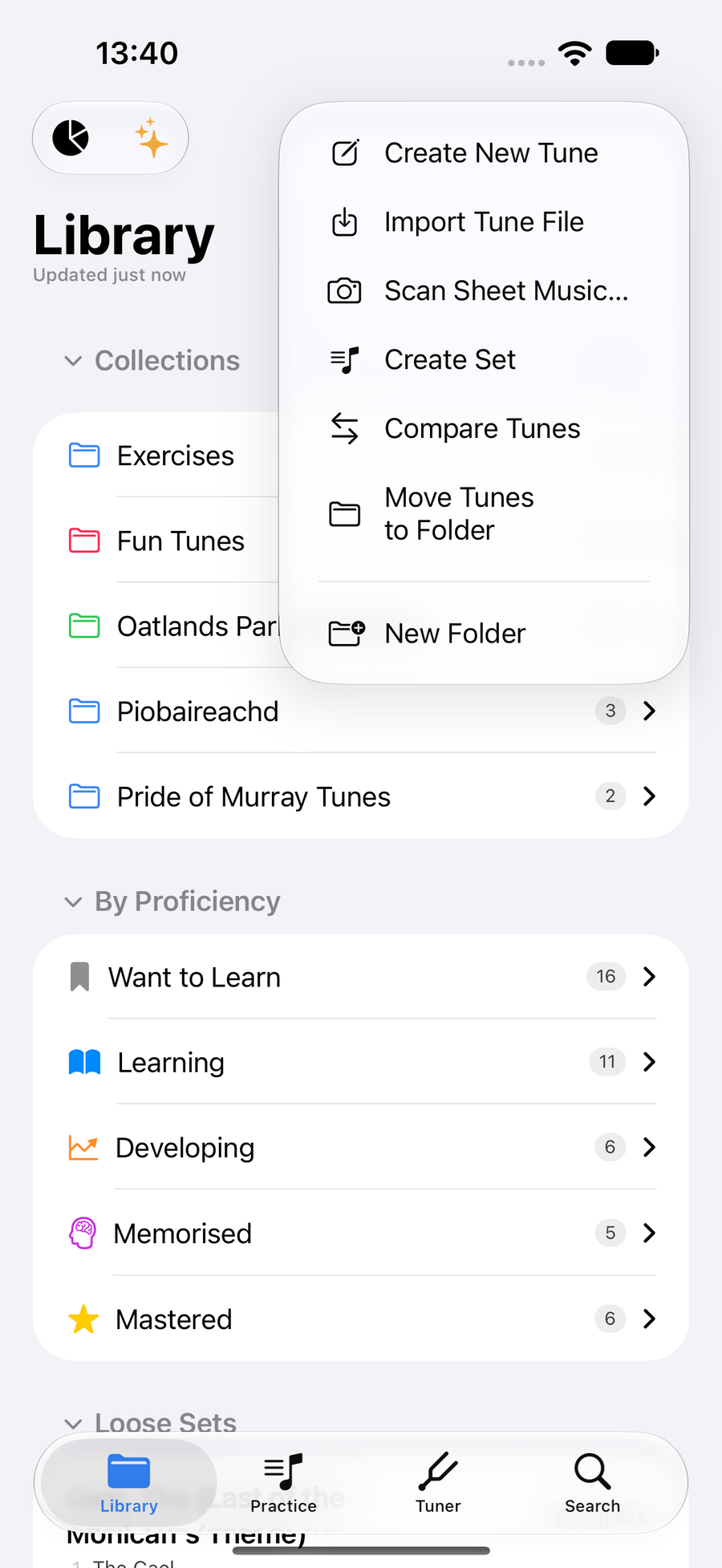
The Add menu open -
5
Scan sheet music
Pick a PDF or image and the app reads it staff by staff, then saves what it found to your library as a tune you can play and edit, telling you how many staves it read. It is worth a quick side-by-side check against the original: the reading can miss the odd note, barline or time signature, and the editor puts them right.
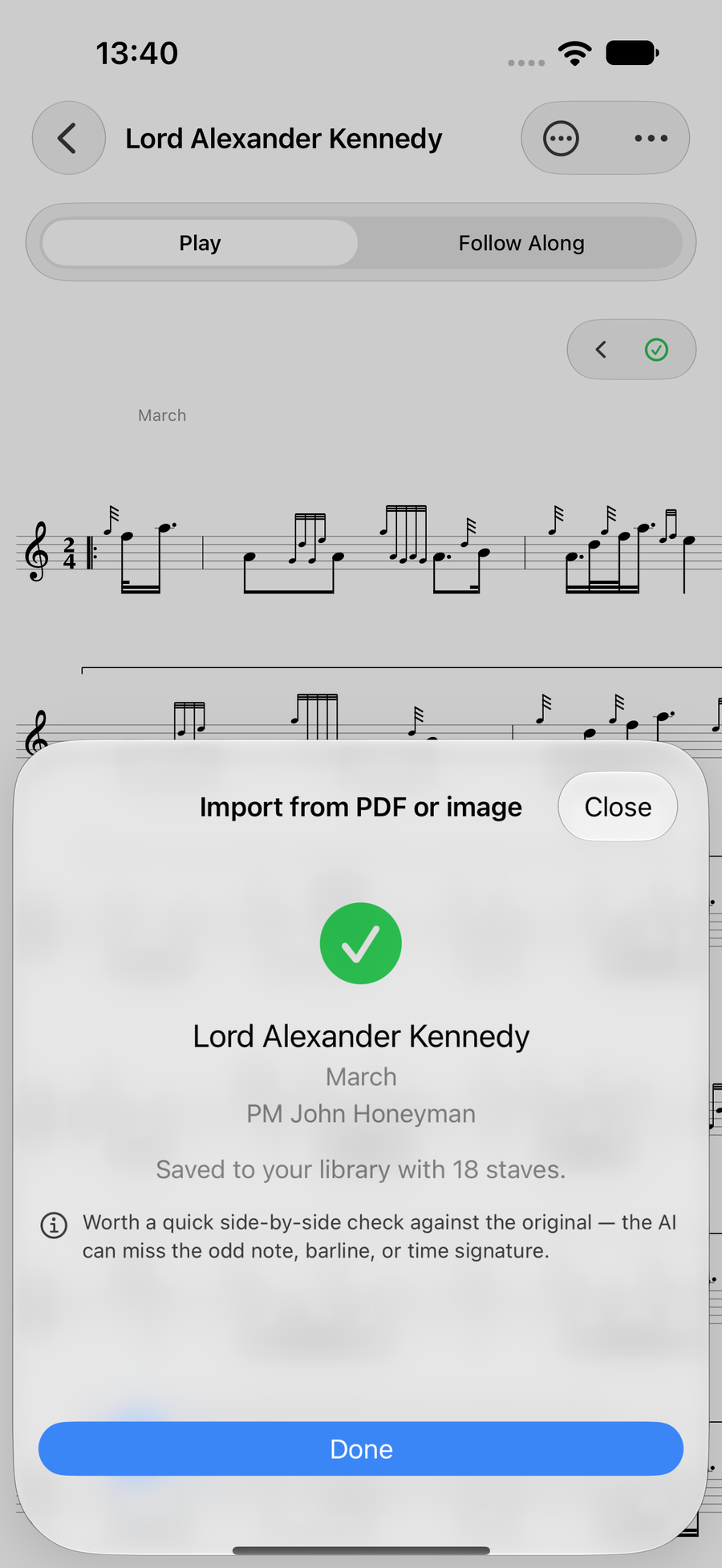
A scanned page saved to the library -
6
Folders and sets
Keep tunes in folders by band, by type or however you think of them: New Folder makes one, and Move Tunes to Folder moves a few at once. Create Set joins tunes into a set that plays through in order, the way you would play it on the night.
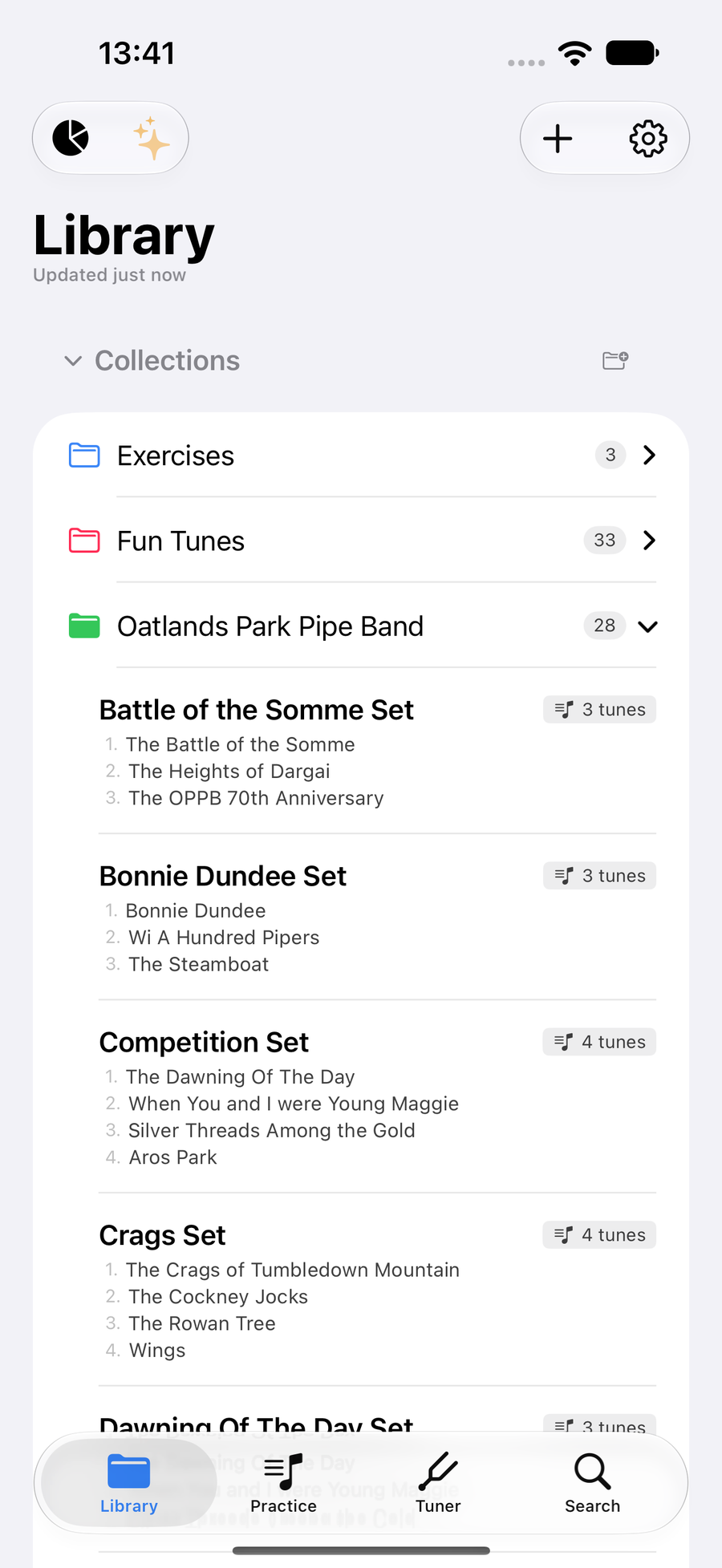
A folder of tunes open in the library -
7
Practice and the Tuner
Practice builds a session from the tunes you are working on, keeps a history, and shows your streak. The Tuner hears your chanter or drones. Settings is behind the gear, and its Discover section walks through everything the app can do.
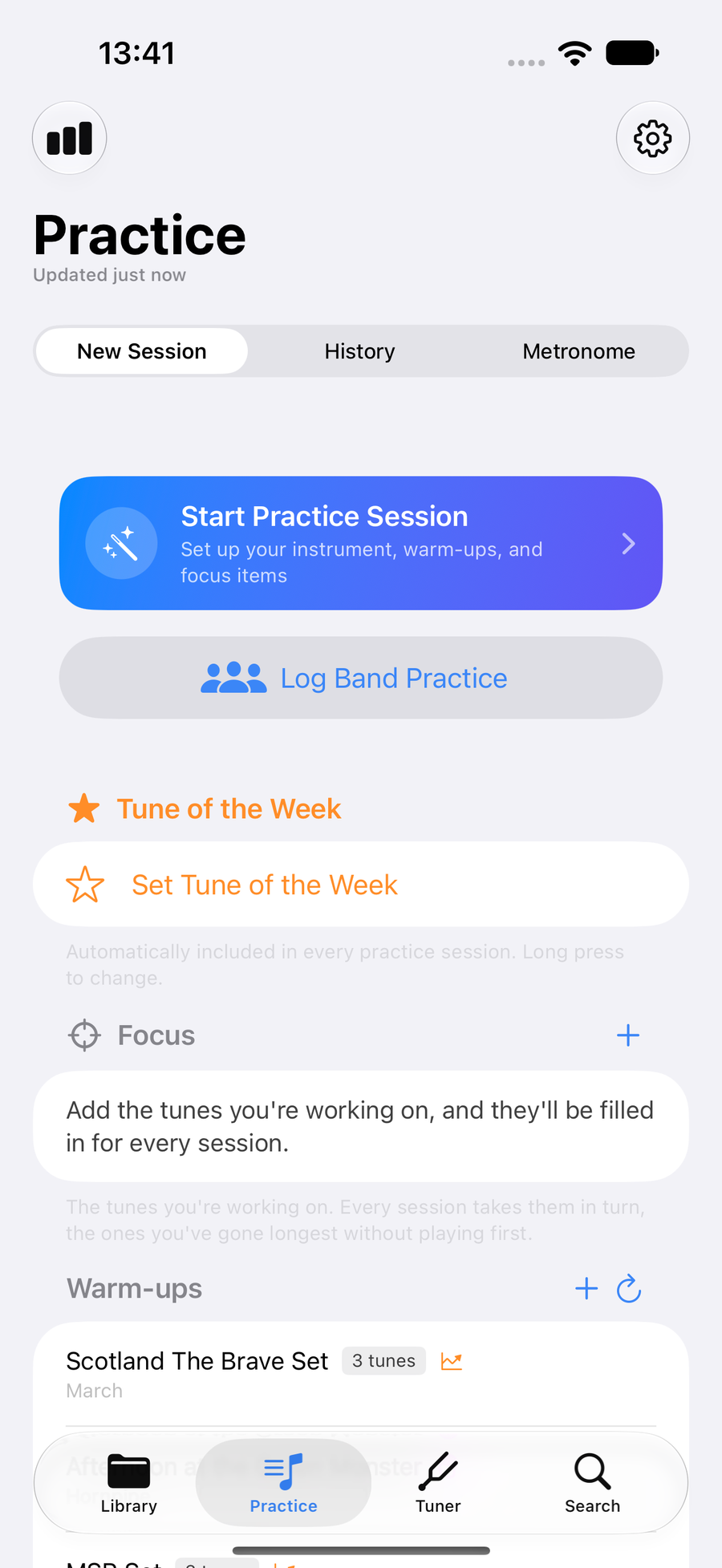
The Practice tab, ready to start a session -
8
Find this guide from the app
You can come back to this guide from inside the app. In SettingsSettingsUltimate Piper ▸ Settings, under About, taptapclick User Guide and it opens in your browser. On the Mac the Help menu opens it too.
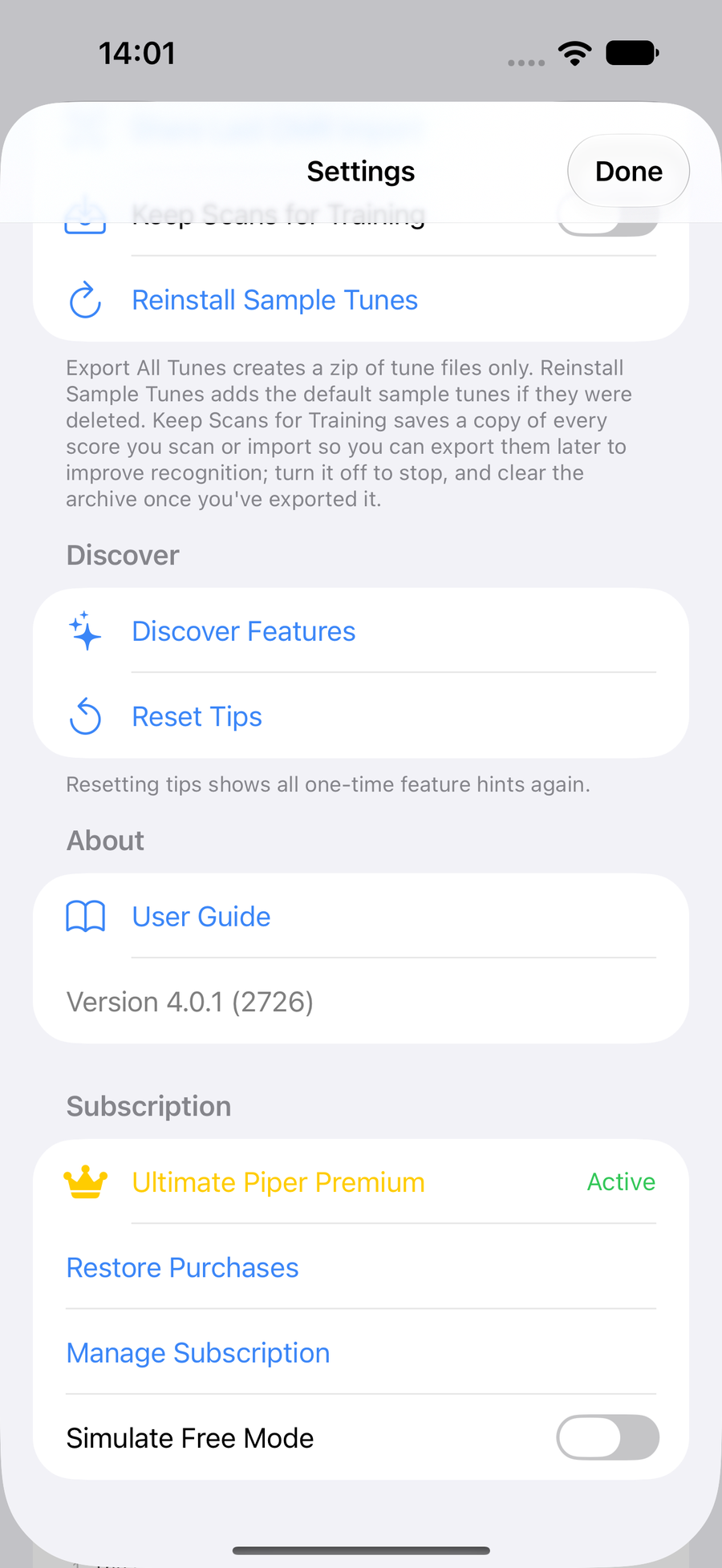
The User Guide row under About in Settings
Next
- Play your first tune with Follow Along, and let the app hear you.
- Open Settings and look under Discover for everything the app can do.