You will need: a tune in your library, and your chanter or pipes. Follow Along listens through the microphone, or through a MIDI chanter if one is plugged in. Follow Along is part of Premium.
Watch a whole run
A real run of The Dawning of the Day on bagpipes: Follow Along turns each note green as it is heard, then Progress measures the run and shows how it went, gracenote by gracenote. Turn the sound on to hear the pipes.
-
1
Open a tune and choose Follow Along
Open any tune from your library. Above the score, switch from Play to Follow Along.
On the Mac the switch sits in the toolbar at the top of the window.
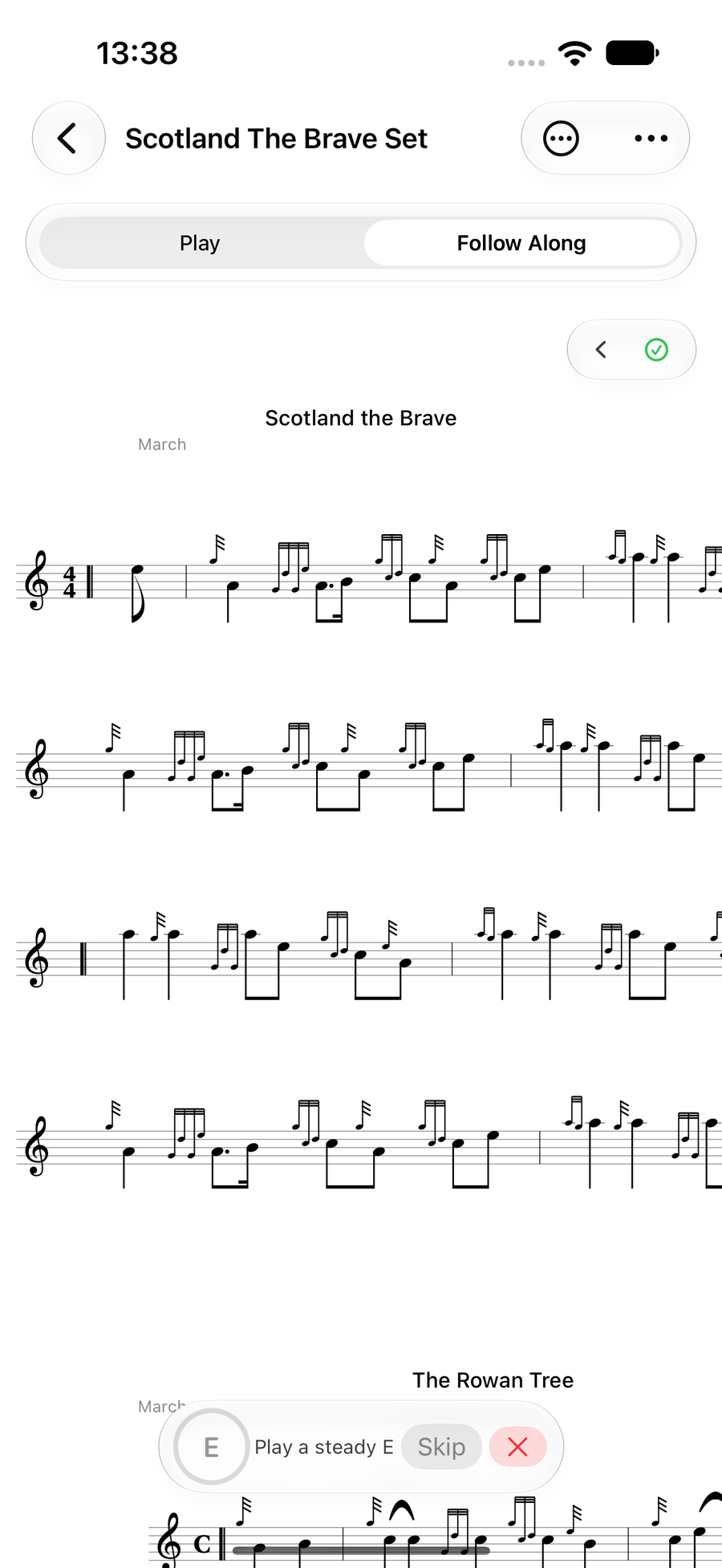
The score with Follow Along chosen above it -
2
Calibrate your instrument
The first time, Follow Along asks to hear your instrument so it knows your notes. Choose Bagpipes or Practice Chanter, press Calibrate, and play each note as it asks. It takes about a minute and is kept for next time. A MIDI chanter such as a Blair Digital Chanter needs no calibration and is picked up by itself when it is plugged in.
To switch instrument later, use the at the left end of the bar at the foot of the score, next to the note it hears.
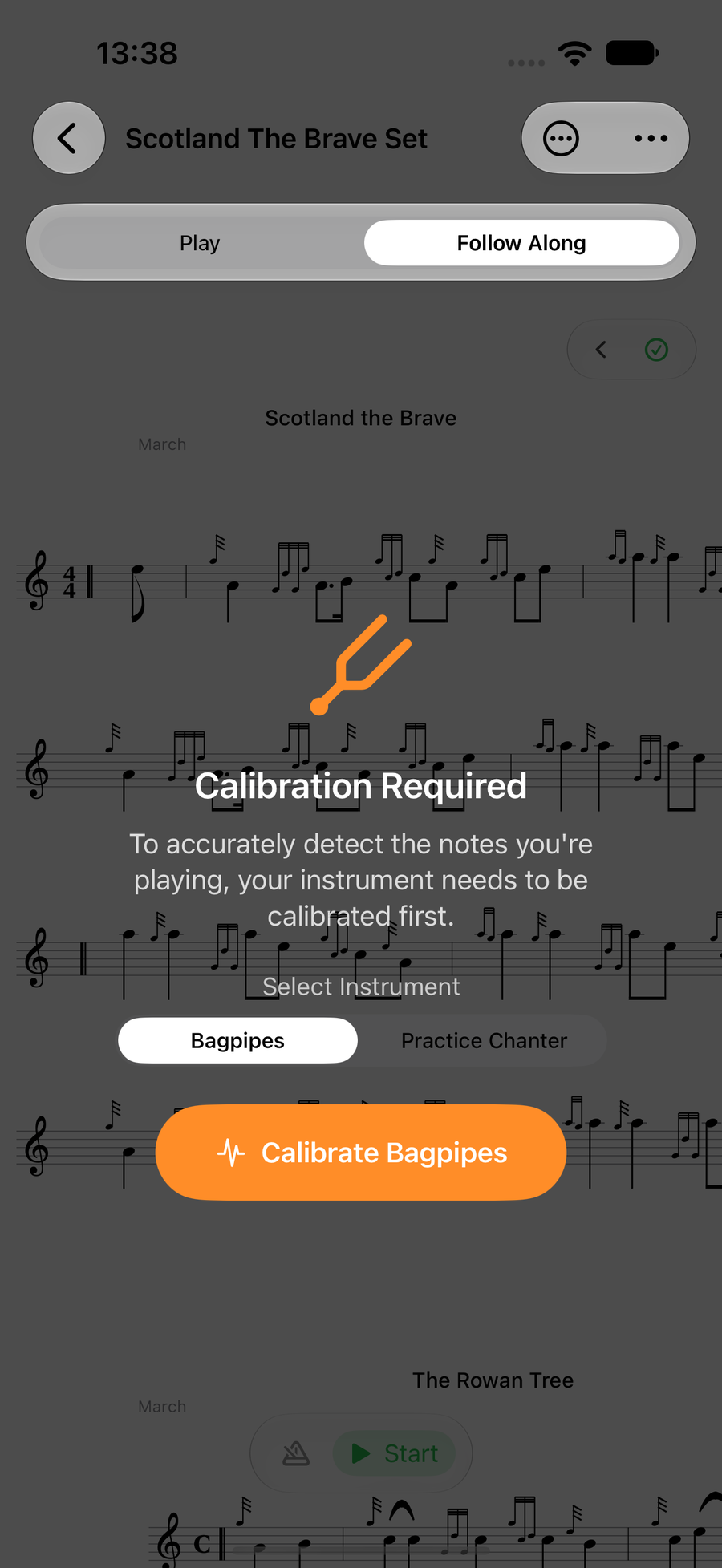
Calibration Required, with the instrument choice and the Calibrate button -
3
Say whether to record your runs
The first time, Ultimate Piper asks Record Your Runs? Choose Record My Runs to keep each run, so Progress can show the bars you miss most and you can listen back. Choose Not Now to follow along without keeping anything. You can change this any time in Settings, under Follow Along.
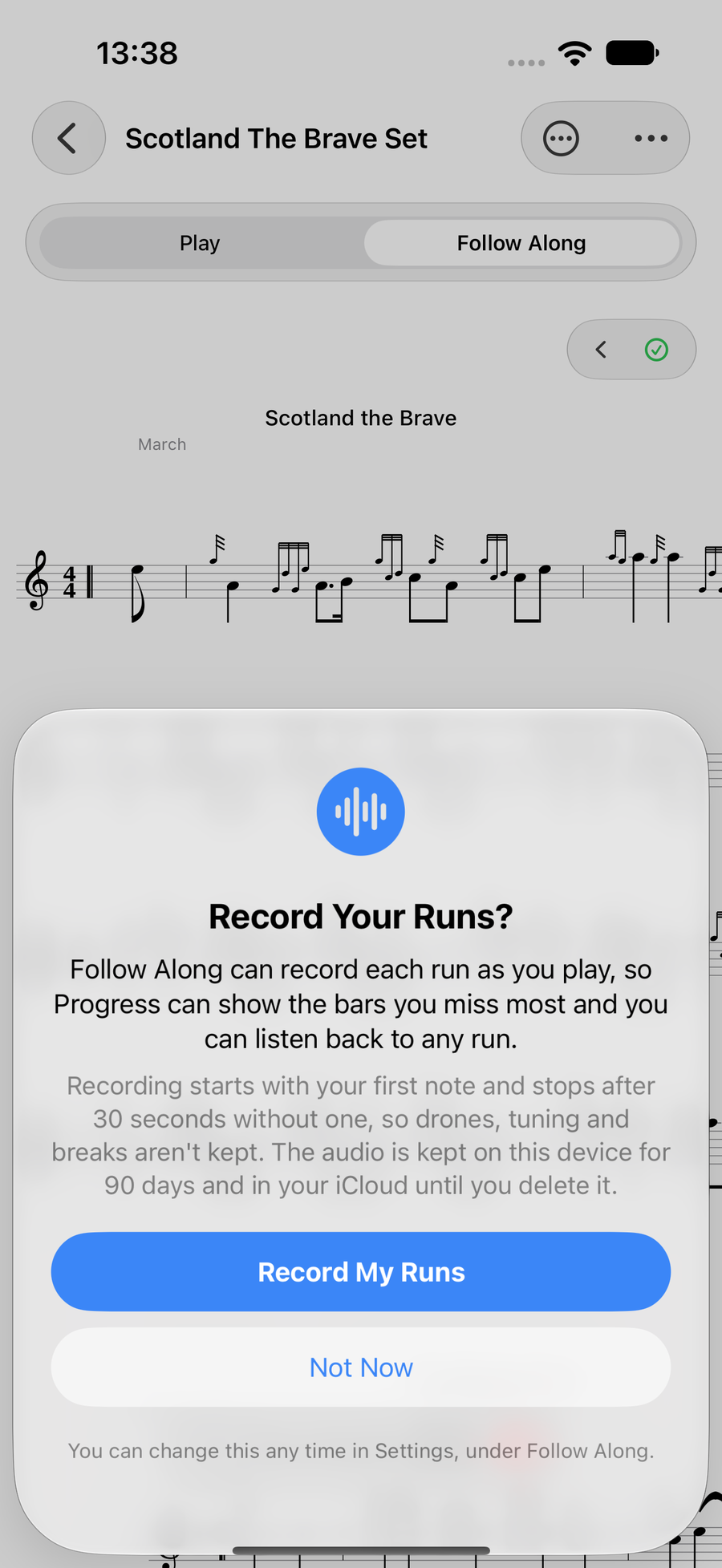
The Record Your Runs? sheet with Record My Runs and Not Now -
4
Choose your part
If the tune has harmonies, the M buttonthe Melody buttonthe Melody button in the Follow Along bar picks the part you play. TapTapClick it and choose Melody, Harmony 1 or any other harmony, and Follow Along listens for that part. It is there while you play and whenever you have stopped, but not while the app waits for your steady E.
Progress keeps each part's runs apart. On a tune with harmonies, its Part shown menu switches between them.
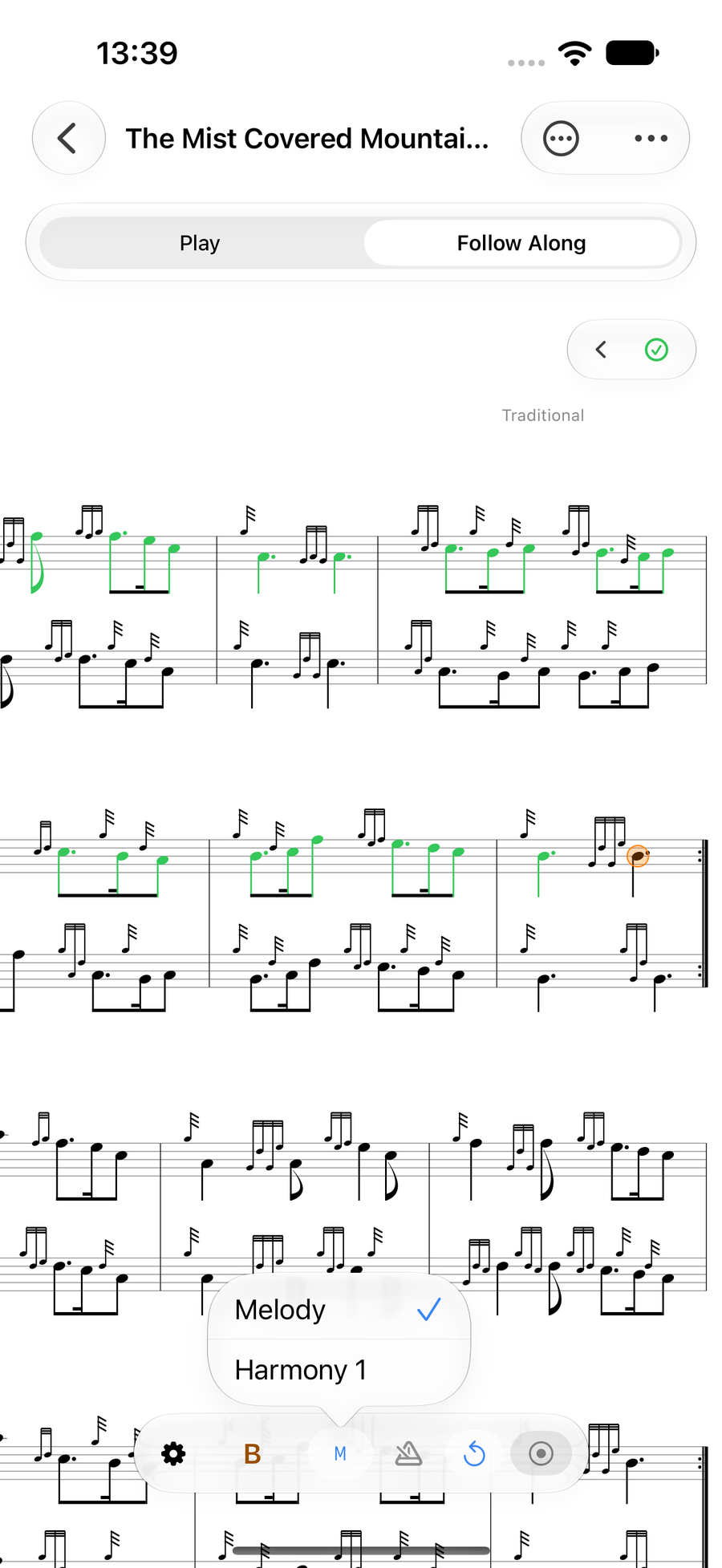
Choosing the part to follow -
5
Play
Follow Along starts listening as soon as you choose it, and keeps listening. On the pipes, it first asks you to Play a steady E: hold it for two seconds to strike in, and the ring fills as it hears you, or choose Skip. Then play from the top. The cursor waits for the opening notes and moves with you, lighting each note as you play it. To go again from the start, press in the bar at the foot of the score.
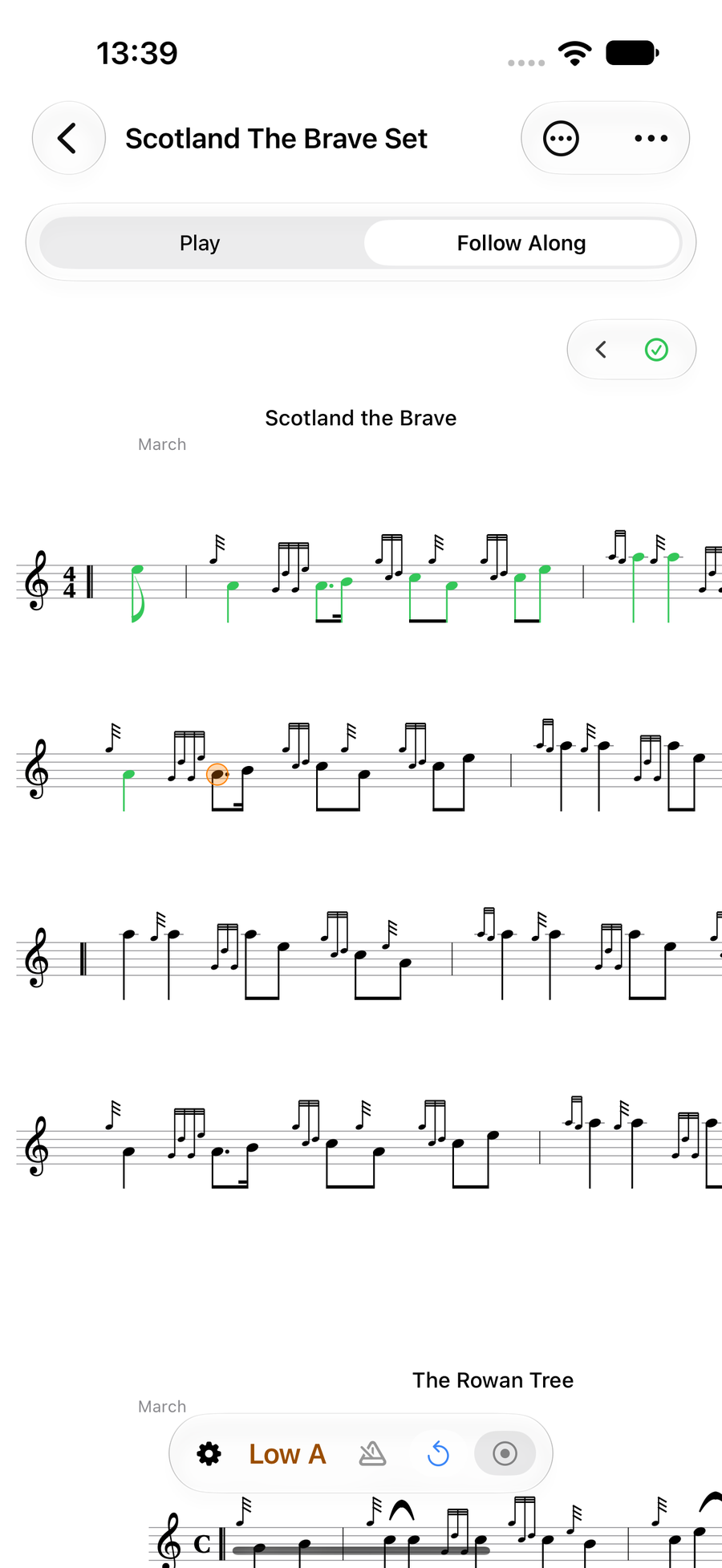
The cursor part-way through the first line while playing -
6
Finish the run
Play on to the end of the tune or set. When Follow Along hears your last few notes, it waits two seconds, closes the run and scrolls back to the top, ready for another go. If you stop part-way instead, the recording ends after 30 seconds without a note, so breaks, tuning and drones are not kept.
The strip above the score says Measuring your last run… while the app listens back to the whole recording, then gives the result against your best, such as 95% right. Your best is 99%. A dot appears on Progress.
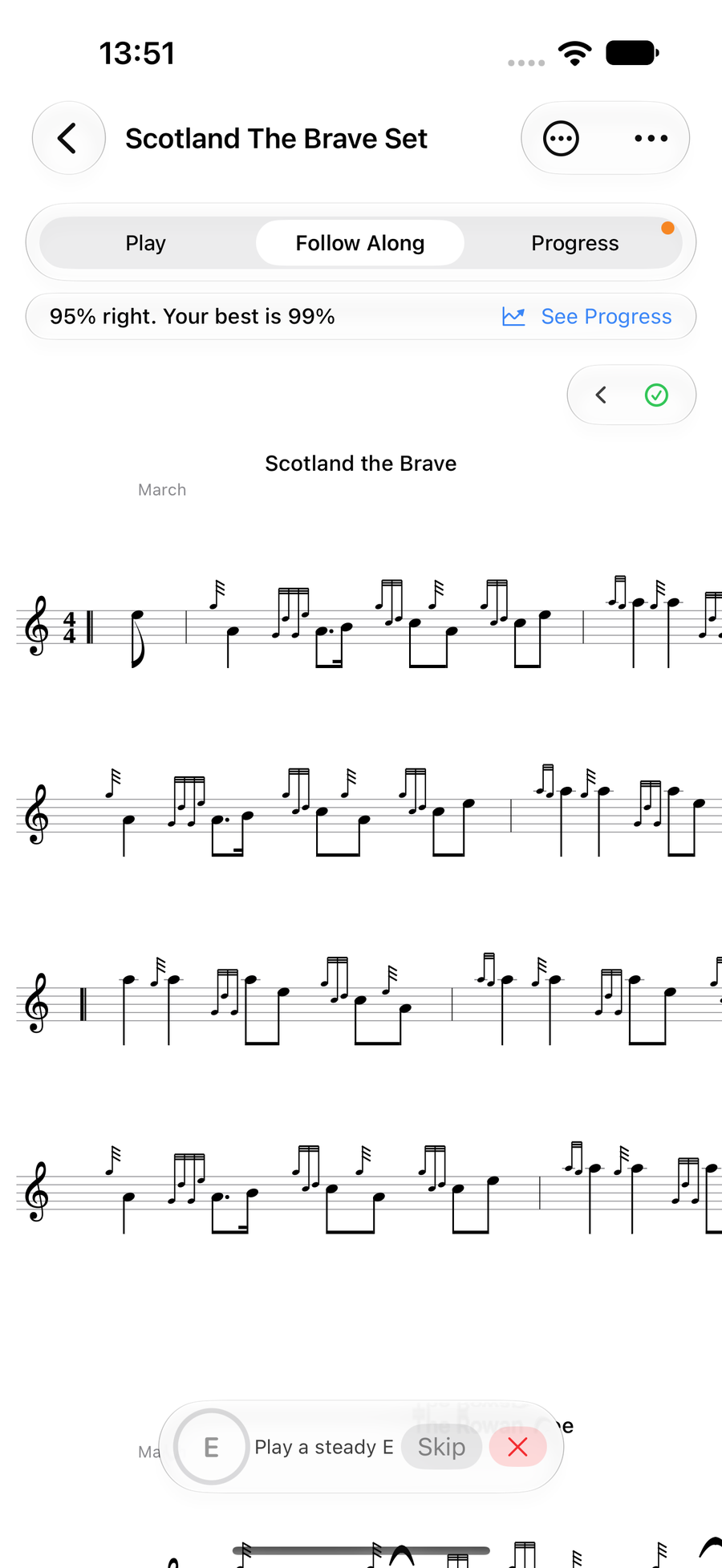
The result of a run, with See Progress and a dot on Progress -
7
See it in Progress
TapTapClick See Progress, or the Progress choice above the score, which appears once you have recorded a run. The run is laid over the score, notes coloured by how they went, because the app listened back to the whole recording, so a run you played well is still marked even if the live tracker lost its place. See the bars you miss most shows what else Progress can do.
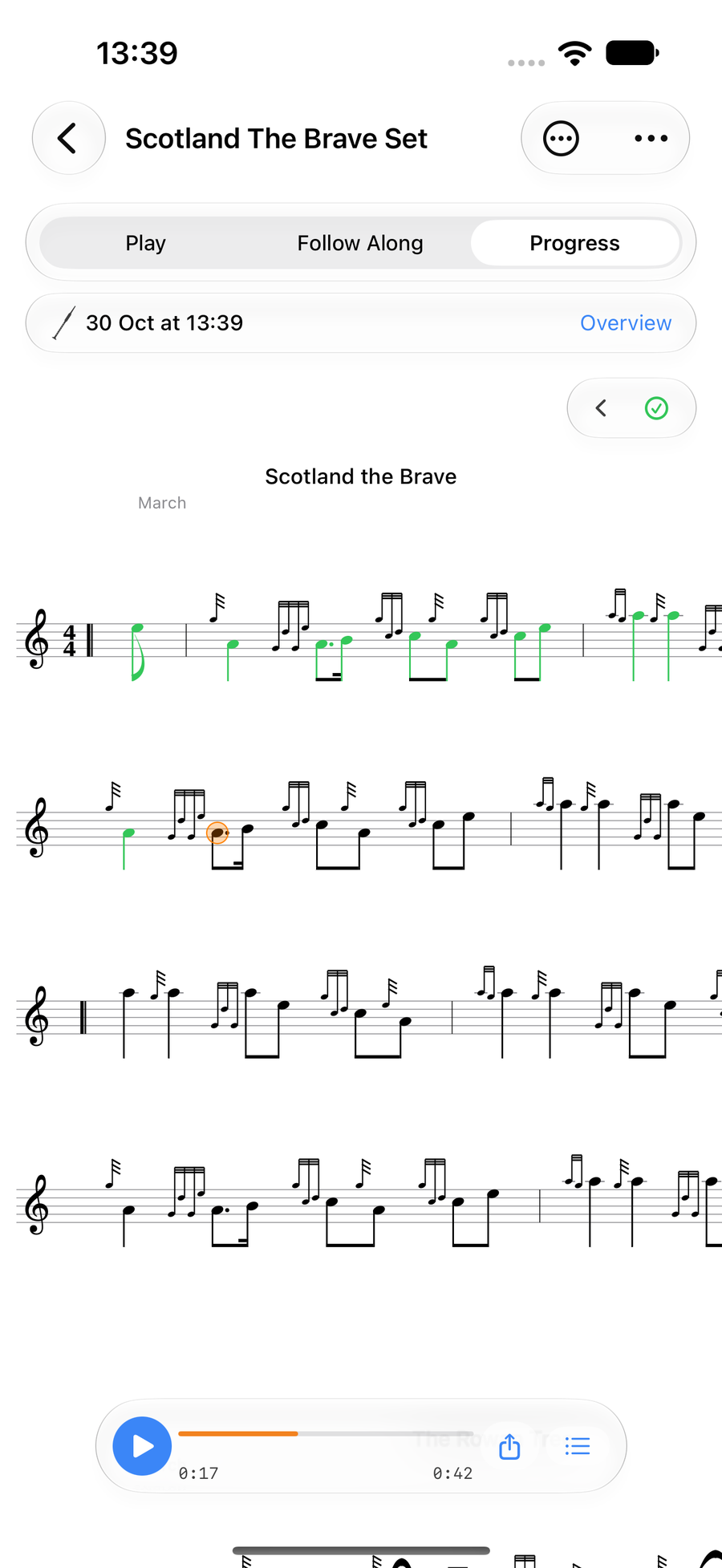
The score after a run, with notes coloured by how they went -
8
Listen back any time
TapTapClick in the bar at the foot of a run for Follow Along Sessions: your runs are listed there, each with its length and what it scored. Tap one to hear it played back on the score. If a run scores strangely, Send Run to Developer on that run sends it to us to look at.
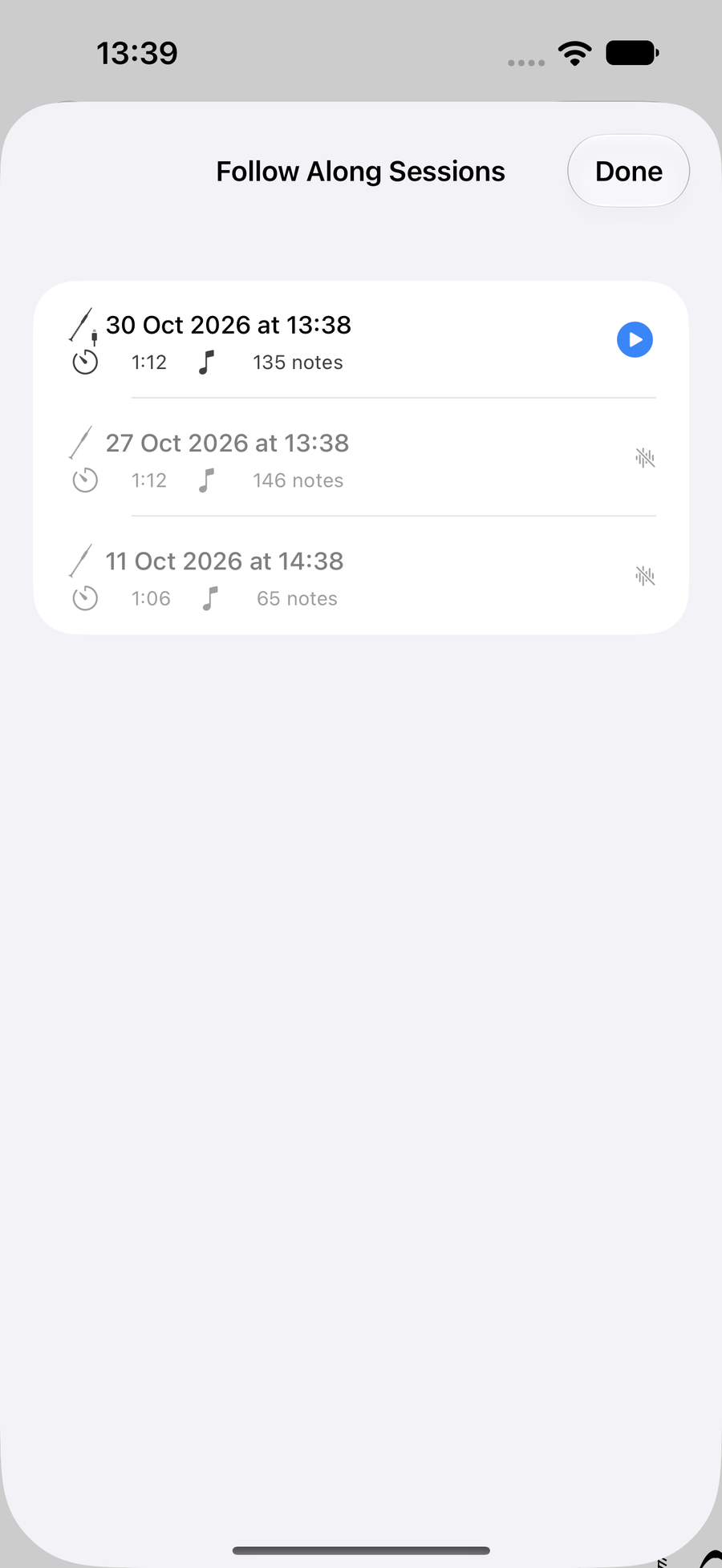
The Follow Along Sessions list
Next
- Open Progress to see the bars you miss most across your runs.
- Mark the tune as Focus and it joins every practice session you start.