You will need: a few Follow Along runs of a tune, recorded. Progress is part of Premium.
Watch a whole run
A real run of the Medley Reels on a practice chanter, followed note by note, then measured: Progress colours every bar by how it went. Turn the sound on to hear the playing.
-
1
Open Progress
Once you have recorded a run of a tune, a third choice appears above the score: Progress. Choose it and the score becomes a heat map of your last five runs. Every bar, note and gracenote is coloured by how often it was missed across those runs: green when it never was, through yellow and orange to red when it was missed in most of them. A wrong gracenote counts as missed. So a bar can read pale green while one note in it burns red, and that note is the one to work on.
The strip at the top shows your last run beside your best, such as Last 96% · Best 100%. Once a tune has runs on both your practice chanter and your pipes, a Chanter / Pipes menu at the start of the strip shows one instrument's runs at a time, starting with the instrument you have chosen, so a good week on the chanter is never pulled down by one run on the pipes.
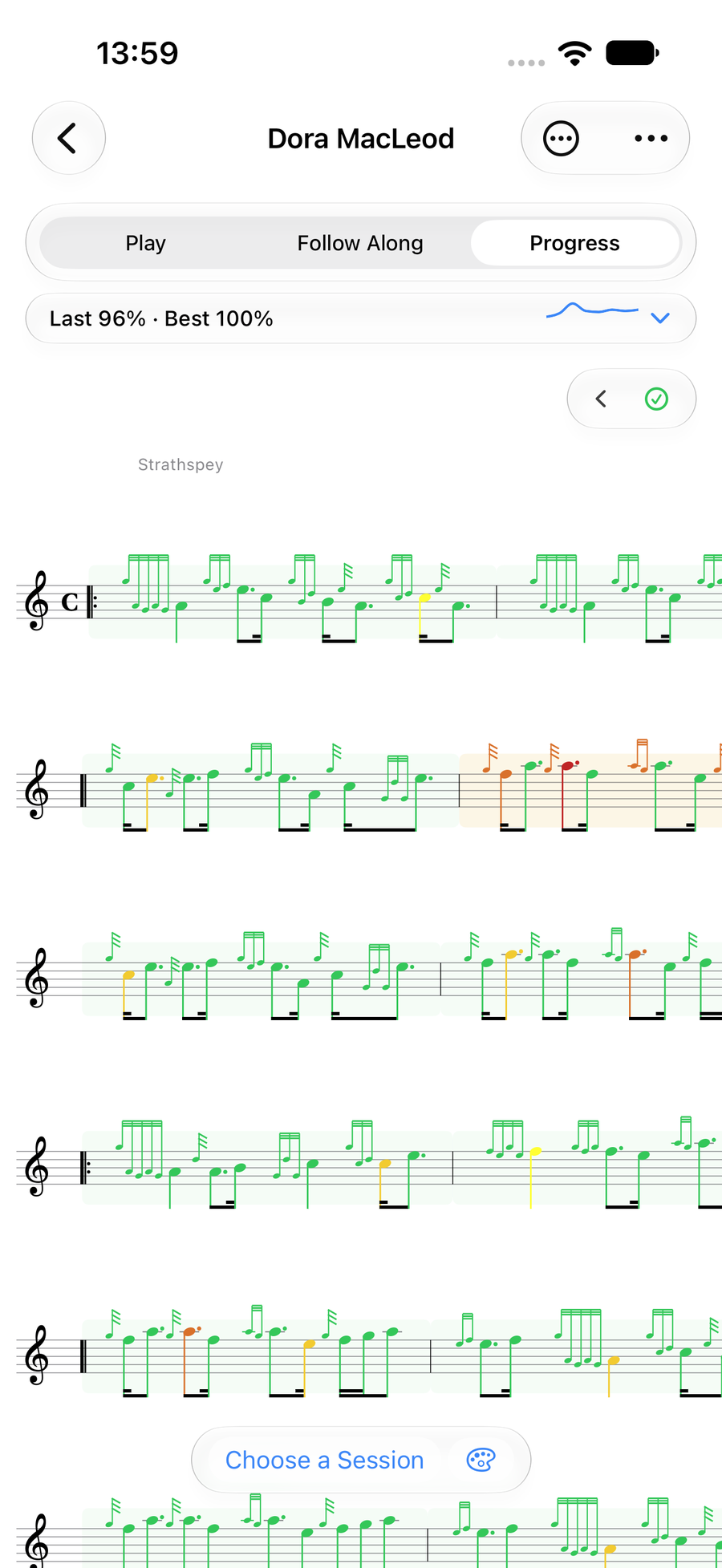
The score coloured by your last five runs, bar by bar and note by note -
2
See what the colours mean
TapTapClick the palette button at the right of the bar along the bottom. Your recent runs’ colours shows the scale the bars use and, beside it, the same scale for notes and gracenotes, from rarely missed to often missed. Once you choose a run, the same button shows This run’s colours instead: right or wrong the first time through, the second, or both, and gracenotes played, missed or wrong. In Follow Along it shows the colours the score takes as you play, with the switch for showing detected note colours.
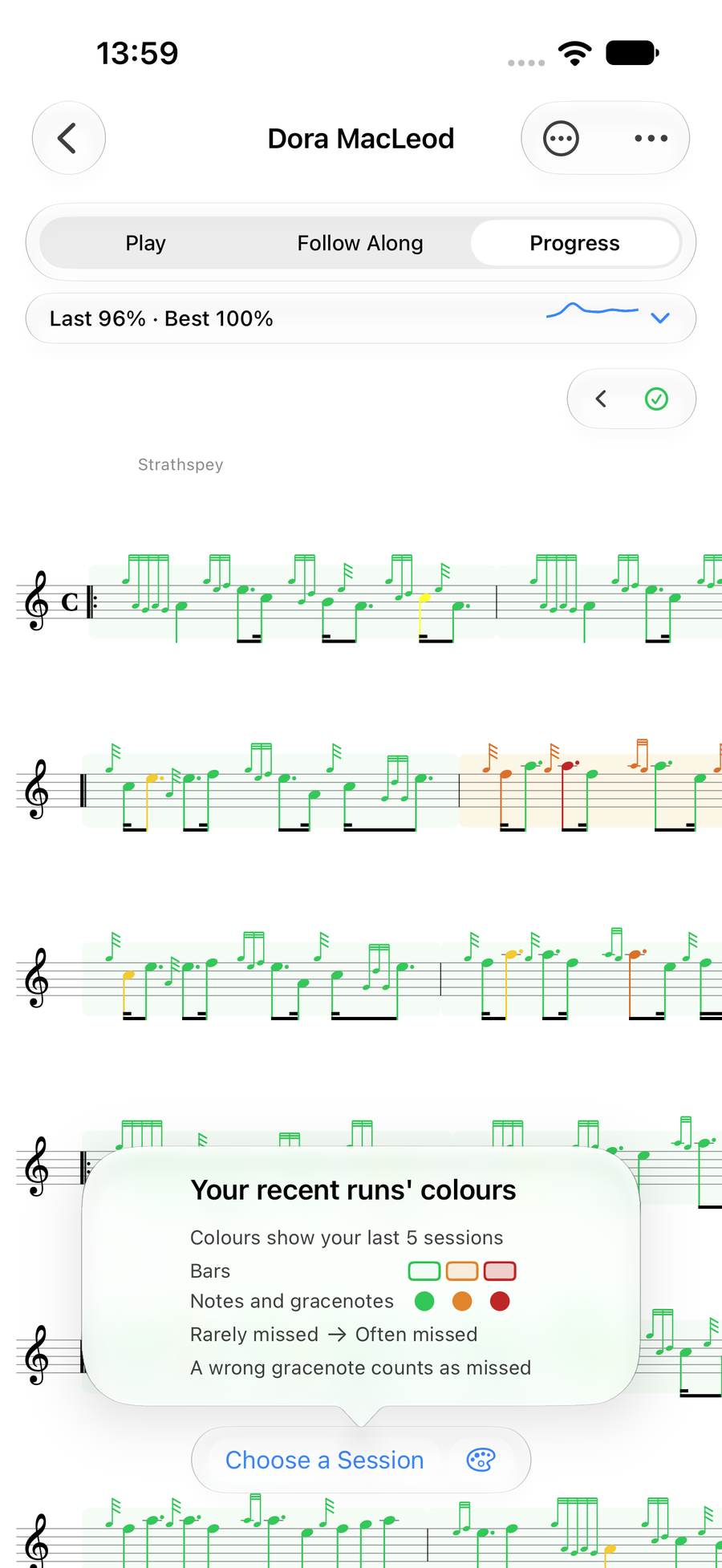
What the colours mean, from the palette button -
3
See your accuracy over time
TapTapClick the little chart in the strip. It opens your accuracy run by run, and underneath it your Most Missed Bars: each one by line and bar, with how many notes and gracenotes you missed and the share of runs it went wrong. Past twenty runs the chart shows twenty at a time and opens on the latest: swipeswipedrag it sideways for older runs, and taptapclick a run for its label.
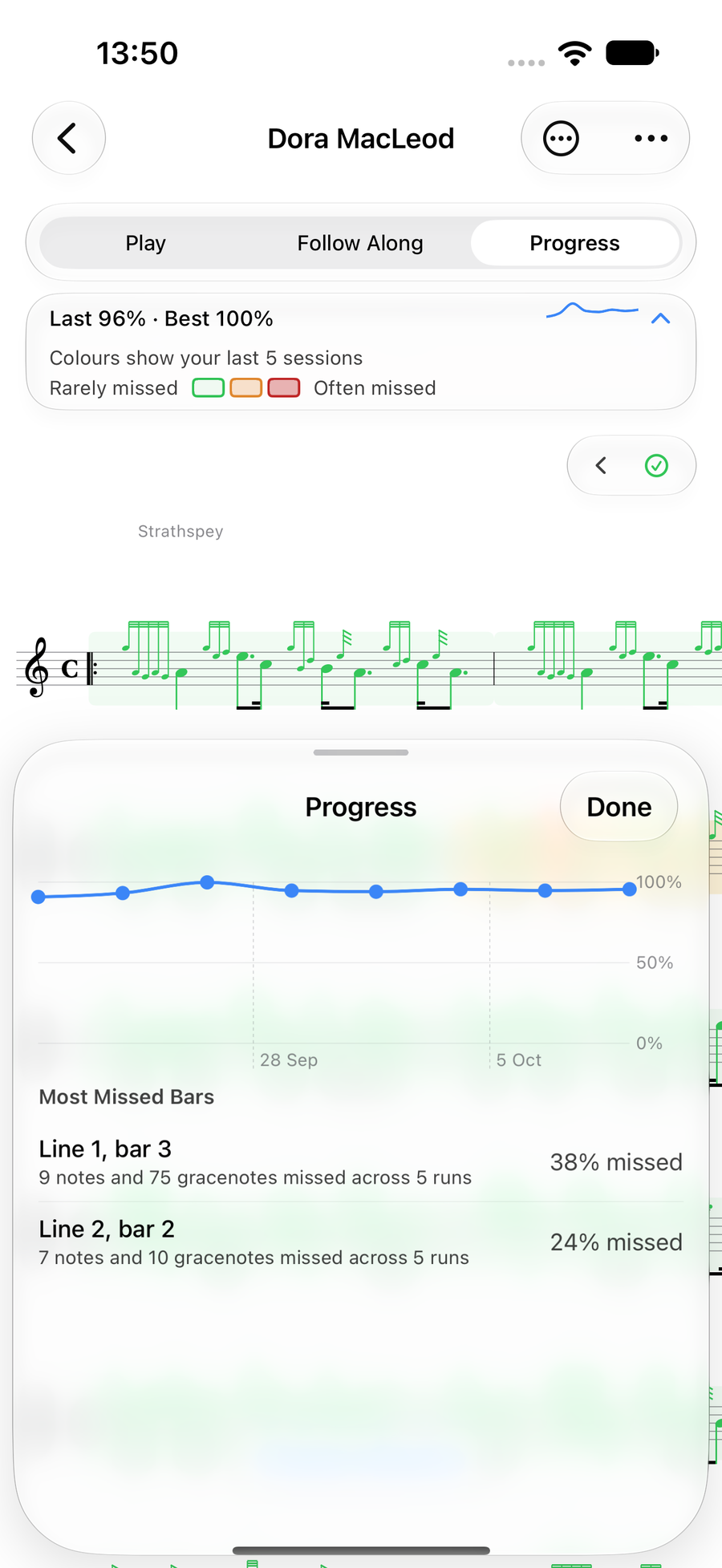
Accuracy over time and the Most Missed Bars -
4
Pick the bar to work on
TapTapClick a Most Missed Bar, or taptapclick any bar on the score, and it is selected. The bar at the foot says how many bars are chosen; Change… widens the choice, and Practice opens them in the Practice Loop.
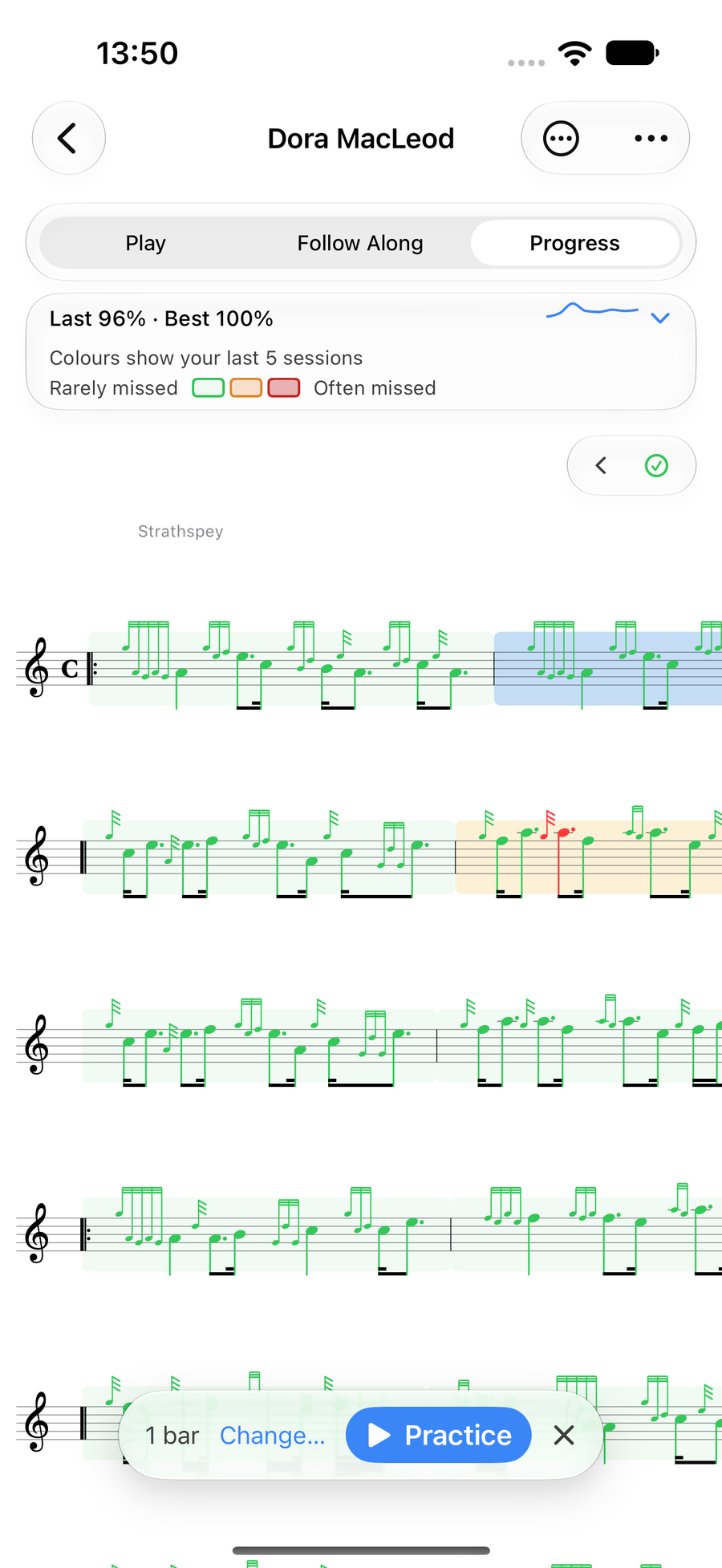
One bar selected, ready to practise -
5
Loop it
The Practice Loop plays just those bars, round and round. Use Play to hear them. Set the tempo, keep Loop on, turn on Auto + to go a little faster each time round, and switch on the Metronome at the end of the tempo line to hear the beat.
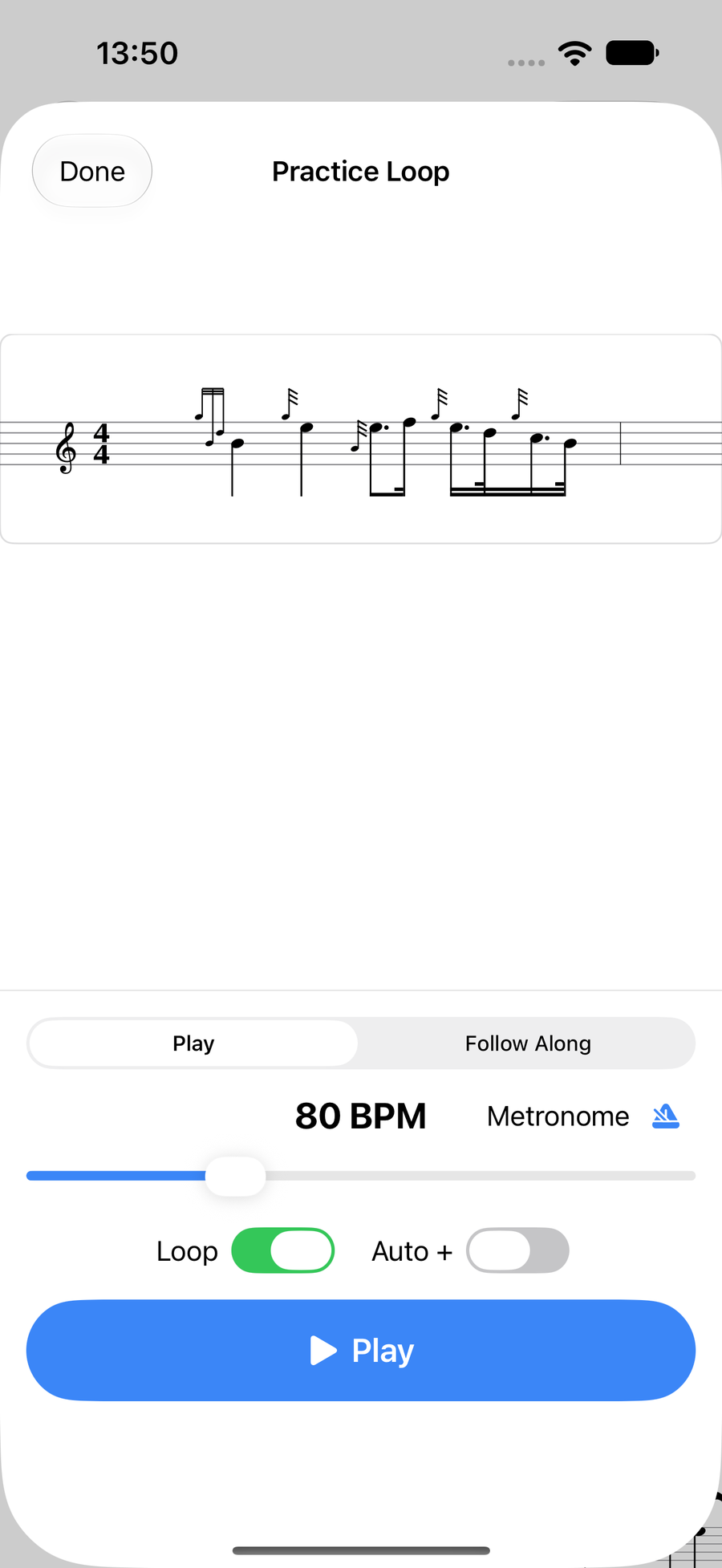
The Practice Loop with tempo, Loop, Auto +, Metronome and Play -
6
Pause, stop, or play it yourself
While the loop plays, Pause holds the bars where they are and Stop goes back to the start. Choose Follow Along instead, then Start, to play the bars yourself and be followed; while it is following you, taptapclick a note to move the cursor to it.
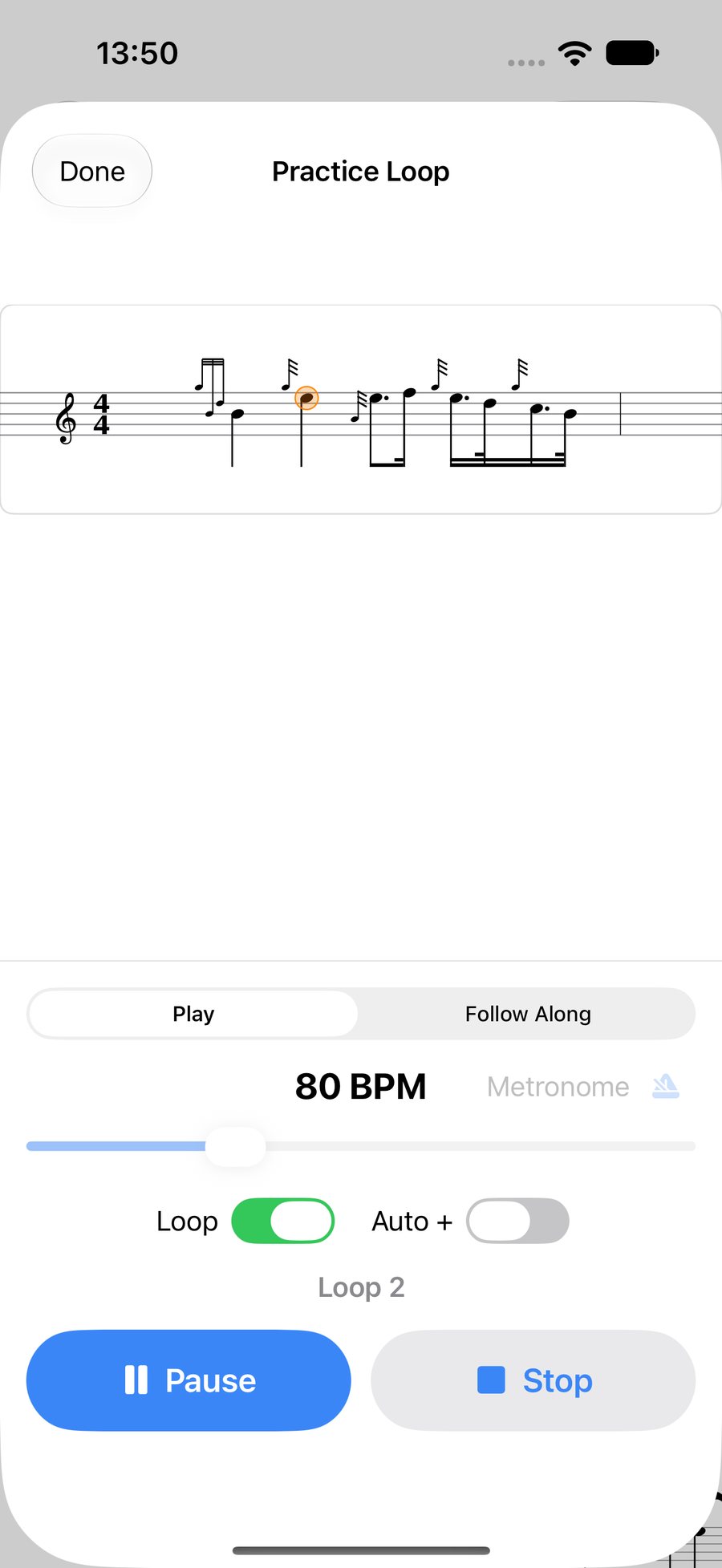
The Practice Loop playing, with Pause and Stop -
7
See how a run went
After every Follow Along run the strip says how it went against your best, such as 95% right. Your best is 99%, with See Progress beside it. The app listens back to the whole recording before it settles the score, so the heat map updates a few seconds after you stop.
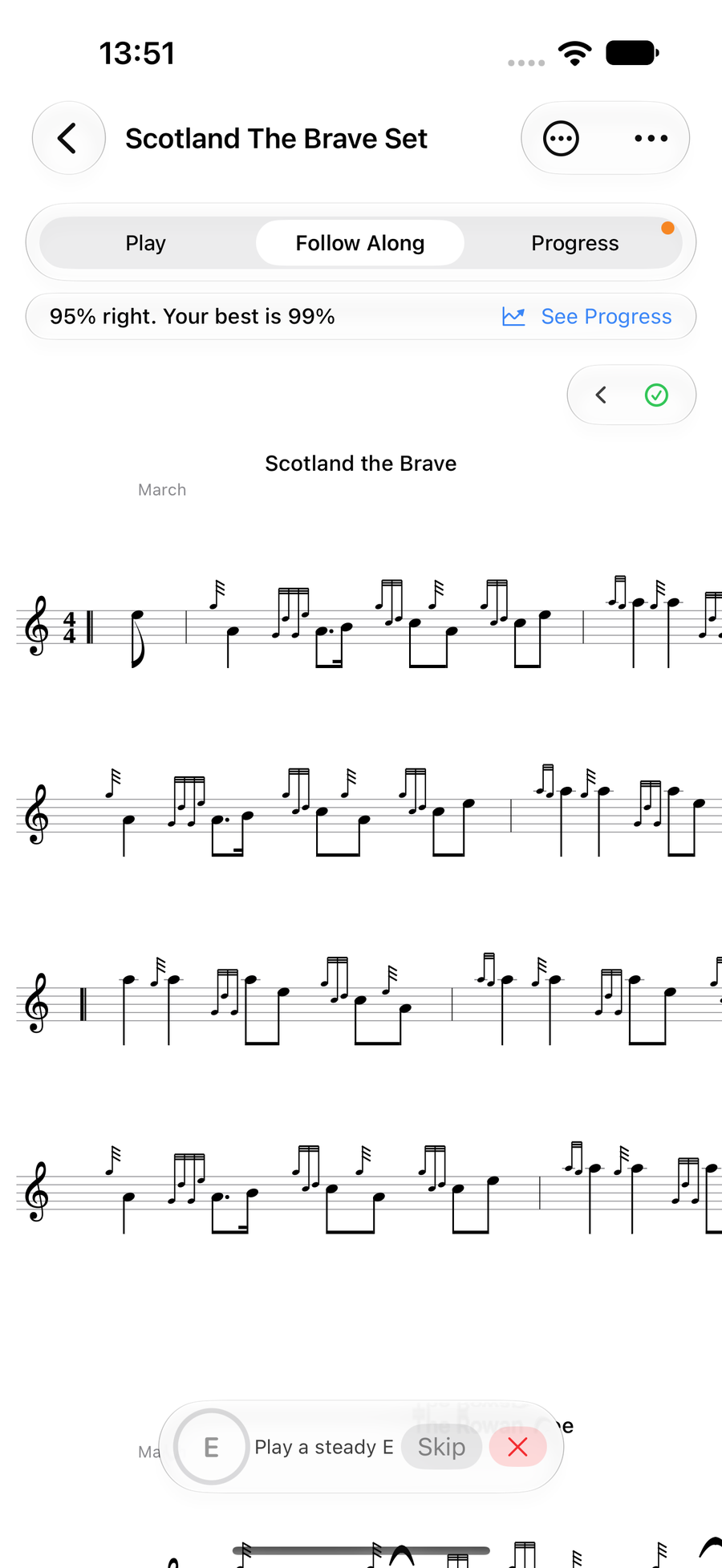
A run's result against your best
Next
- Not recording yet? Play your first tune with Follow Along and say yes to Record My Runs.
- Mark the tune as Focus and it joins every practice session you start.