You will need: Ultimate Piper on more than one device, signed into the same iCloud account.
-
1
Read the line under Library
The small line under Library says where sync stands: Updated just now, or how long ago it last heard from iCloud. Pull the library down to sync straight away.Pull the library down to sync straight away.Click the cloud at the top of the sidebar to sync straight away. Not signed into iCloud means tunes stay on this device only, and Couldn't reach iCloud means try again in a moment.
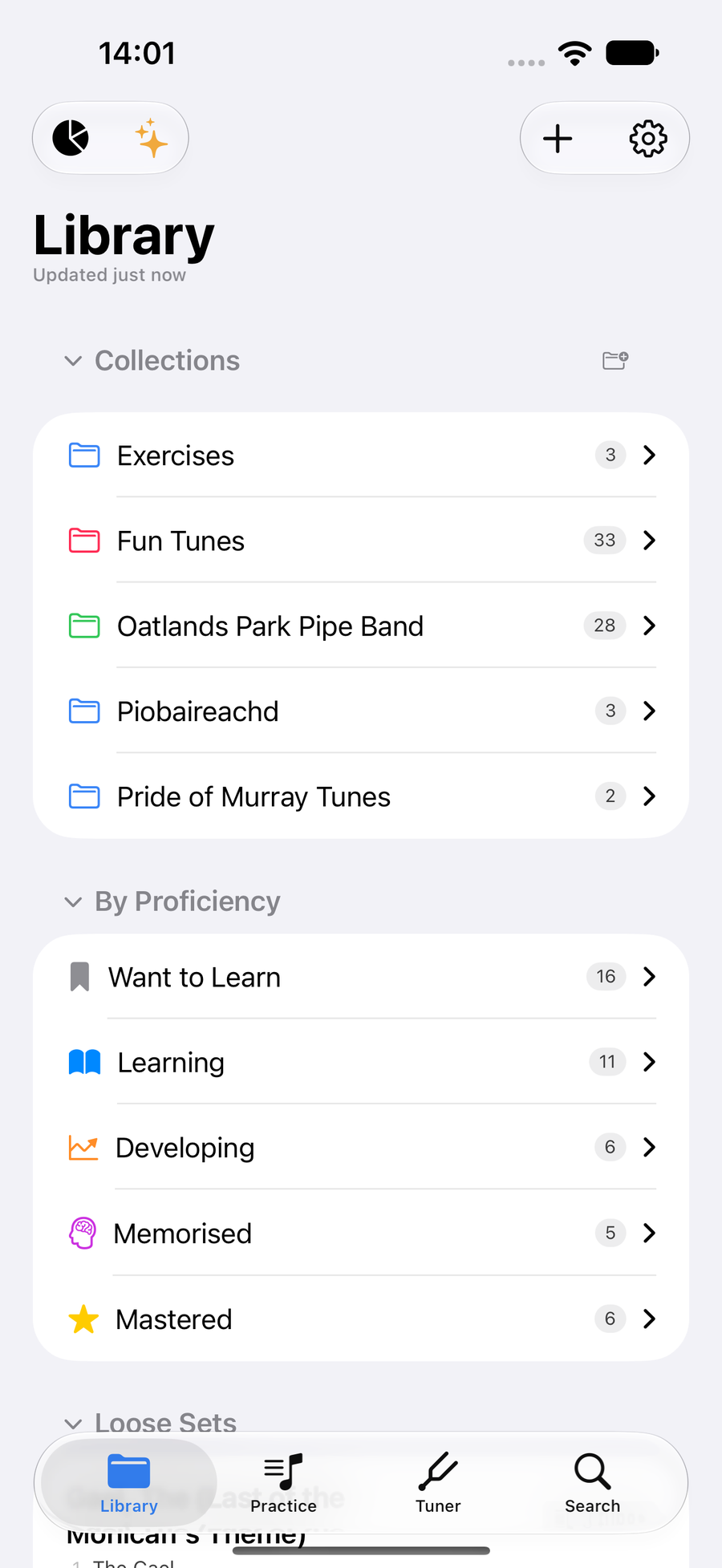
Updated just now, under Library -
2
Carry on offline
With no network the line says Offline — will sync when back online, and refreshing ends at once rather than waiting. Keep playing, editing and practising: anything you change or delete is kept, and sent by itself when the network comes back.
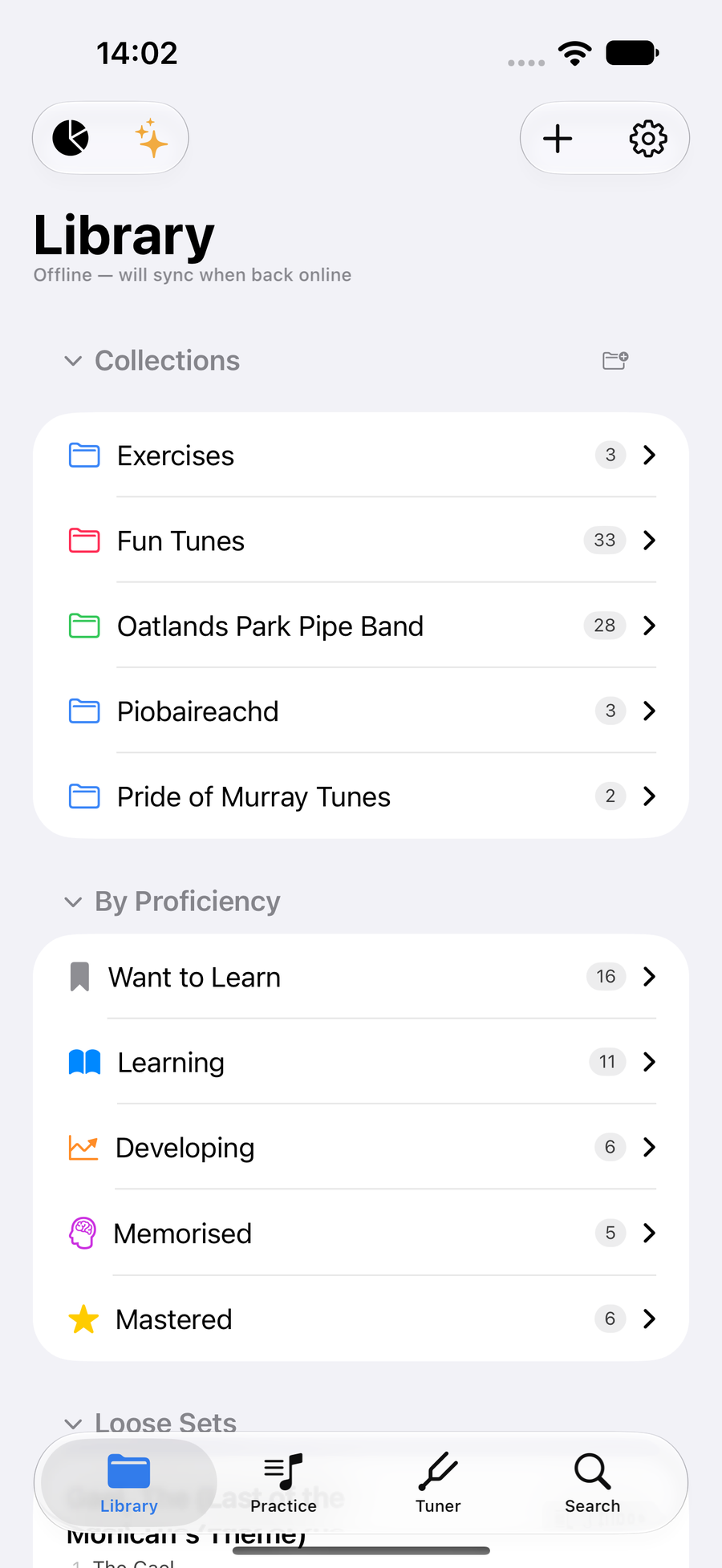
Offline, will sync when back online -
3
Let a shared folder finish arriving
A big folder someone shares with you arrives in stages, and says so, such as Downloading 28 of 75. Leave the app open on Wi-Fi and it carries on by itself. A tune whose score is not on this device yet downloads when you open it, and the spinner says so.
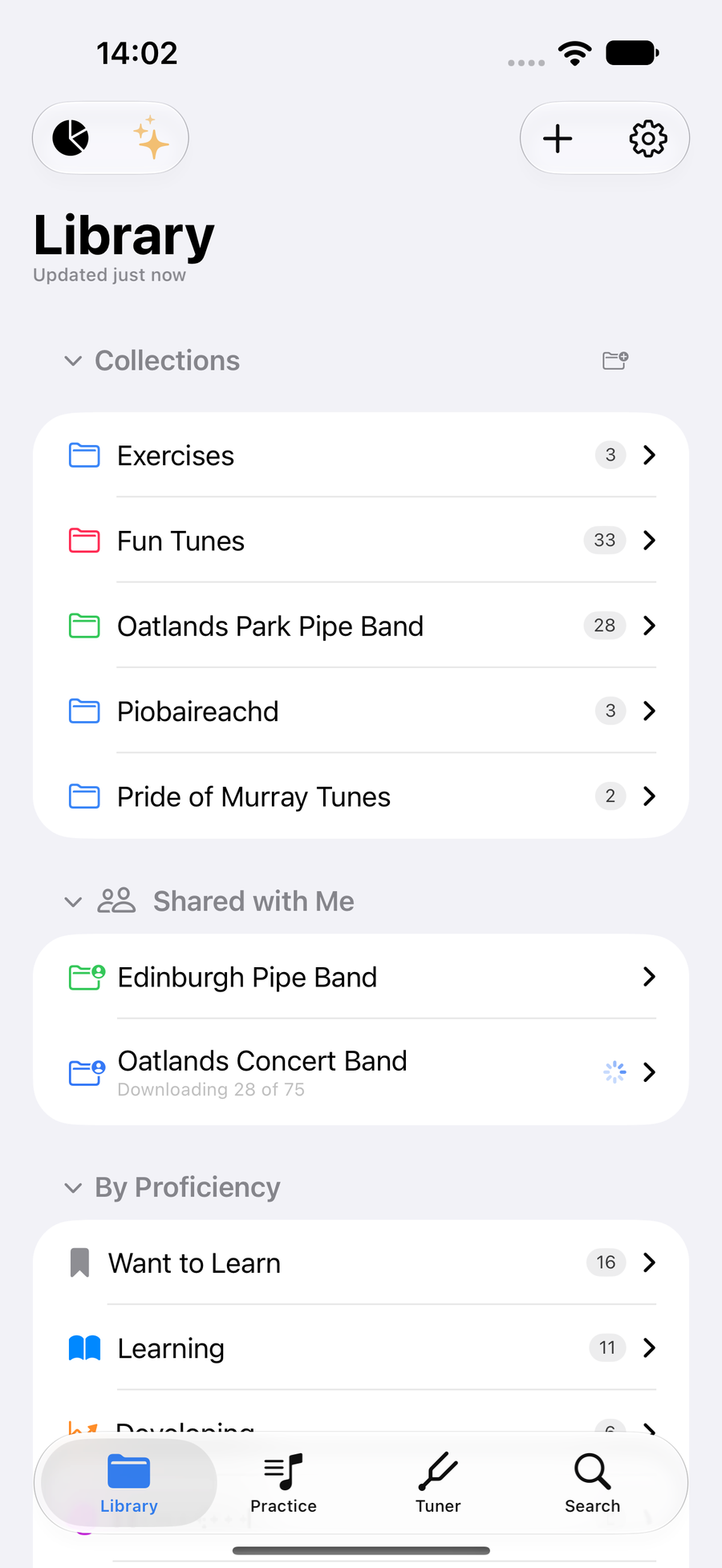
A shared folder still arriving -
4
If a device still looks behind
Open Settings and go to Data. Force Full Sync downloads your whole library from iCloud again; nothing is deleted or uploaded. Recently Deleted brings back a tune deleted by mistake. Under Storage, Clear Cache frees space; the library comes back from iCloud by itself.
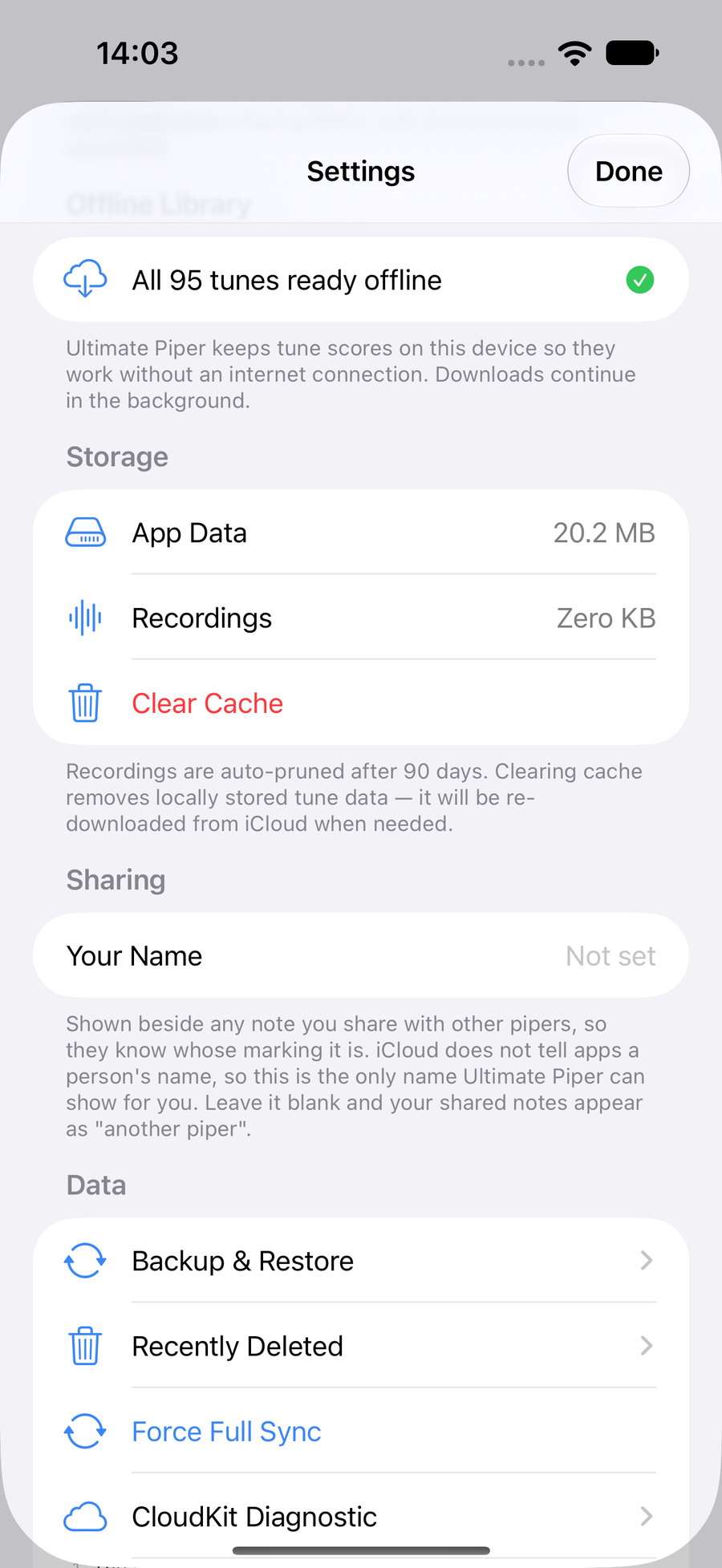
Settings, Data, with Force Full Sync
Next
- Working with your band? Share tunes with your band.
- Changes to the same tune on two devices are combined; if both changed the same thing, you choose which to keep.