You will need: the tunes in a folder, and the people you want to share with signed into iCloud.
-
1
Share a folder
In the library, press and holdpress and holdright-click a folder and choose Share Folder.... Invite people by message or mail, and choose whether each can edit the tunes or only view them. A shared folder's menu then offers Sharing Settings... to see who has it and change what they can do, and Stop Sharing.
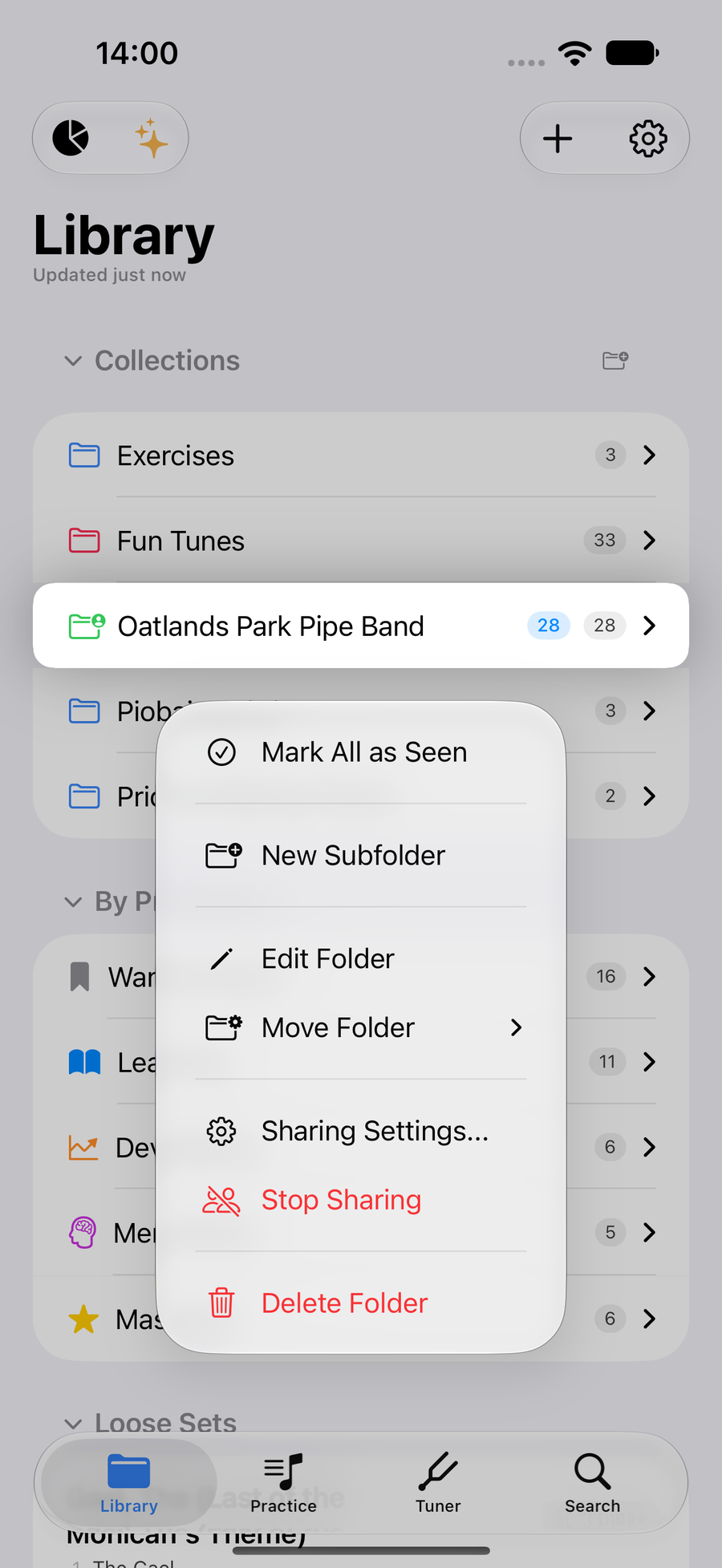
A shared folder's menu with Sharing Settings -
2
Open a folder shared with you
When someone shares a folder with you, accept the invitation and it appears in the library under Shared with Me. A big folder fills in as it downloads, and says how far it has got, such as Downloading 28 of 75. Changes the owner makes reach you by themselves. A shared tune then works like your own: add it to Focus, to a practice session or to a set, and search finds it with its folder named. Editing it depends on whether the share allows edits, and Save to My Library keeps your own copy.
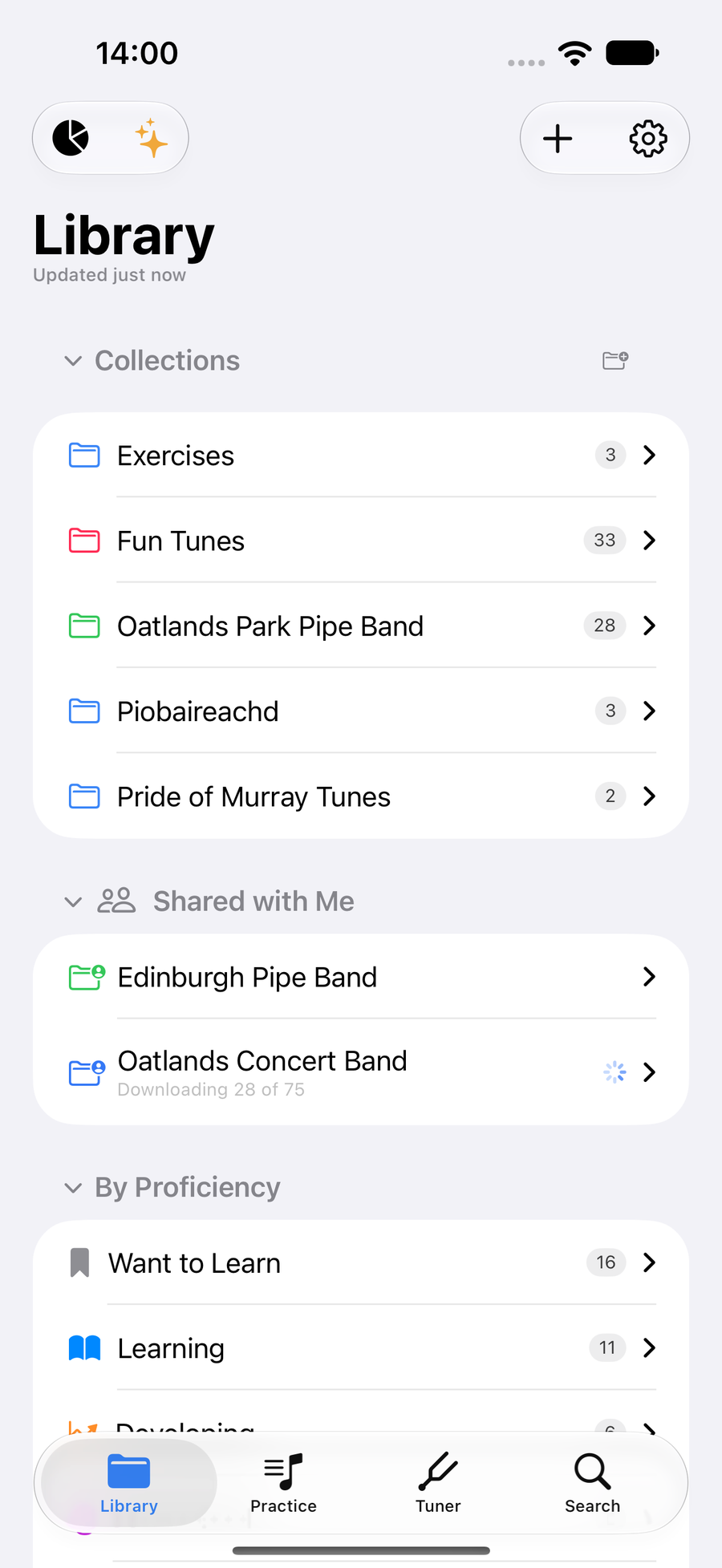
Shared with Me, with a folder still arriving -
3
Write a note on the score
Above the score, taptapclick the pencil to Create annotation, then taptapclick the first note and the last note it covers. Type the note, such as a reminder to keep the doublings even, and pick a colour. It appears under those notes every time anyone opens the tune.
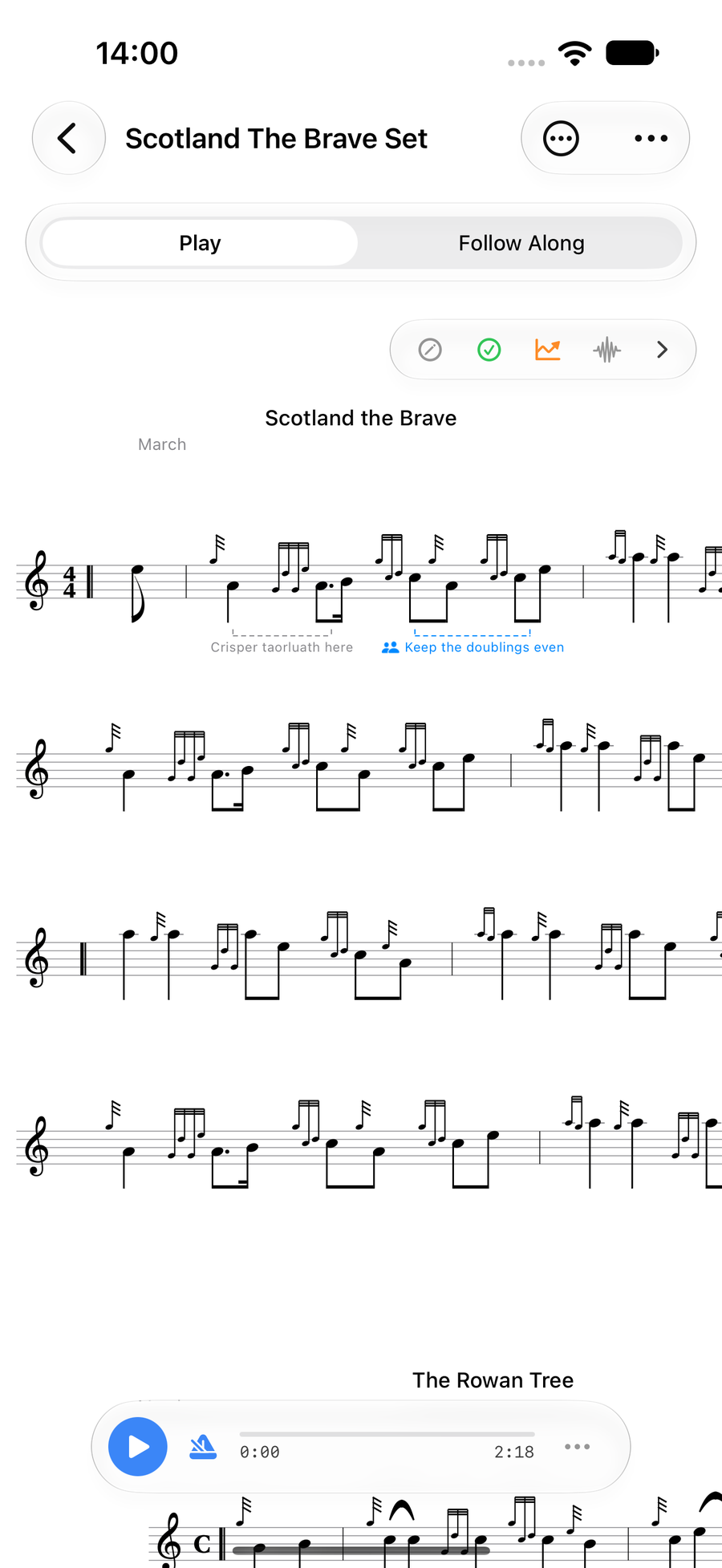
Notes written under the score -
4
Choose who sees it
On a tune in a shared folder, each note asks Who Can See This: Only Me keeps it to yourself, and Everyone With This Folder shows it to the whole band. A pipe major can leave instructions for everyone, and you can keep your own reminders private beside them.
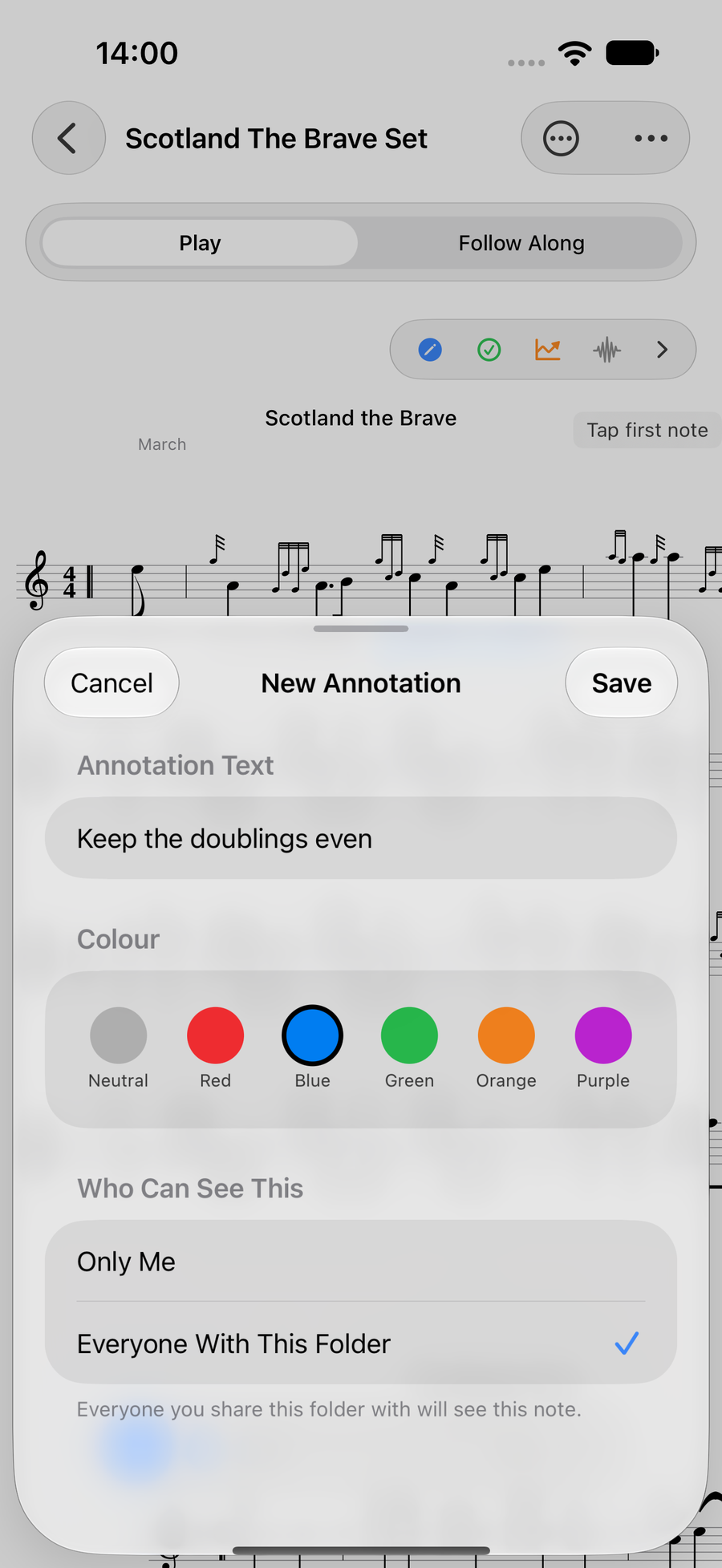
New Annotation, choosing who can see it
Next
- Run a practice session on the band's tunes.
- Edits to shared tunes are merged when two people change different parts; see Edit a tune.