You will need: your pipes or practice chanter, in tune, and a quiet room.
-
1
Why it asks
Every chanter sits at its own pitch. The first time you choose Follow Along on an instrument, the app shows Calibration Required and asks which you are playing, Bagpipes or Practice Chanter. Choose, then press Calibrate. A MIDI chanter such as a Blair Digital Chanter needs no calibration.
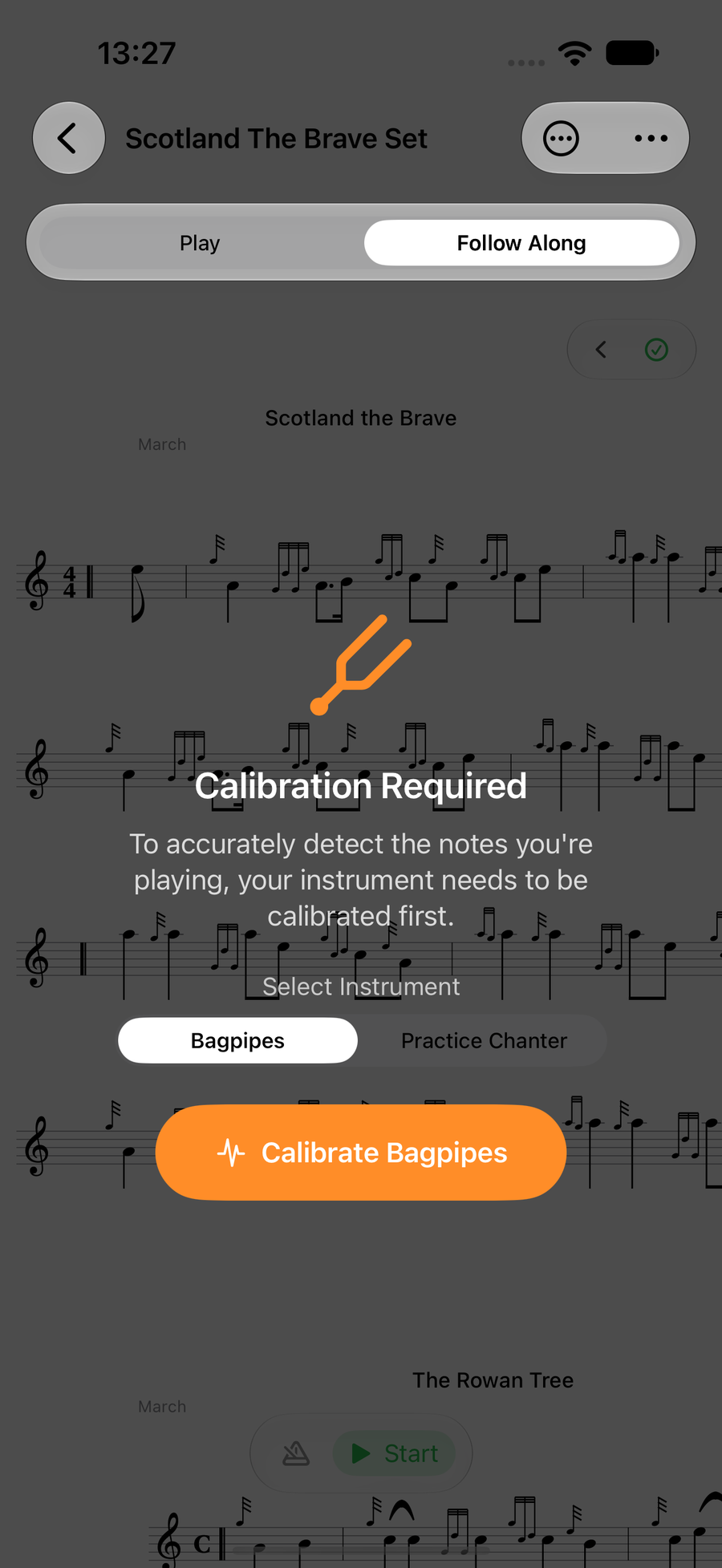
Calibration Required, with the instrument choice -
2
Play each note
The app counts you in, then asks for each note in turn from Low G up, three seconds a note: Play Low A, and so on. Hold each one steady. A note turns green with its pitch beside it once it is heard, and the Audio Level bar shows the microphone is picking you up. Stop pauses; taptapclick any finished note to record it again.
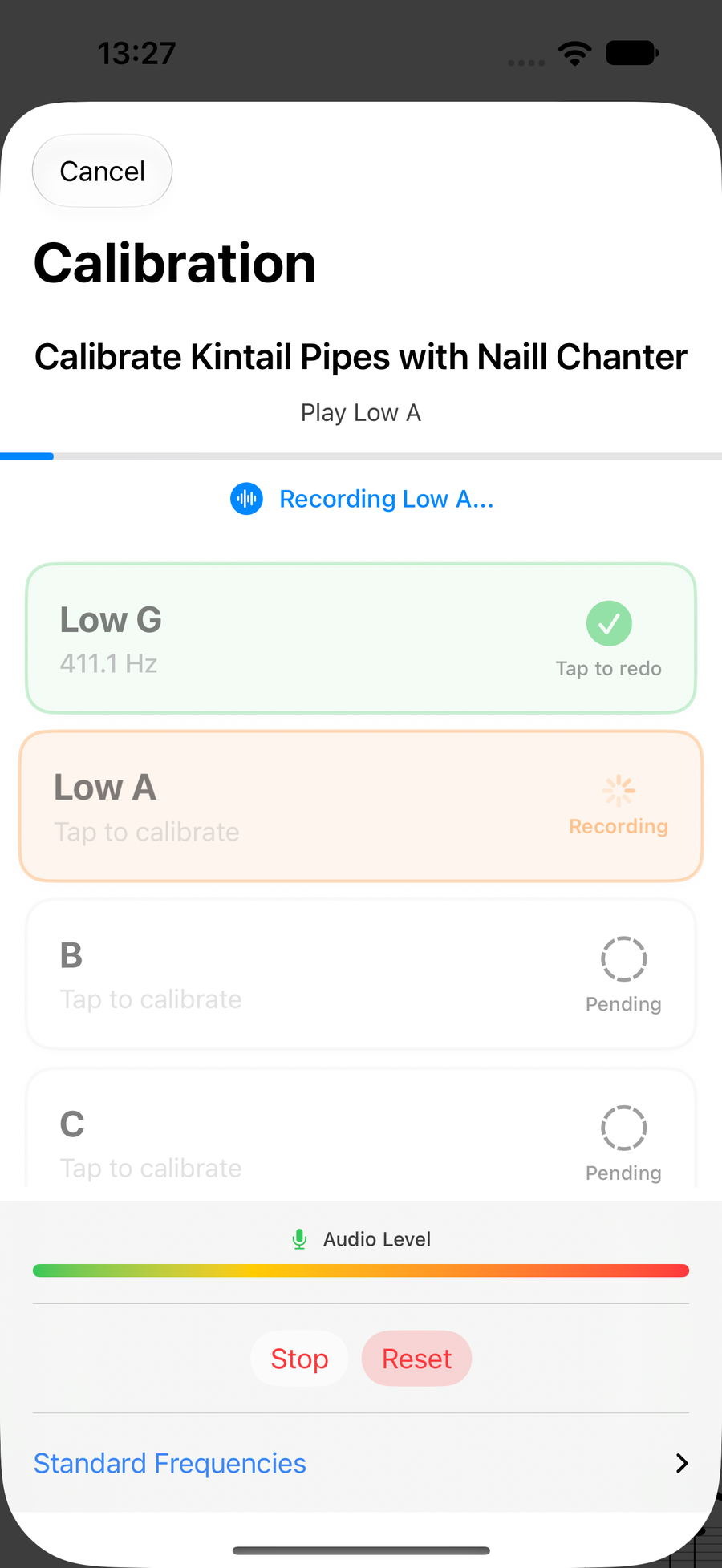
Calibrating, with Low G heard and Low A recording -
3
If a note comes out below the one before it
Each note should sit higher than the one below it. When a note is captured lower than the note before it, from a wrong finger, a squeal or a harmonic, its row turns red and says which note it fell under, such as Lower than F. Left like that, Follow Along would confuse the two.
TapTapClick the row to record that note again. If anything is still out of order when you choose Save, the app says so first.
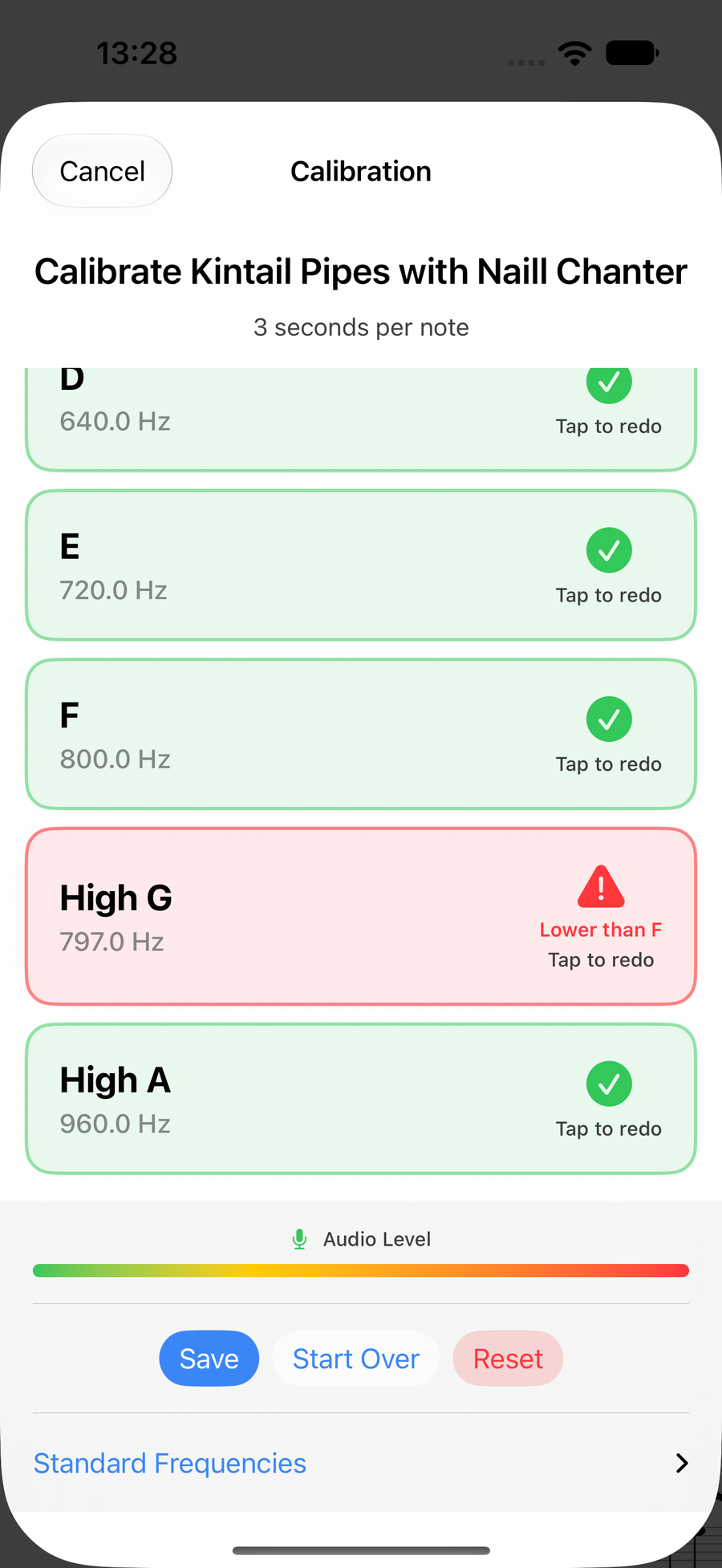
High G captured below F, flagged in red -
4
Save it
When all nine notes are in, choose Save. The calibration is kept for that instrument on every device signed into your iCloud, and Follow Along uses it from then on. Start Over clears it and begins again.
No chanter to hand? Standard Frequencies sets every note from a single Low A instead, which is close enough to get started.
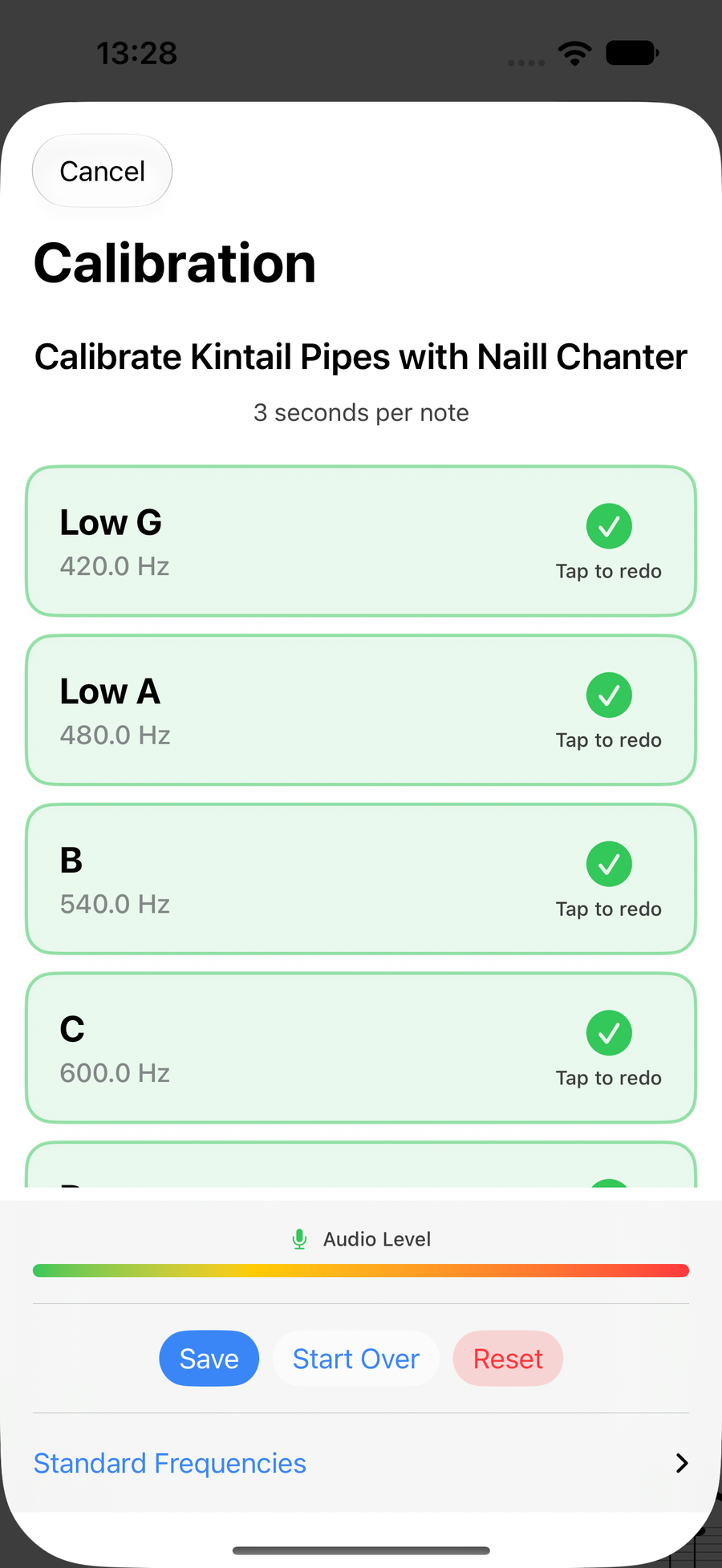
All nine notes calibrated, ready to save
Next
- Play your first tune with Follow Along.
- Make playback sound like your own pipes: record your own sample pack.