You will need: your pipes or practice chanter, warmed up and in tune, a quiet room, and about ten minutes.
-
1
Get ready
Open Settings, then Sample Packs, and choose Record new pack. Say whether you are recording Pipes or a Practice Chanter, and run down the checklist: warm up, find a quiet room, tune carefully, blow steadily, and keep your chanter to hand. Then choose I'm ready.
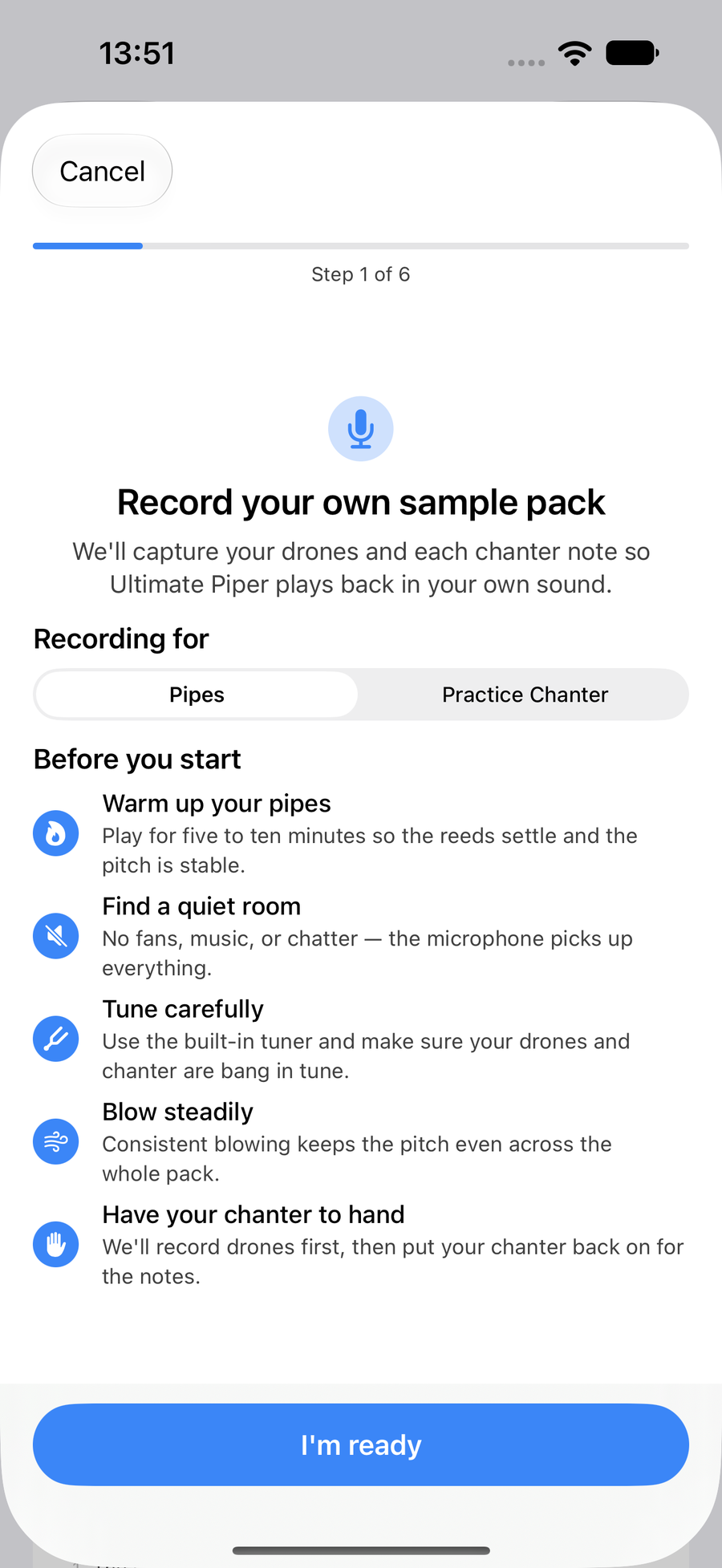
Record your own sample pack, with the checklist -
2
Record your drones
For pipes, the drones come first. Take your chanter out, stop the chanter stock, strike in and let the drones settle; the meter shows how steady each drone is. Choose Start Recording and keep blowing steadily after the count of three. The app tells you how long to go on: it needs at least a minute, says when it has plenty, and then you can stop. If you carry on, it stops by itself at two minutes. Listen back, then Sounds good, or Re-record.
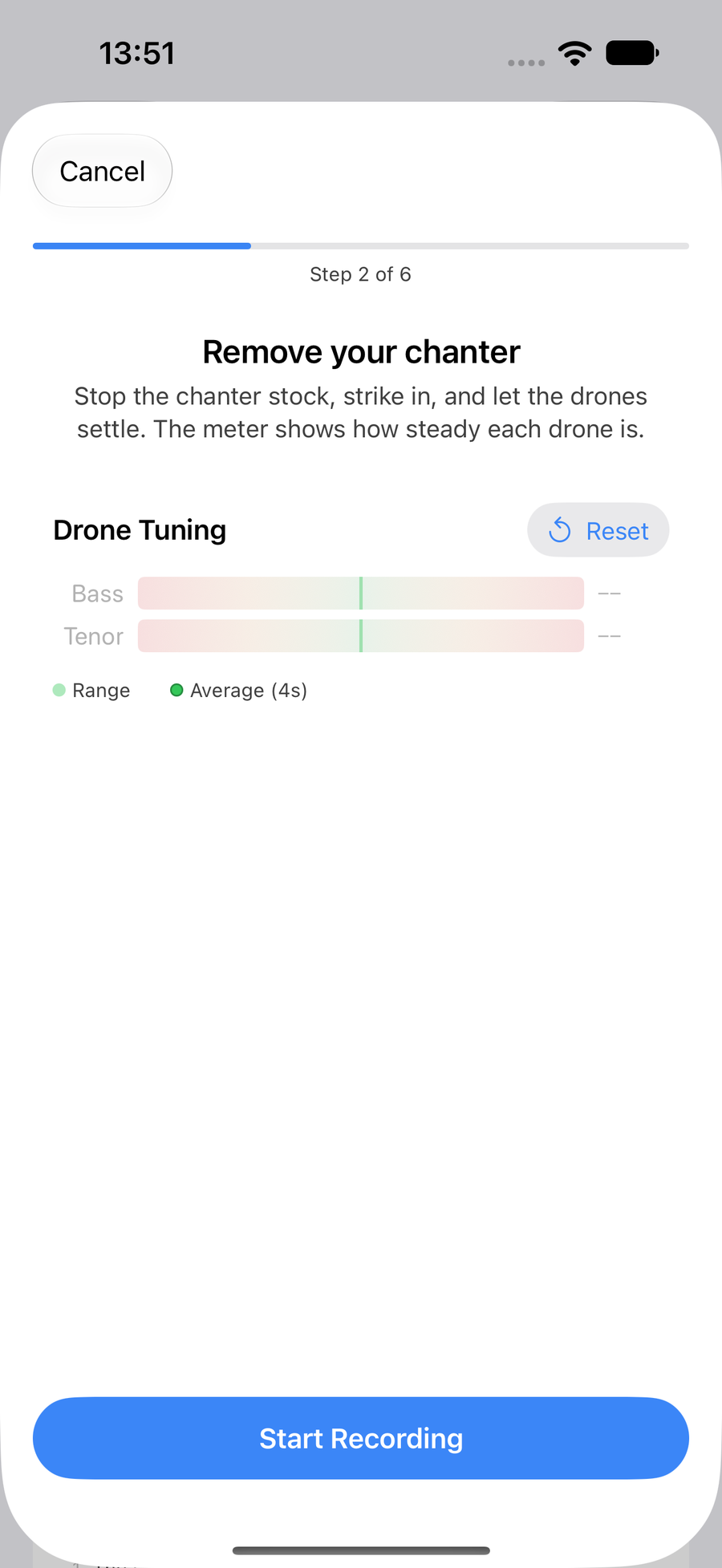
Remove your chanter, with the drone meter -
3
Get ready for the notes
Now stop your drones, put your chanter back in and strike in. The tuning meter shows how each note sits as you play; when you are ready, choose Start.
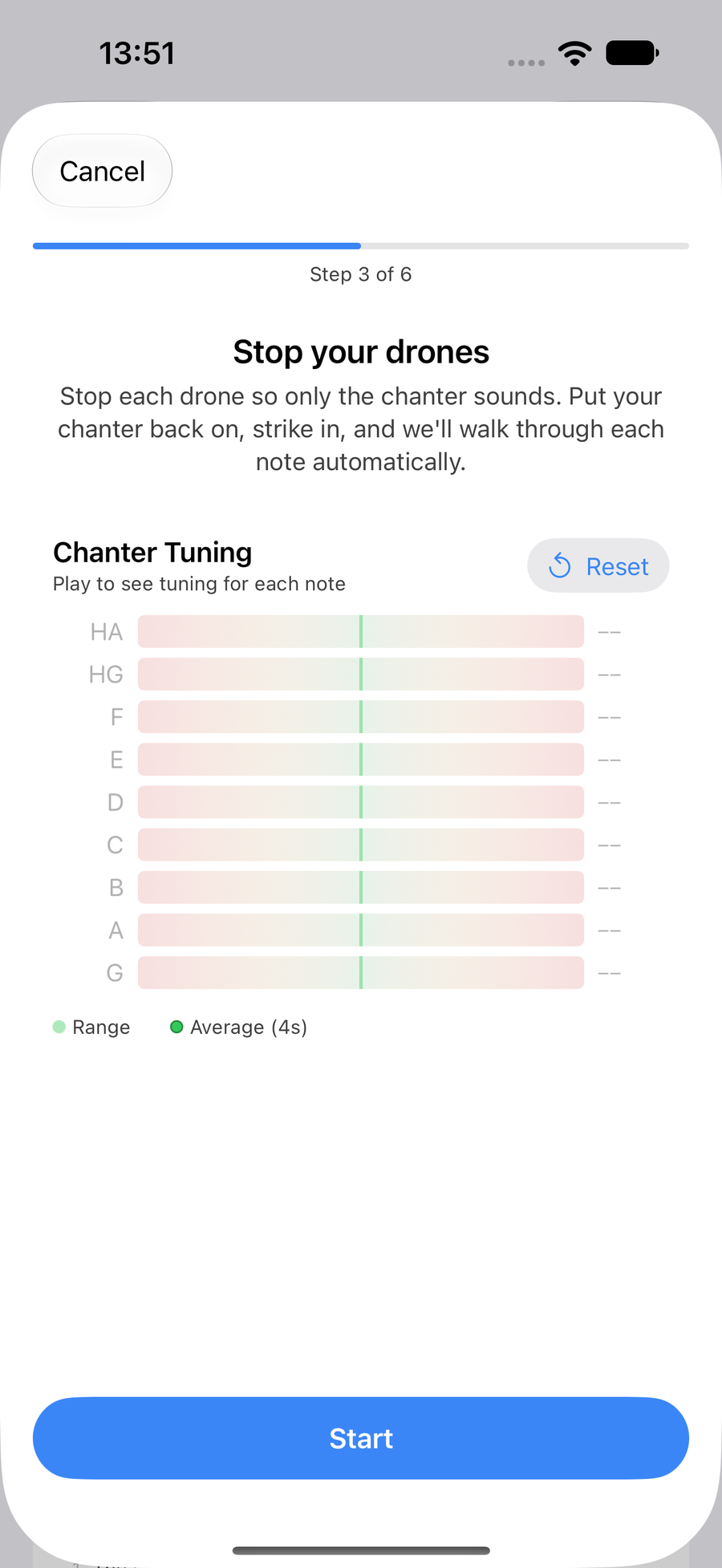
Stop your drones, with the chanter meter -
4
Hold each note
The app walks up the scale by itself. It shows Switch to the next note with a short count, then records it: Recording Low G, Note 1 of 9, with the seconds counting and the bar filling. Hold the note steadily for the ten seconds and it moves on to the next. You only need to change fingering and keep blowing. Stop ends early and keeps the notes recorded so far, so you can fill in the rest later.
At the end it offers the three cross-fingered notes, B♭, C♮ and F♮, which you can record or skip and add later.
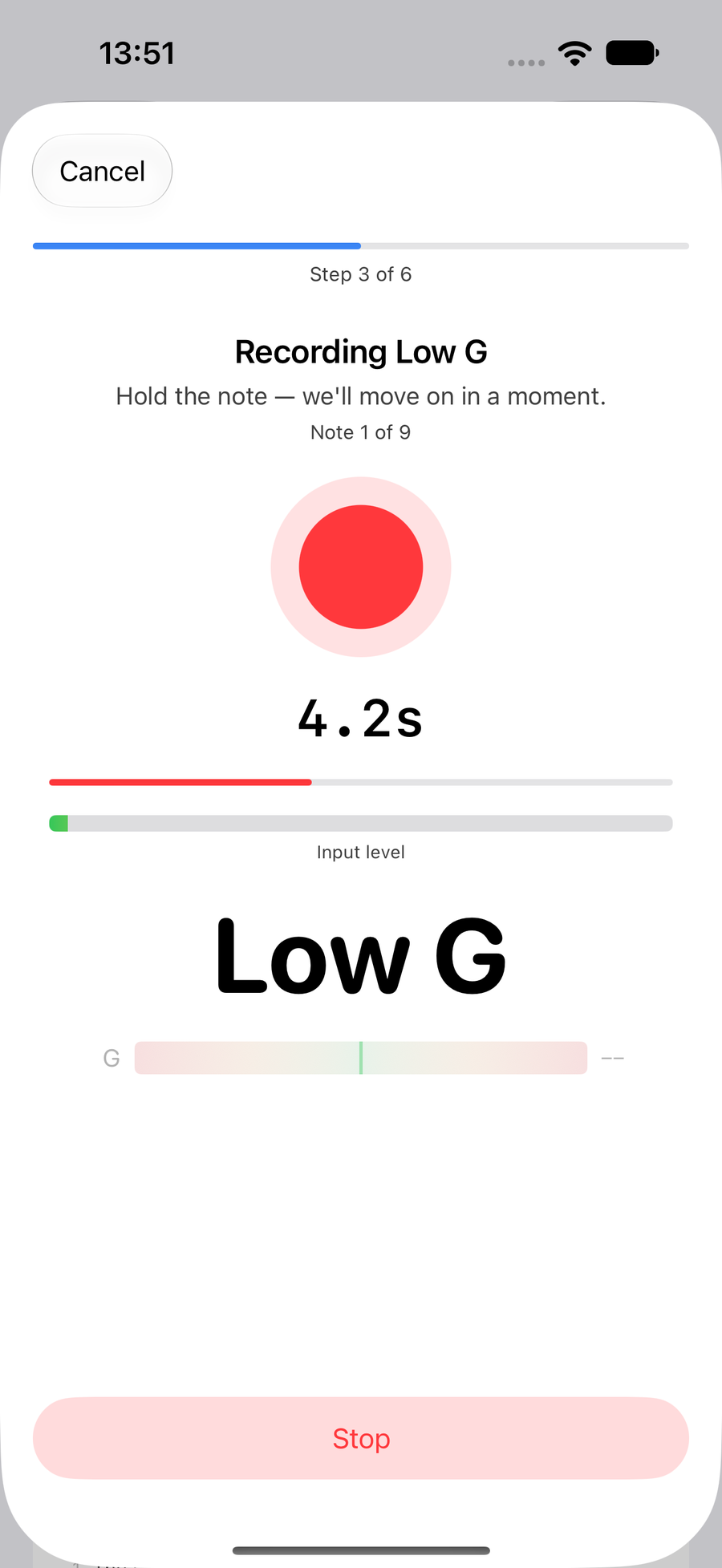
Recording Low G, part-way through its ten seconds -
5
Try your new samples
Once the notes are trimmed and faded, Try your new samples. TapTapClick any note to hear it, or Play scale with drones. If something sounds off, Re-record something takes you back to replace just that part. Otherwise, Sounds great.
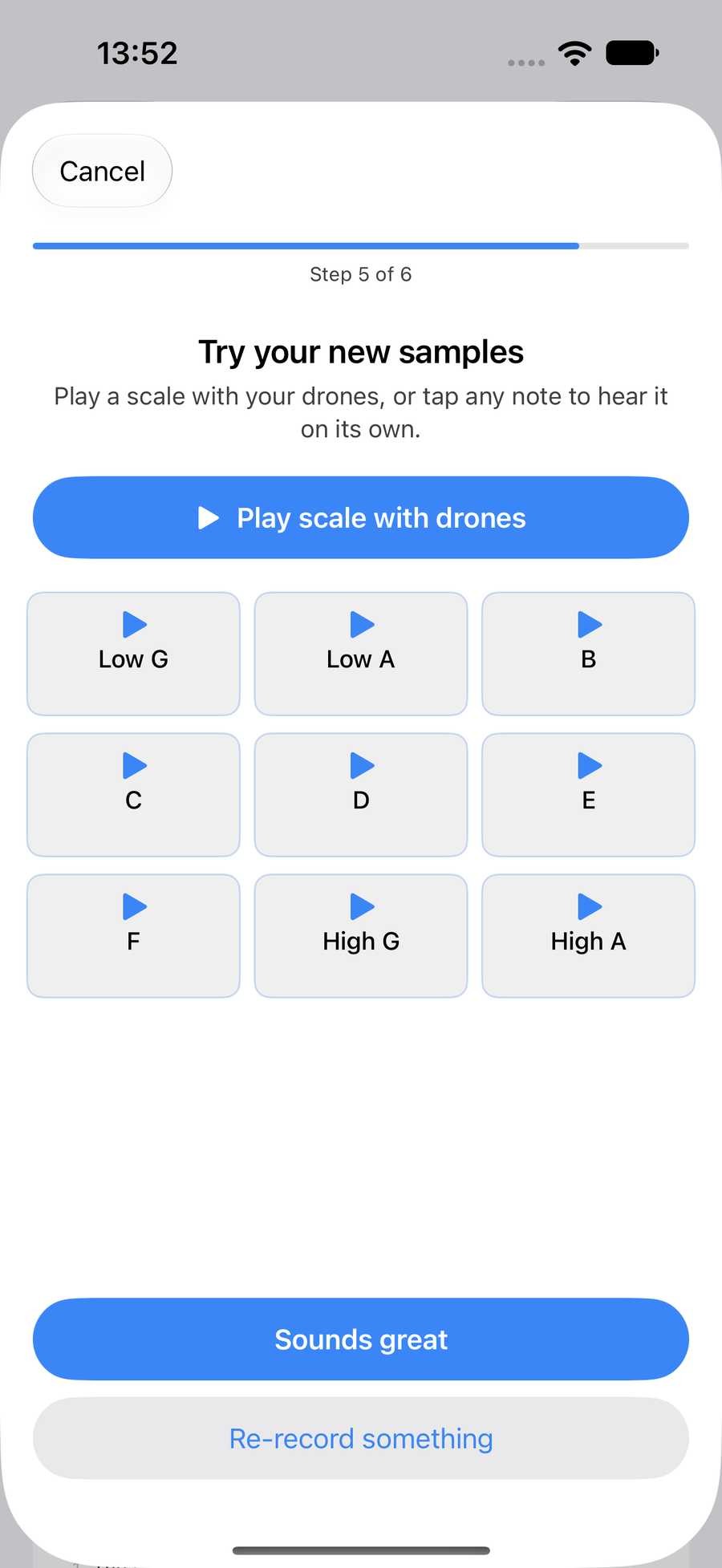
Try your new samples, note by note -
6
Name and save it
Give the pack a name and choose Save pack. It replaces the built-in sound on every device signed into your iCloud, and you will find it under Sample Packs in Settings, where you can switch back or record another.
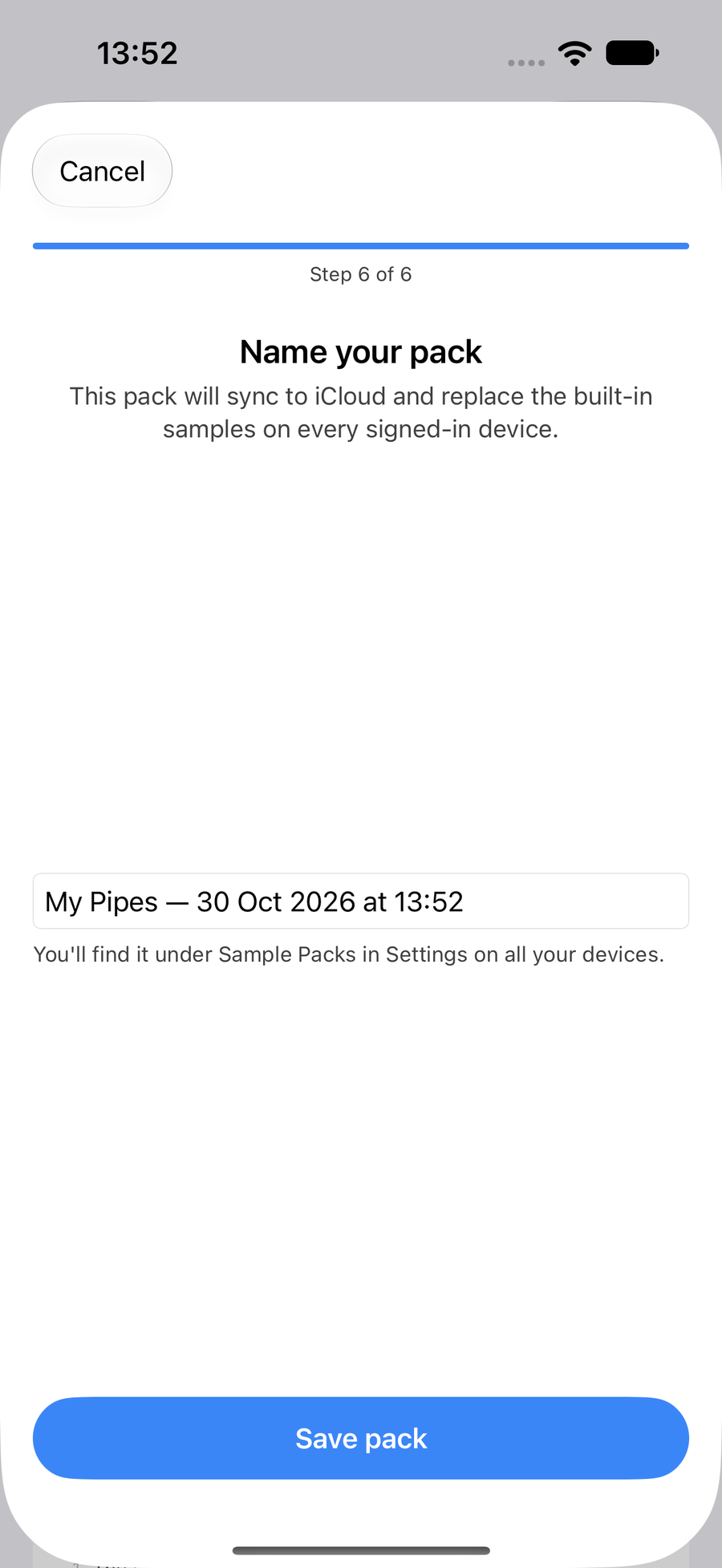
Name your pack, ready to save -
7
Switch sounds as you play
Open any tune and taptapclick the at the end of the play bar. Under Sound, Built-in Bagpipes sits above every pack you have recorded for that instrument, with a tick by the one in use. TapTapClick a pack to hear every tune through it, or go back to the built-in sound the same way.
Sounds can only be swapped while the tune is stopped. Record your pipes… at the foot of the list starts another pack.
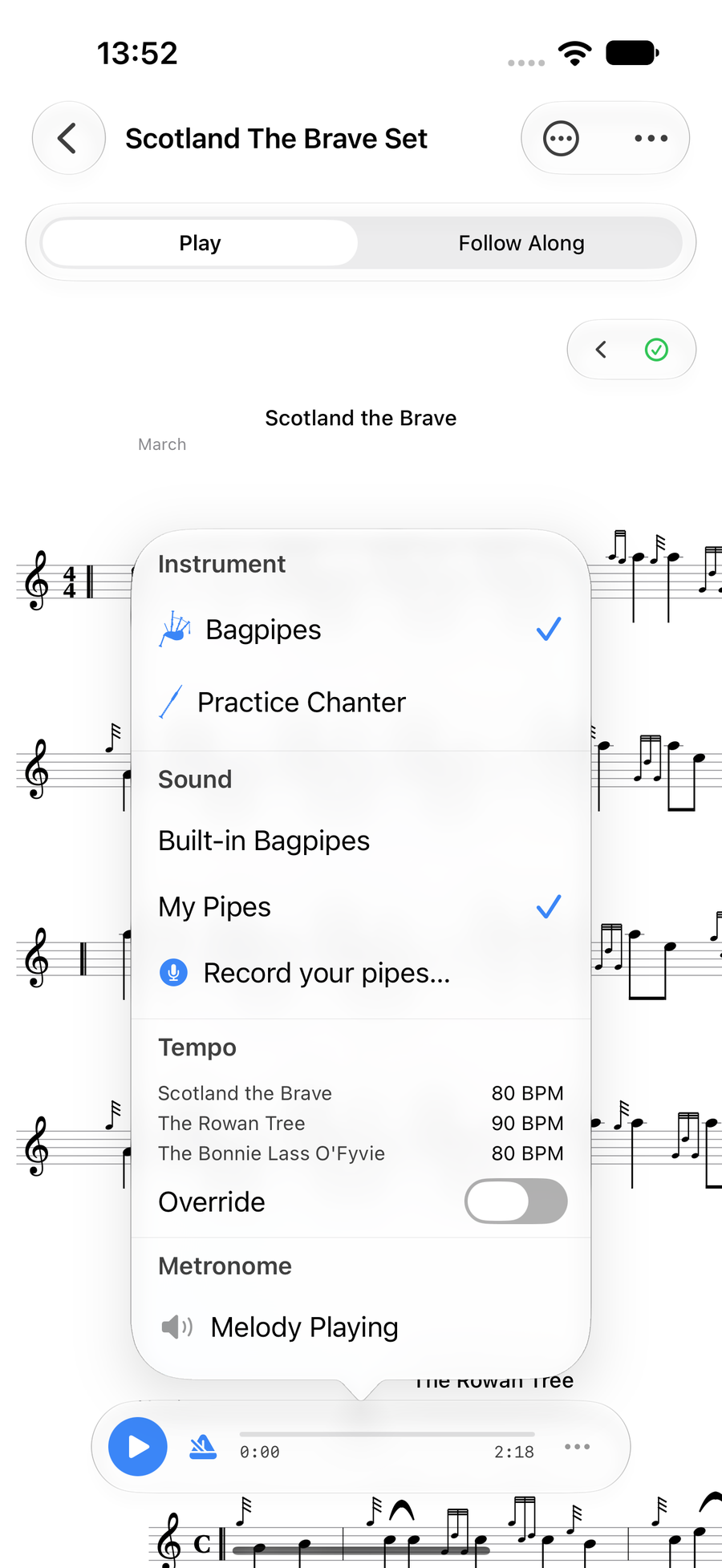
Your pack chosen under Sound in the playback settings
Next
- Get your pipes in tune first with Tune your pipes.
- Calibrating? After calibration, the app can take you straight here.