You will need: a tune open in the editor. Edit a tune shows how.
-
1
Select a note
TapTapClick a note to select it. TapTapClick a gracenote instead and you select the gracenote.
Round the selected note, the up and down arrows raise and lower its pitch, and + and − make it longer and shorter. The lengths step through the dotted ones too, so a crotchet made longer becomes a dotted crotchet, then a minim.
Press and holdPress and holdClick and hold + to add a dot, up to a double dot, and press and holdpress and holdclick and hold − to take one off. The red bin deletes the note.
You can also drag a note up or down to change its pitch.
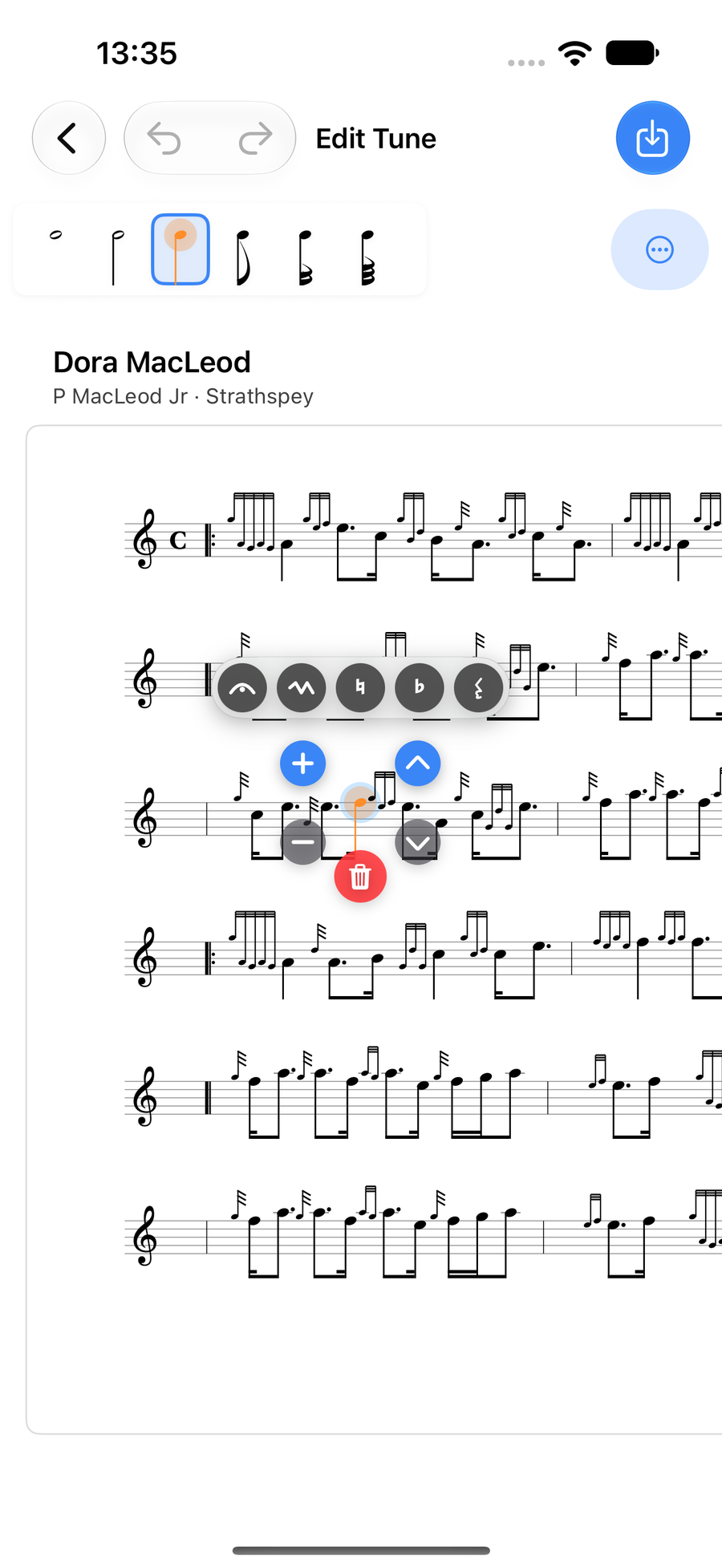
A selected note with its controls -
2
Add a note
TapTapClick an empty place on a stave and a note goes in there. Its pitch comes from where you taptapclick, and its length from the note lengths along the top of the editor, from semibreve to demisemiquaver.
The bar menu adds a note at the start or end of a bar too: press and hold an empty part of a barpress and hold an empty part of a barright-click a bar, then choose Add Note to Start of Bar or Add Note to End of Bar. That note copies the pitch of its neighbour and the bar is spaced out again.
You never place notes or barlines by hand. Each bar is as wide as its notes need, with more room for longer notes and for gracenotes, and every line is stretched to fill the page. So a barline has no fixed spot: it sits wherever the bars around it end. To change which notes fall in a bar, move the barline.
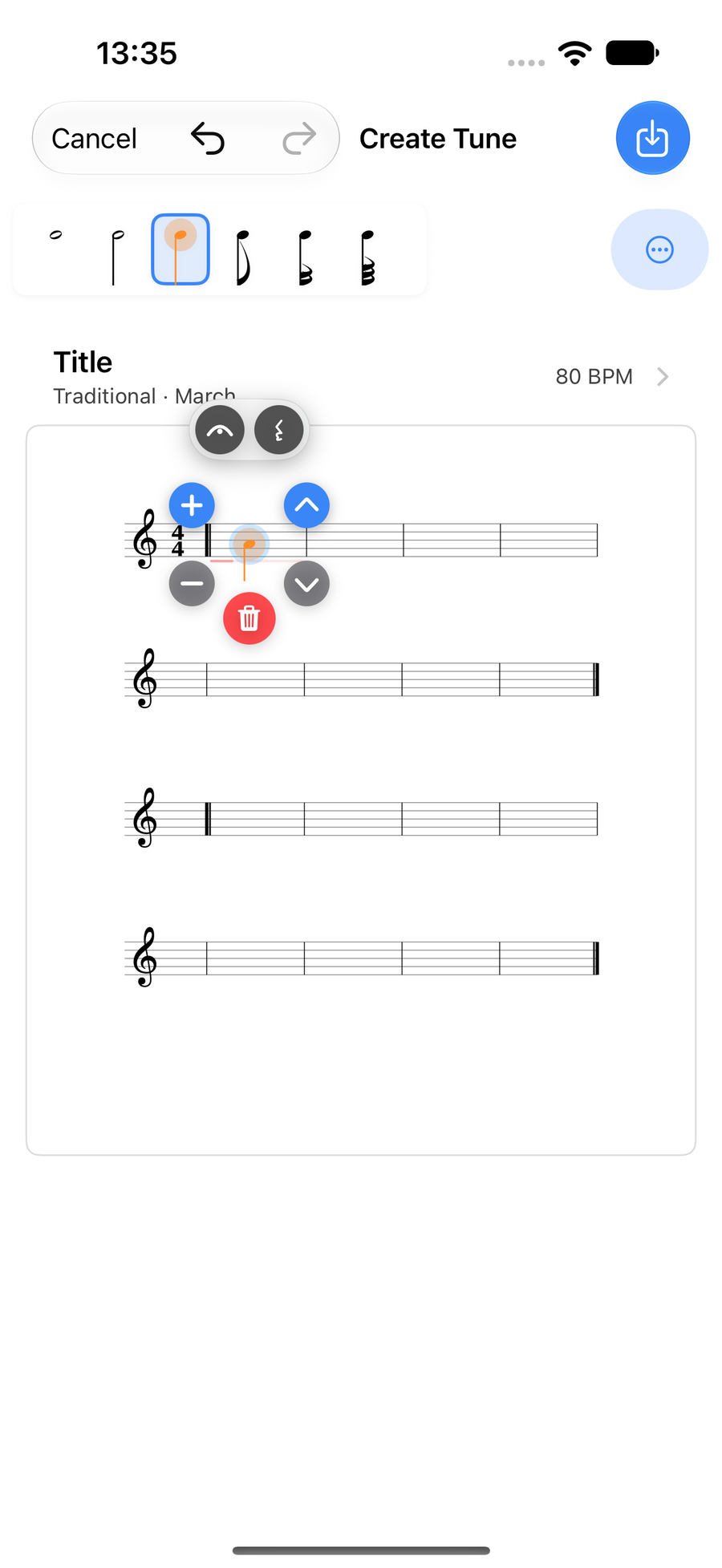
A new tune with its first note -
3
Type a note
With a keyboard, type a note's letter to move the selected note straight to that pitch.
- b, c, d, e and f go to that note.
- g goes to High G, and typing it again swaps to Low G.
- a goes to Low A, and typing it again swaps to High A.
- A capital G or A always means High G or High A.
Delete removes the selected note. On a Mac, the up and down arrow keys change its pitch and the left and right arrow keys change its length.
-
4
Use the Tools menu
The Tools menu at the top of the editor holds the modes for working on several notes: Select Range, Make Triplet, Break Apart Triplet, Add Volta and Add Tempo Change.
Add Staff and Bar Actions… add to the score, and Clear All Notes empties the melody in one go, leaving any harmony alone. Undo brings it all back.
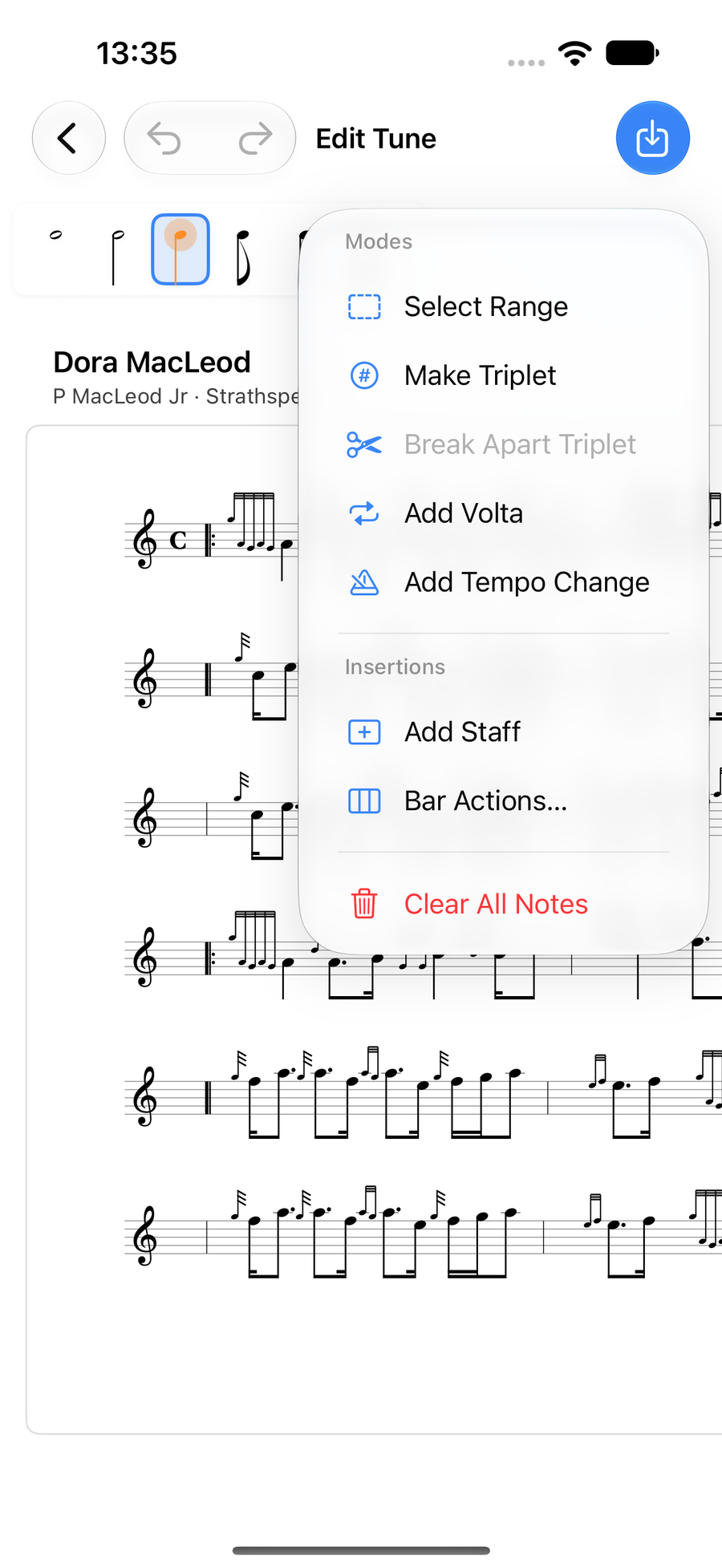
The Tools menu -
5
Undo, then save
The curved arrows at the top undo and redo, one change at a time, and so do ⌘Z and ⇧⌘Z on a keyboard. Your changes are kept when you save.
Next
- Gracenotes and embellishments: the double-tap, the wheel and your own runs.
- Ties, slides, rests and accidentals: the row of marks above a note.
- Triplets, ranges and copying: work on several notes at once.