You will need: Ultimate Piper on a Mac. Everything else works as it does on iPhone and iPad; this guide covers what is different.
-
1
Find your way round the sidebar
The sidebar holds everything. Overview sits at the top, then Practice with Today's Practice, History and Insights. Below come your Collections, Shared with Me, Focus, By Proficiency, and any sets and tunes you have not put in a collection.
Use the arrow beside a heading to fold that section away; the app remembers what you folded. Hover over a heading to see what it holds.
The search field is at the top of the sidebar. Press ⌘F to jump straight to it. ⌘1 shows your library and ⌘2 shows practice.
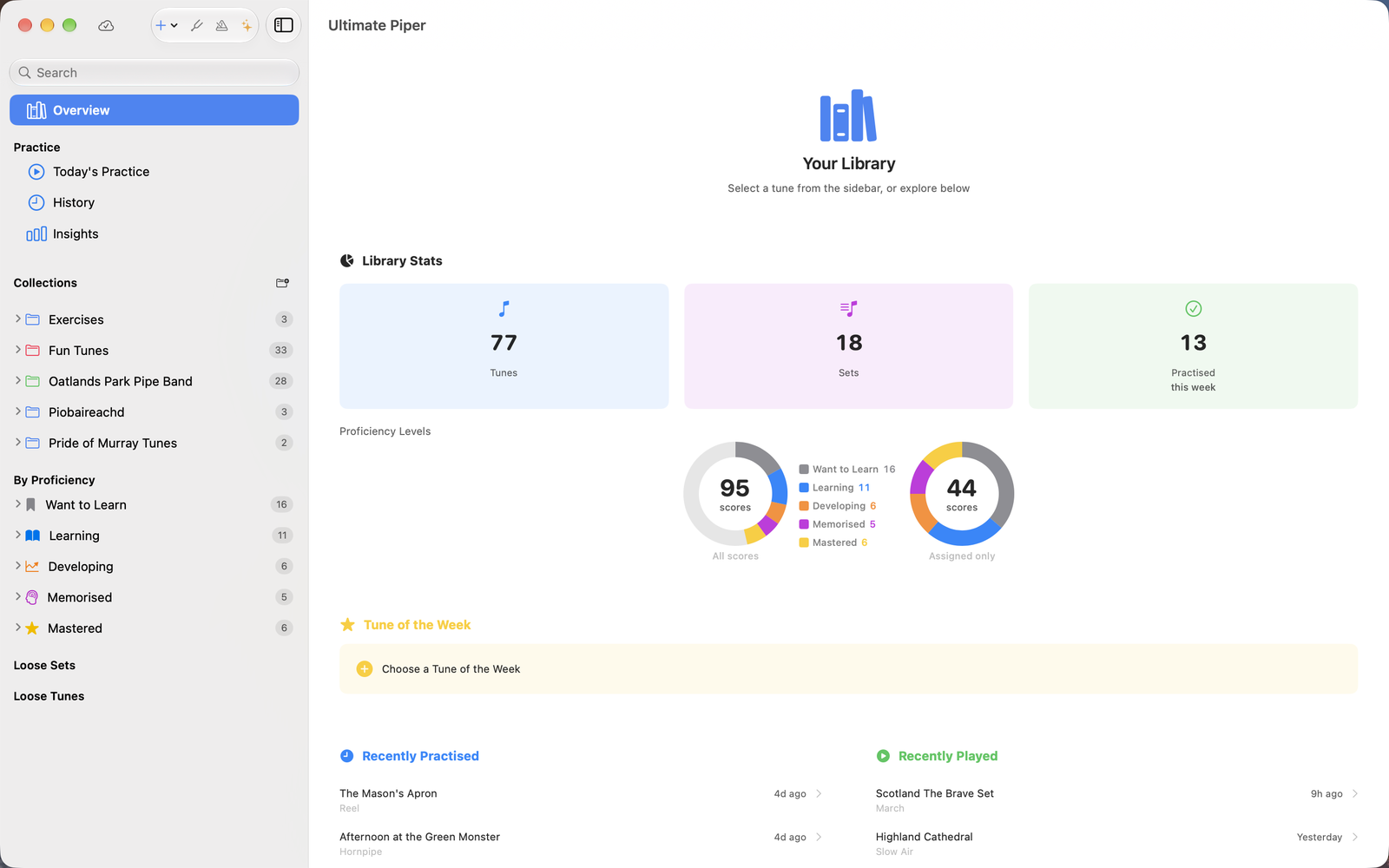
The sidebar with Practice, Collections, Focus and By Proficiency -
2
Use the buttons above it
Above the sidebar sit, from left to right:
The iCloud icon shows how syncing is going. Click it to check iCloud for updates.
The + menu creates a tune or set, imports a tune file or a PDF or image to scan, makes a folder, compares tunes, and syncs with iCloud.
The tuning fork and the metronome open the tuner and the metronome in their own windows.
The sparkles open Discover Features. They turn amber when there is something you have not seen yet.
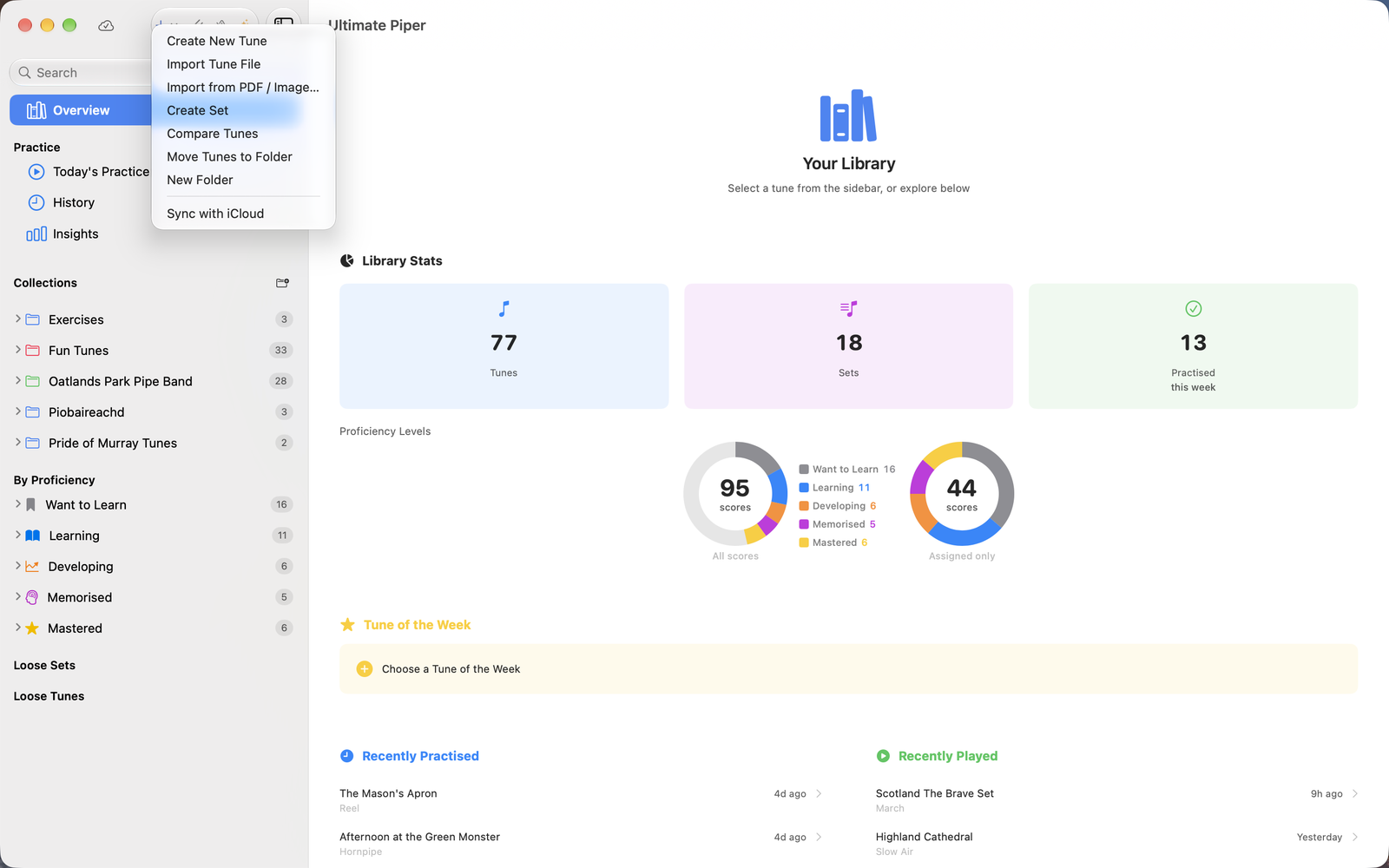
The + menu open above the sidebar -
3
Keep the tuner and metronome on top
On the Mac, the tuner and the metronome have windows of their own that float above everything else, so you can keep them beside a score while you play. Open them from the buttons above the sidebar, or with ⇧⌘T for the tuner and ⇧⌘M for the metronome.
Closing the metronome window stops the metronome. Neither window reopens by itself the next time you start the app.
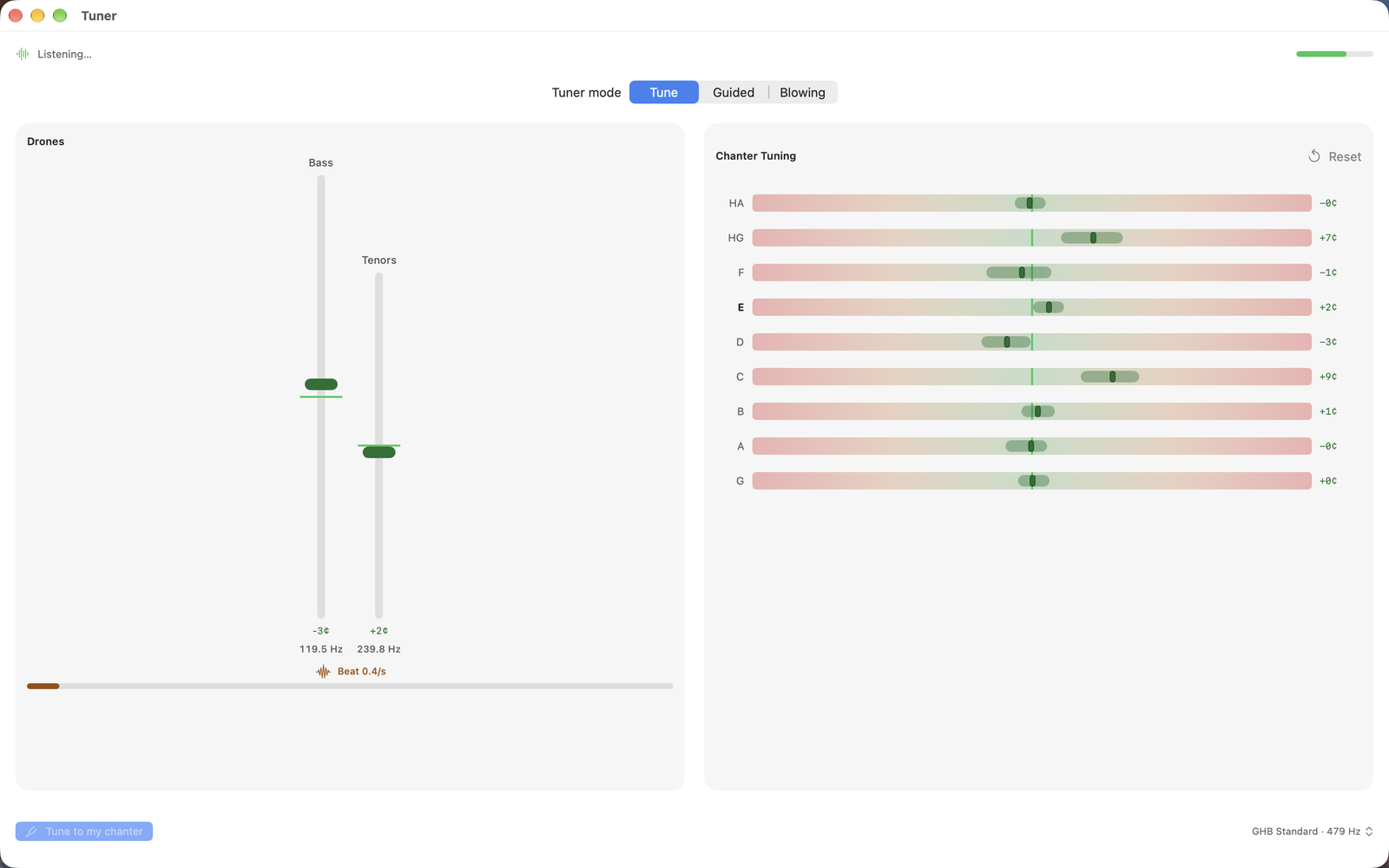
The tuner in its own window -
4
Loop bars in their own window
With a tune open, click Practice Loop in the toolbar at the top of the window, then choose the bars you want. The loop opens in its own floating window, so the full score stays in view behind it.
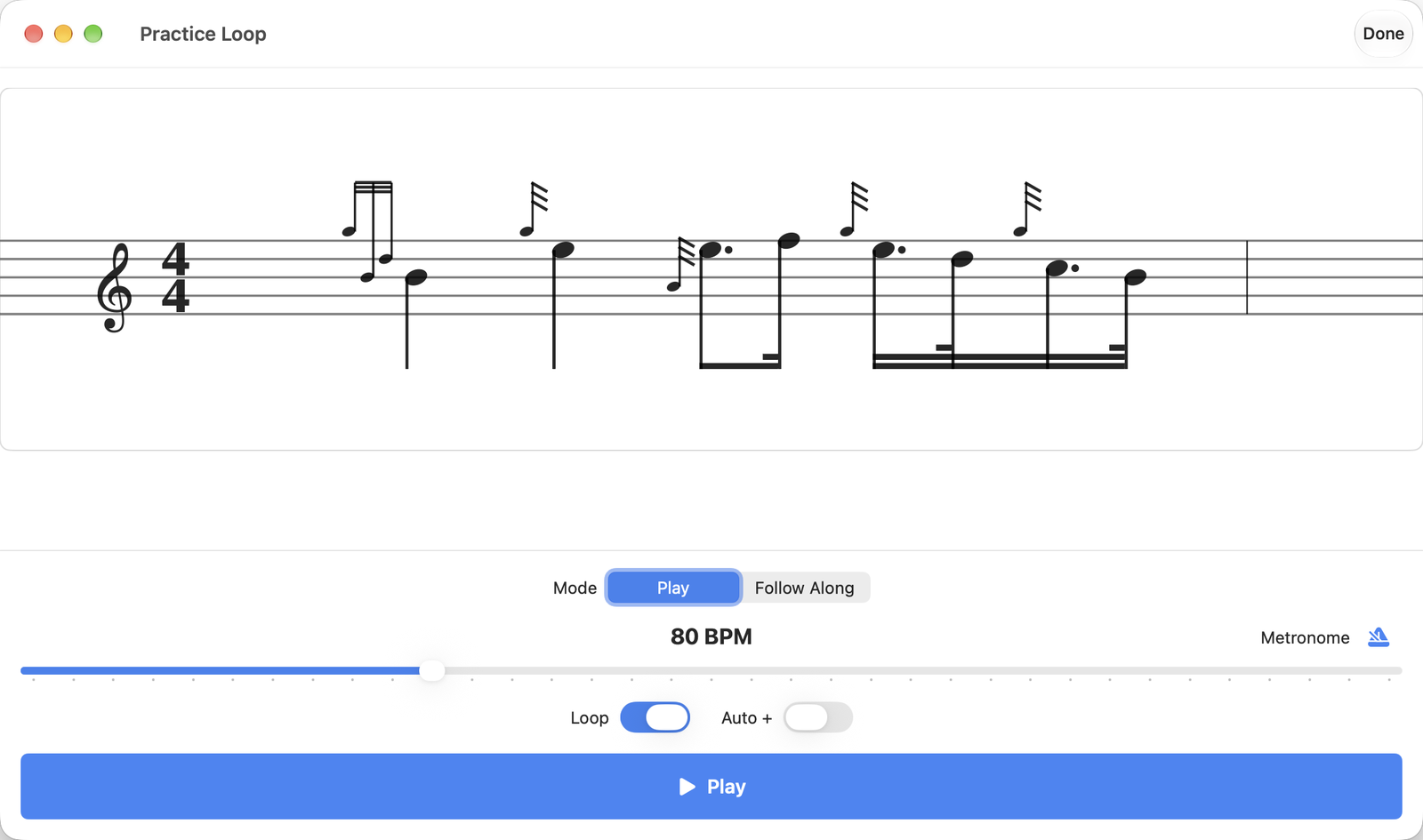
A practice loop in its own window -
5
Edit with the keyboard
In the score editor, select a note and type its letter to change its pitch: b, c, d, e and f go straight to that note. g and a go to High G and Low A; press the same letter again for the other octave.
The ↑ and ↓ arrows move the selected note or gracenote up or down. ← and → make the selected note shorter or longer. Delete removes what you have selected, and ⌘Z and ⇧⌘Z undo and redo.
Right-click a bar to open its bar menu: add notes, copy and paste the bar, insert bars, change its time signature and more.
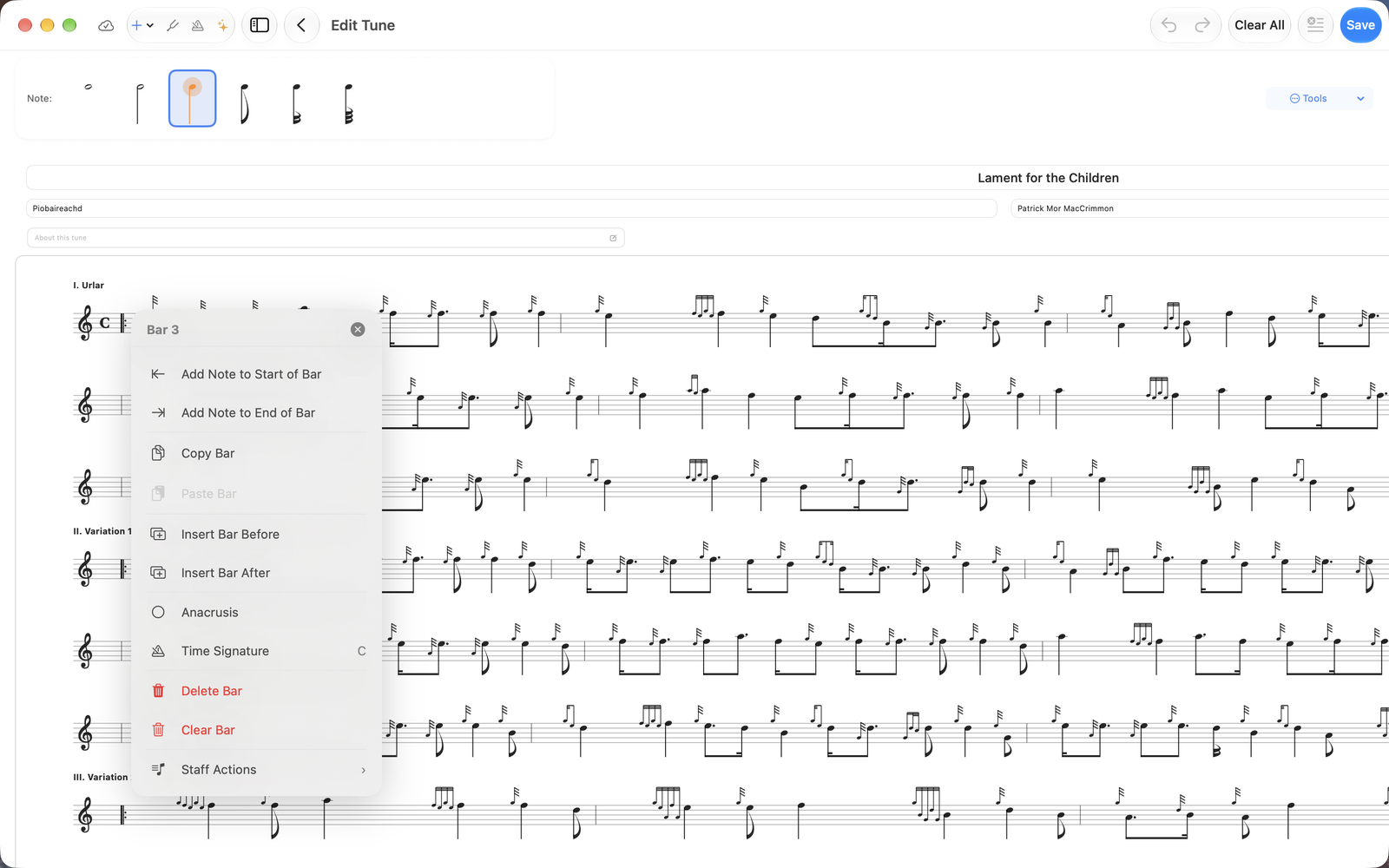
The bar menu, opened with a right-click -
6
Right-click for more
Right-click a tune in the sidebar to duplicate it, move it to a folder, add it to Focus, break a set apart, or delete it.
Right-click a folder to add a subfolder, edit or move it, share it or change who it is shared with, mark everything in it as seen, or delete it.
You can also drag tunes onto a folder in the sidebar to move them there.
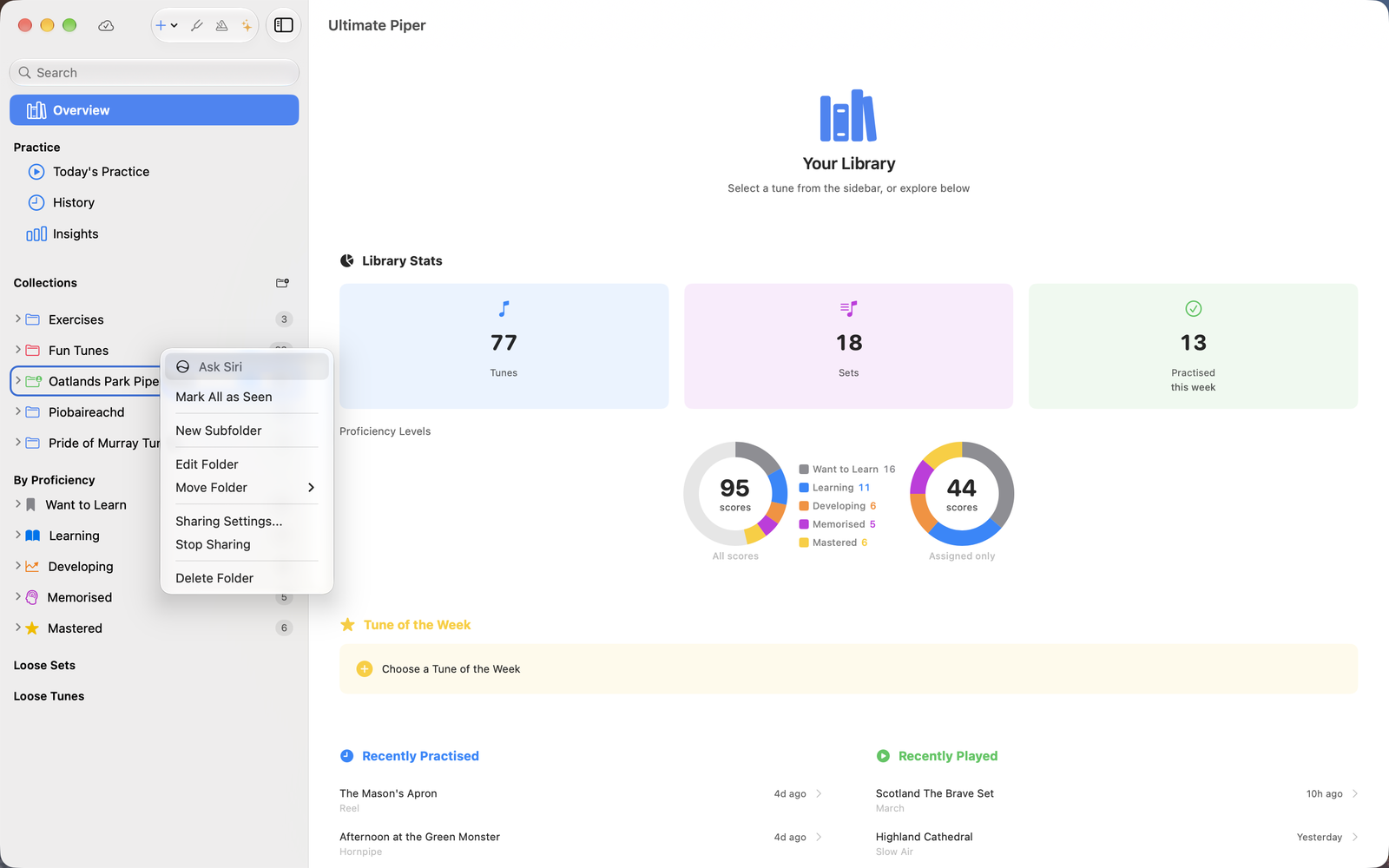
The right-click menu on a folder -
7
Keyboard shortcuts
- Space Play, pause or resume
- ⌘. Stop
- ⌘N Create a new tune
- ⌘O Import a tune file
- ⇧⌘N New folder
- ⌘F Search your library
- ⌘1 / ⌘2 Show your library / practice
- ⌘+ / ⌘− / ⌘0 Make the score larger, smaller, or actual size
- ⇧⌘T / ⇧⌘M Open the tuner / the metronome
- ⌘Z / ⇧⌘Z Undo / redo in the score editor
- ⌥⌘N Bring back the main window
- ⌘, Settings
- ⌘? Ultimate Piper Help
-
8
Good to know
Ultimate Piper has one main window. Closing it leaves the app running, so the tuner or metronome can carry on; ⌥⌘N brings the window back.
You can also pinch on a trackpad to zoom the score, between 50% and 150%.
Double-click a .piper file in Finder to add it to your library. Bring in BWW and PipeScore files with ⌘O.
Follow Along and the tuner listen through your Mac's current input. To use a different microphone, choose it in System Settings ▸ Sound ▸ Input. If the input changes while you play, for example when your iPhone offers itself as the microphone, Ultimate Piper switches to the new one and carries on.
Next
- Your first ten minutes in Ultimate Piper.
- Edit a score in the score editor.
- When something is not right: fixes for common problems.