You will need: any tune in your library. The harmony steps need a tune with harmonies.
-
1
Find the display settings
Open SettingsSettingsUltimate Piper ▸ Settings and scroll to Display. Every switch here changes how every score looks, and you can flip them back at any time. Nothing in the tune itself changes.
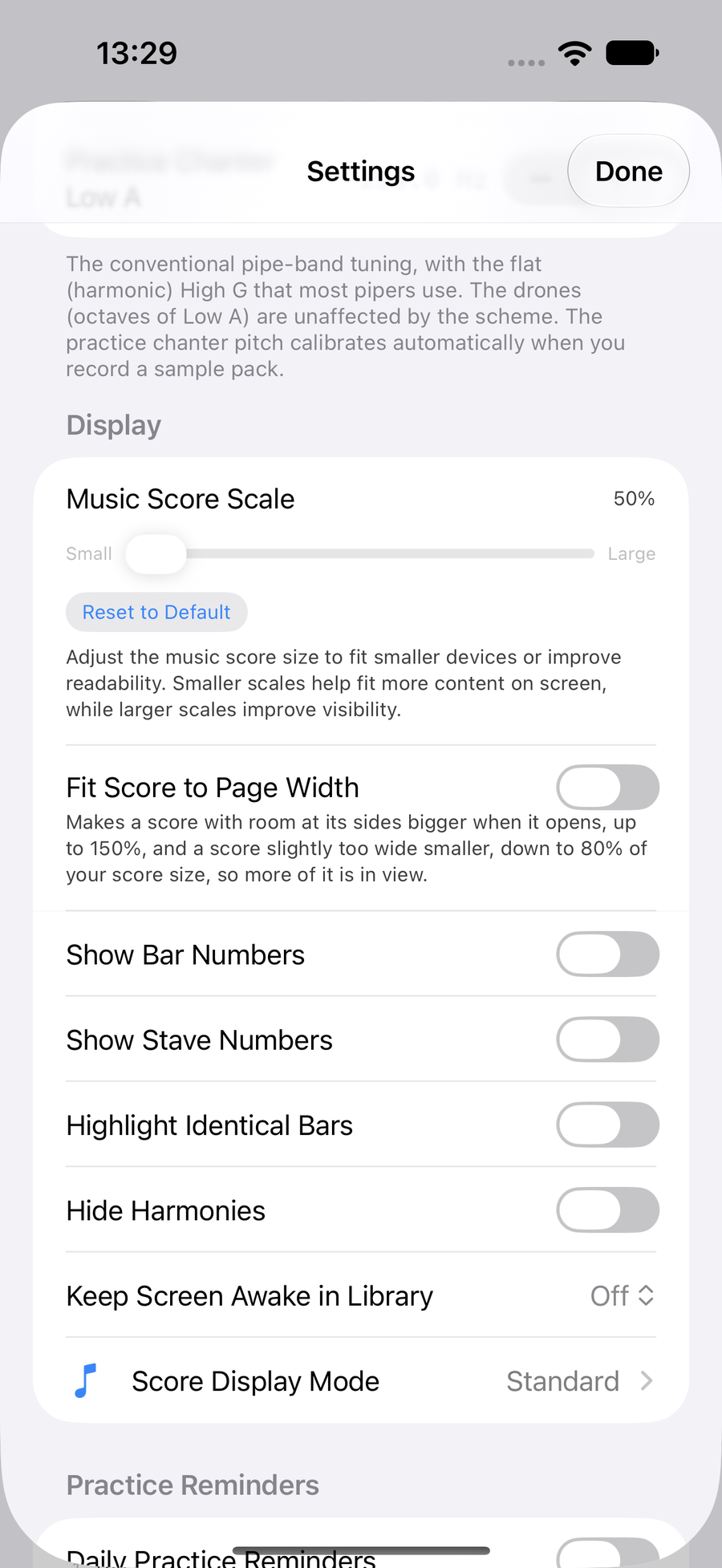
The Display settings -
2
Number the bars and staves
Turn on Show Bar Numbers to number every bar from 1 at the start of each tune. A lead-in bar is left unnumbered, and the two endings of a repeat share their numbers with an a and b, so bar 8a in the first time lines up with 8b in the second.
Show Stave Numbers numbers each line of music down the left. Handy for “from the third line” at band practice.
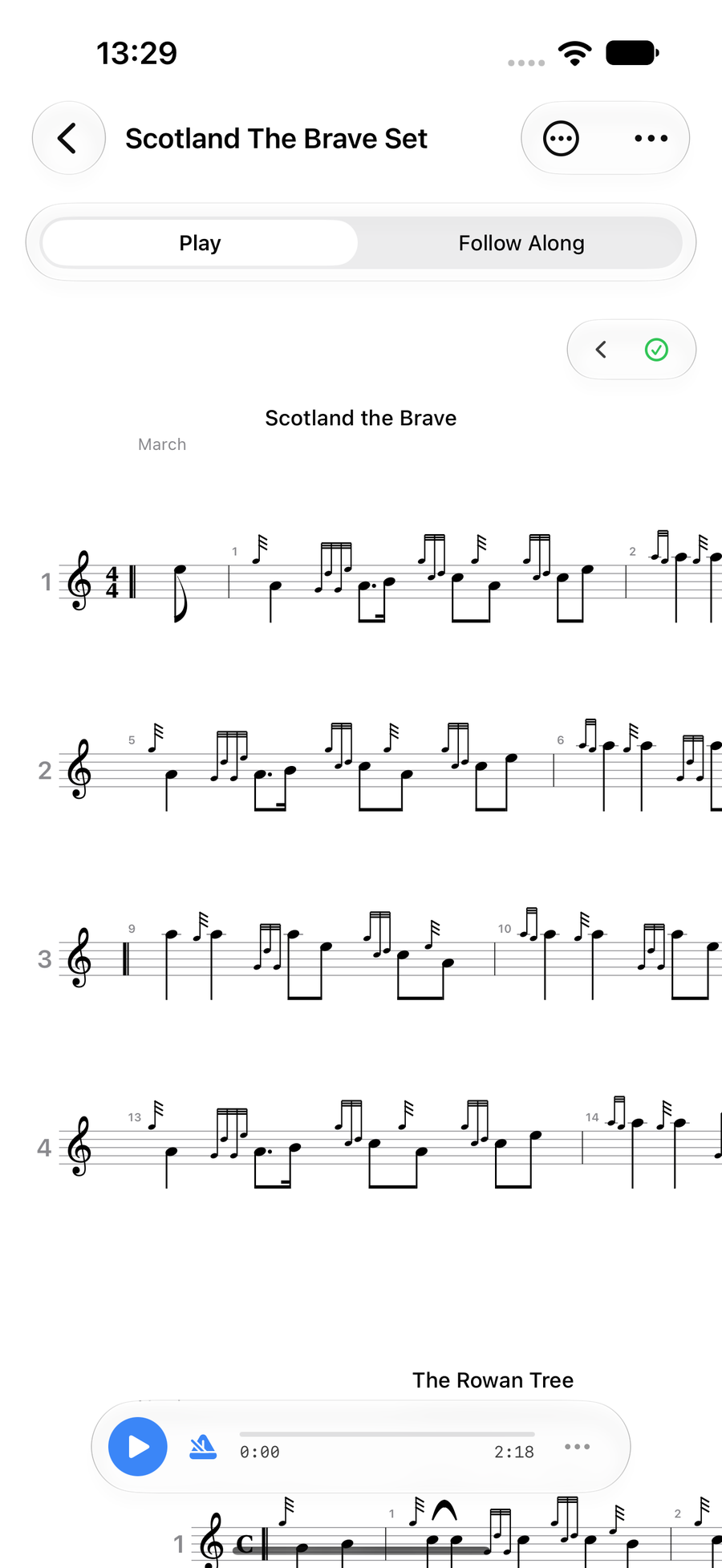
Bar and stave numbers on a tune -
3
Spot the repeated phrases
Turn on Highlight Identical Bars and every bar that appears more than once in a tune is tinted, with each repeated bar sharing a colour. Bars only count as identical when their notes, lengths, gracenotes and time signature all match, so a bar with a different embellishment keeps its own colour.
It is a quick way to see how much of a tune you already know. Learn one coloured bar and you have learned all of its twins. The tints step aside on the Progress tab, so its own colours always show there.
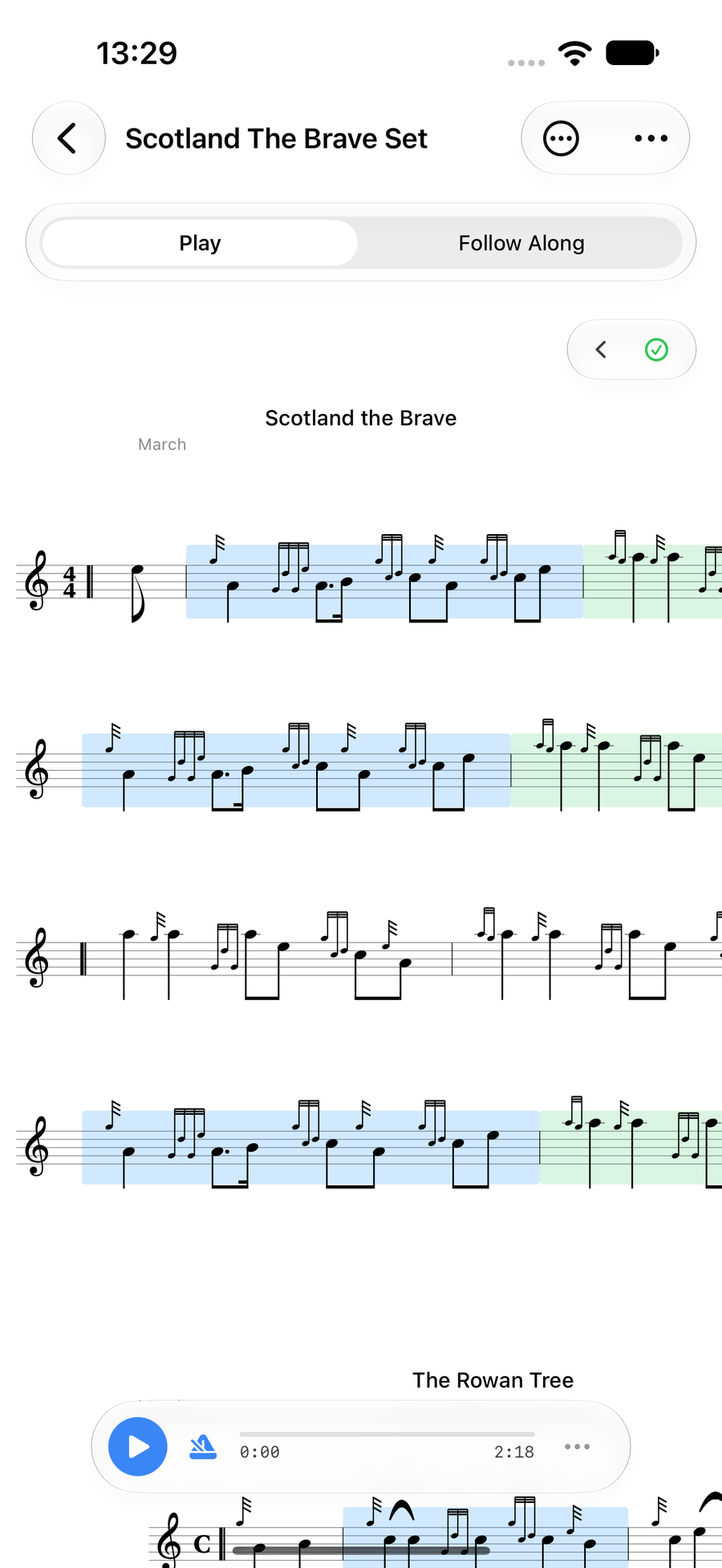
Identical bars tinted to match -
4
Show the harmonies…
A tune with harmonies shows each harmony line on its own stave under the melody.
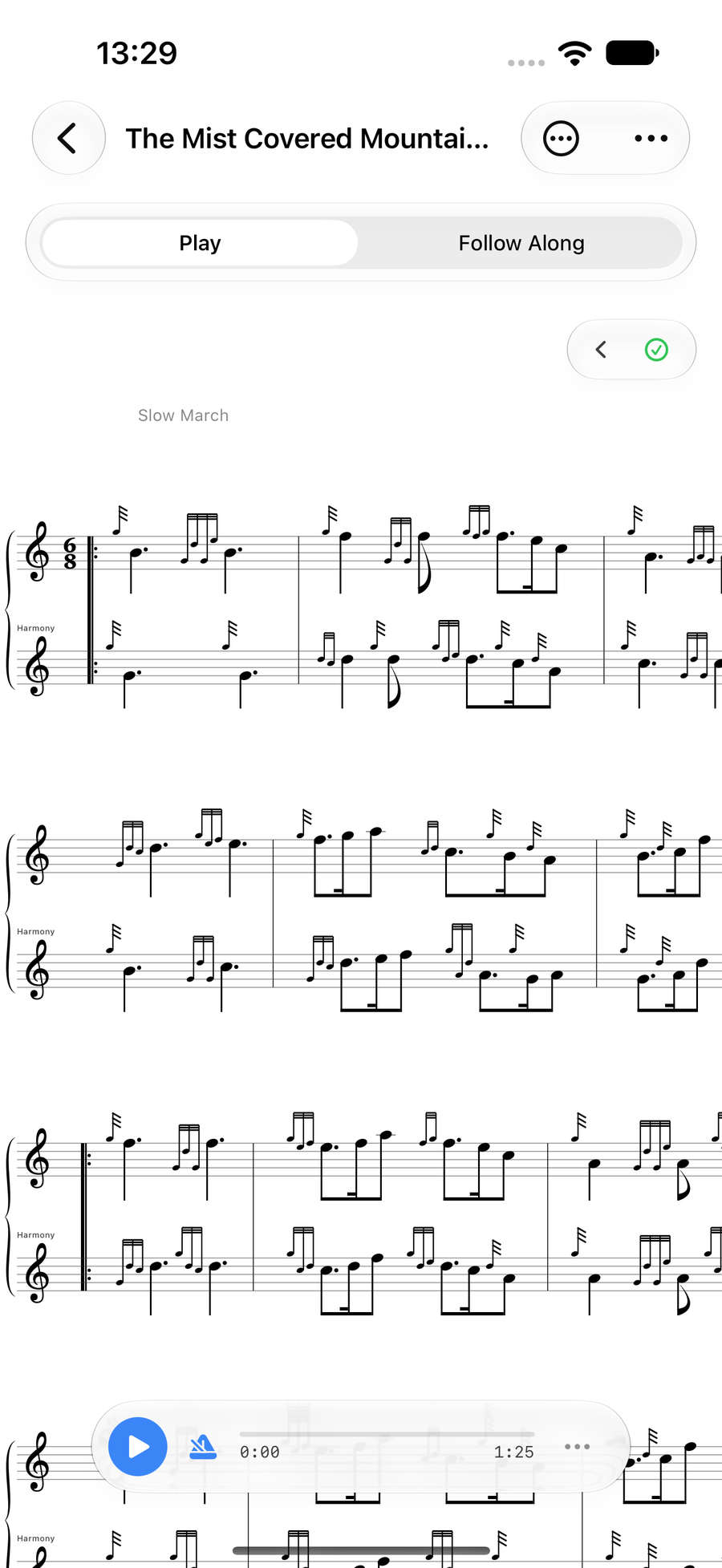
A tune with its harmony line showing -
5
…or hide them for every tune
Turn on Hide Harmonies in SettingsSettingsUltimate Piper ▸ Settings ▸ Display and every tune shows only its melody, with more of the tune on screen. The harmonies are still in the tune, ready for when you want them back.
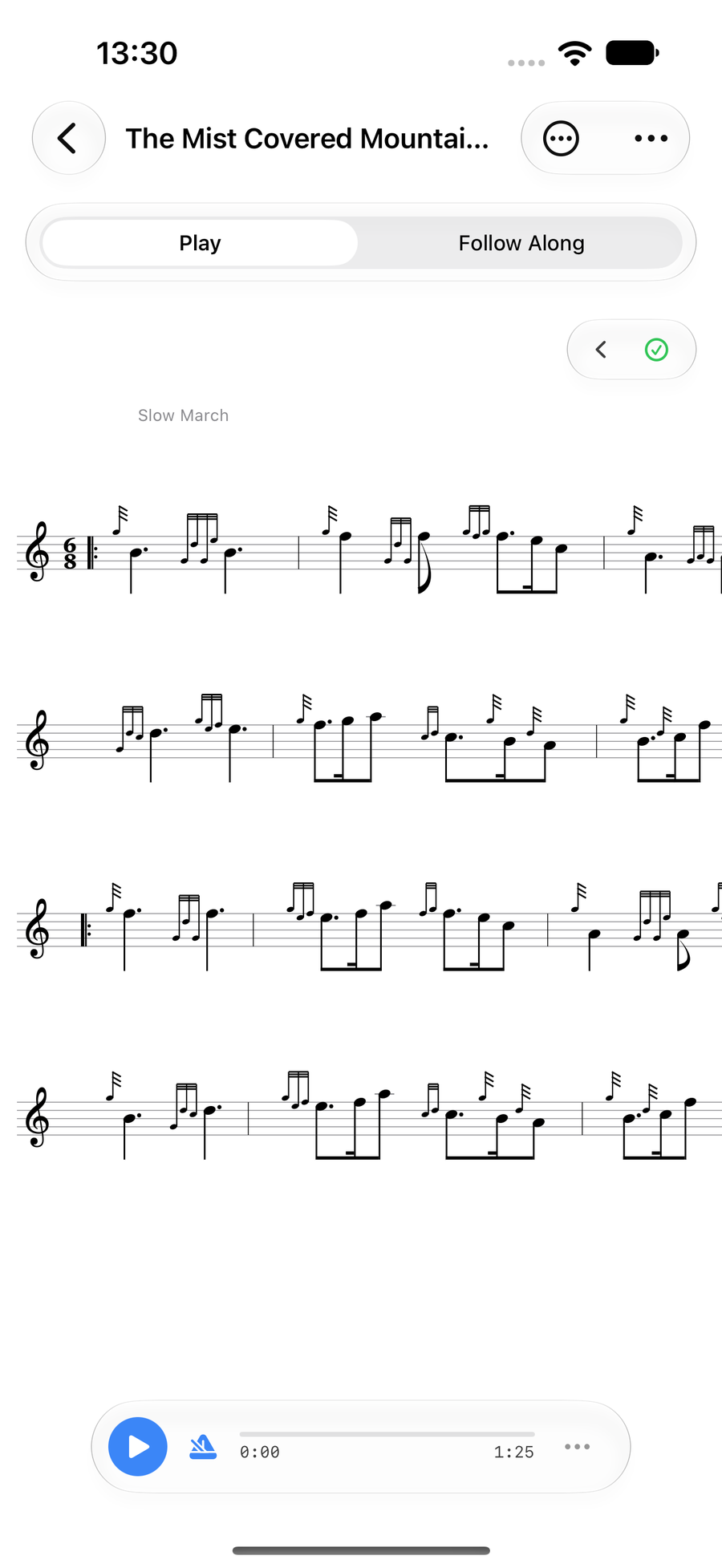
The same tune with its harmonies hidden -
6
Choose for one tune
To make one tune different, taptapclick ‹ in the pill at the top right of the score to open its tools, then taptapclick the harmonies button, the three crotchets. Choose Show or Hide for this tune, or Default to follow the Hide Harmonies setting. The button only appears on tunes with harmonies.
The button turns blue while a tune has a choice of its own, so you can tell at a glance why it is not following the setting. The waveform button next to it does the same for expressive timing, with Auto, On and Off.
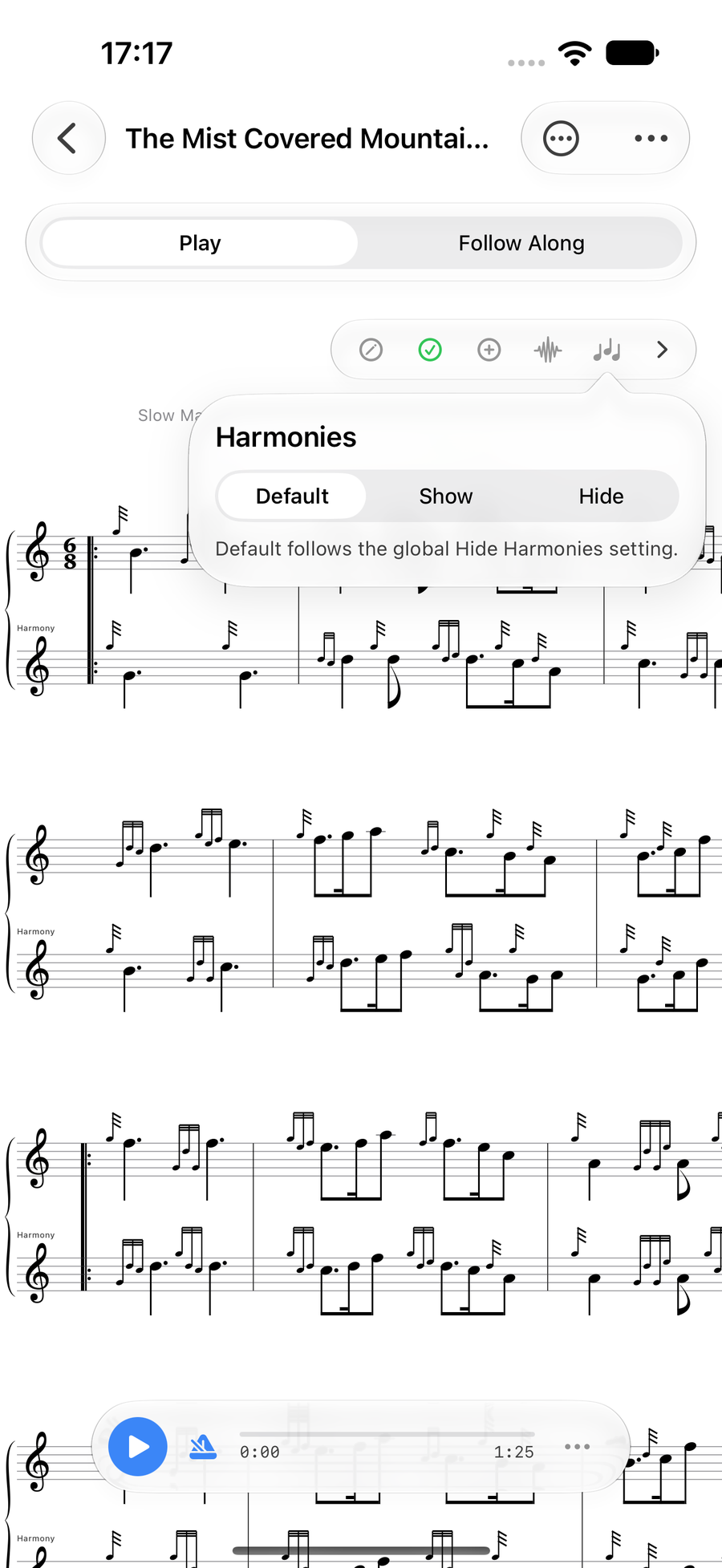
The harmonies chooser in the tune tools -
7
Tuck the playback bar away
Turn on Auto-collapse Playback Bar in SettingsSettingsUltimate Piper ▸ Settings ▸ Playback and the bar at the bottom shrinks to a small pill while you play or follow along, so it never covers the music. TapTapClick the chevron on the pill to open it out again.
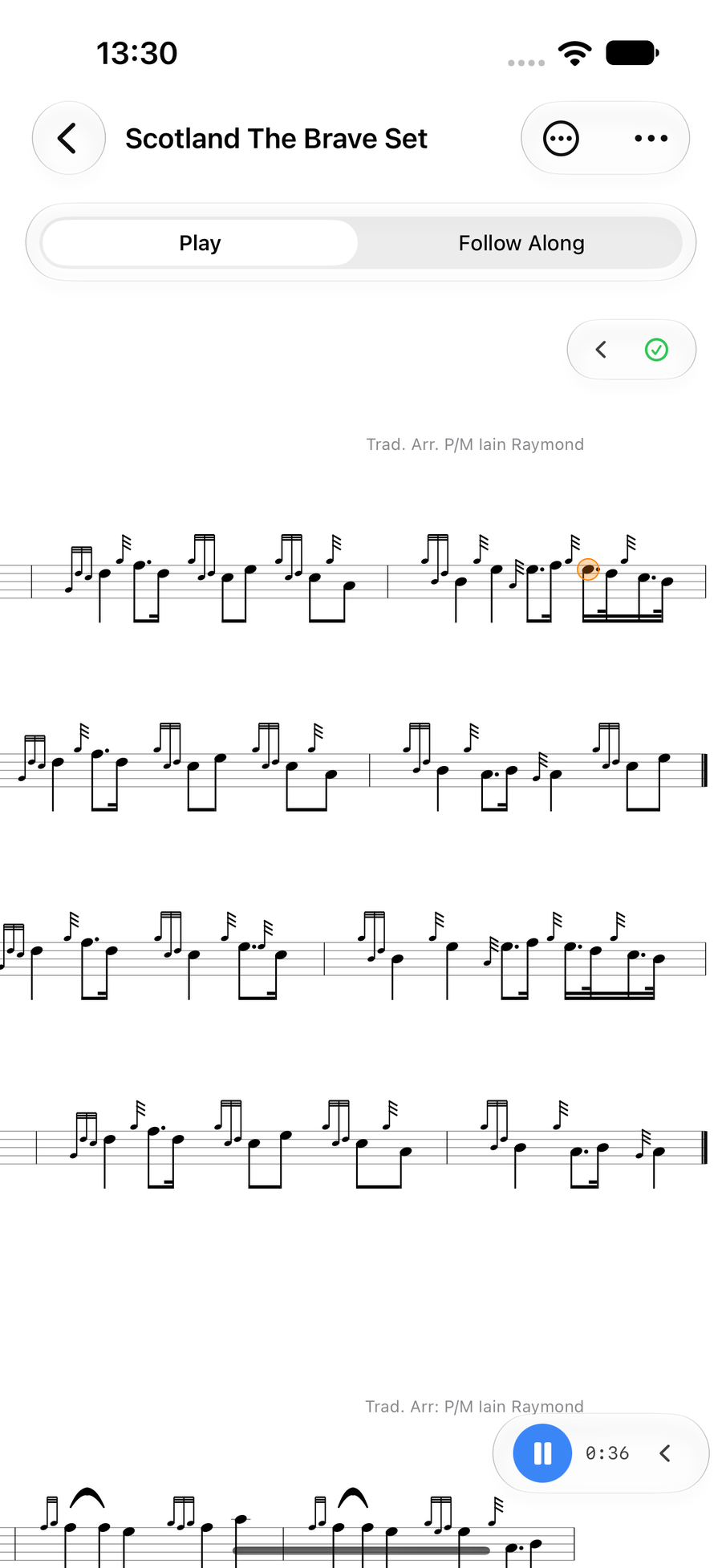
The playback bar tucked into a pill -
8
Size the score to suit you
Music Score Scale in SettingsSettingsUltimate Piper ▸ Settings ▸ Display sets how big the music is drawn, from 50% to 150%. You can also zoom any score as you read: pinch it.pinch it.pinch on a trackpad, or press ⌘+ and ⌘−.
Fit Score to Page Width makes a score with room at its sides bigger when it opens, up to 150%, and one slightly too wide smaller, so more of it is in view.
Prefer one long line that scrolls as you play? Turn on Show Display Mode Toggle and pick Continuous Scroll. The playback guide shows it in action.
Next
- Play a tune with the backing you want.
- See your progress bar by bar.
- Tips and tricks you might have missed.