You will need: a few tunes in your library.
-
1
Your practice plan
Open Practice. Under the buttons to start a session you will find your plan: your Tune of the Week, your Focus tunes and a few Warm-ups.
When you start a practice session, all of these are filled in for you, so there is nothing to choose before you play.
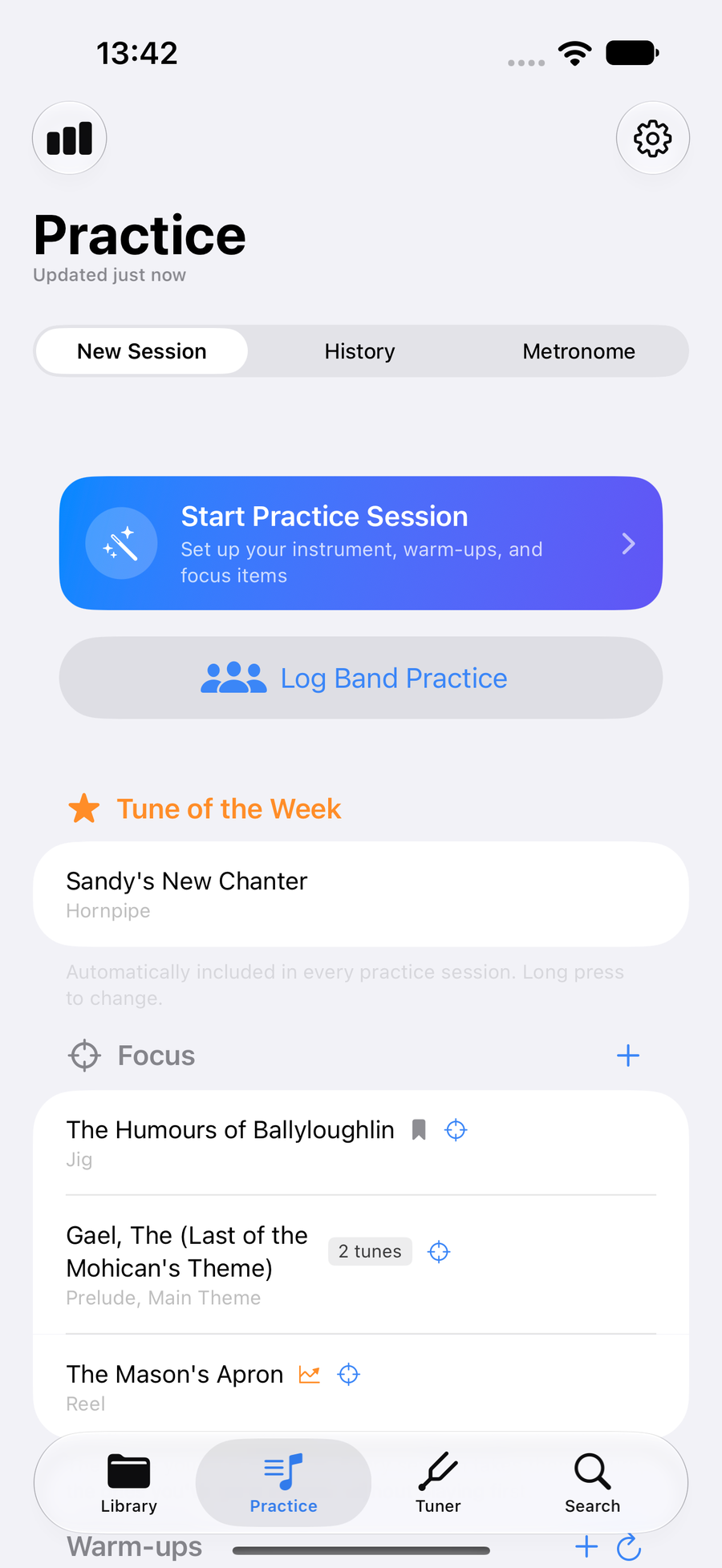
The practice plan with Focus tunes and a Tune of the Week -
2
Add the tunes you are working on to Focus
TapTapClick Add beside Focus and choose the tunes you are working on.
Every session lines your Focus tunes up for you, the ones you have gone longest without playing first.
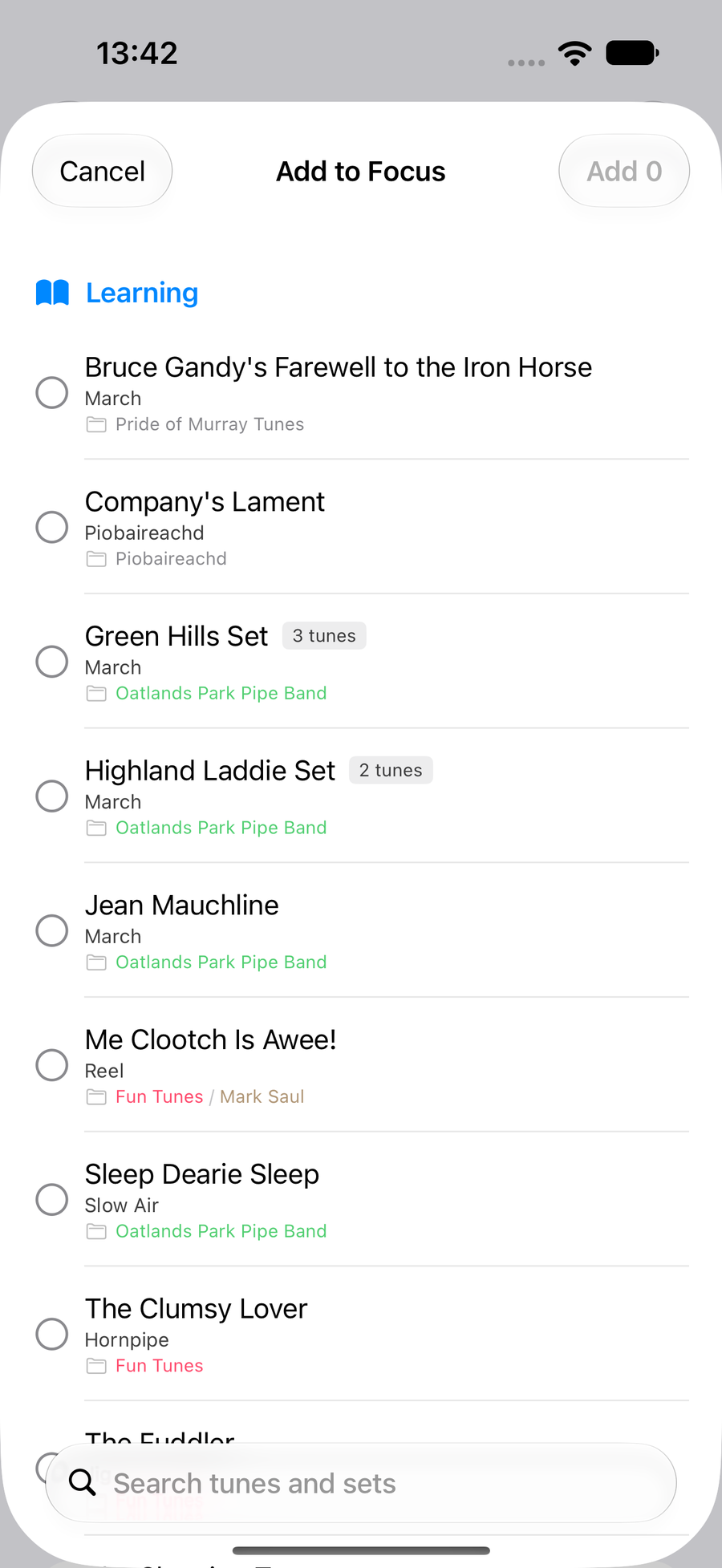
Choosing tunes to add to Focus -
3
Or add a tune from your library
Touch and holdTouch and holdControl-click a tune in your library and choose Add to Focus.
Tunes in Focus show the target beside their name in the library, so you can see at a glance what you are working on.
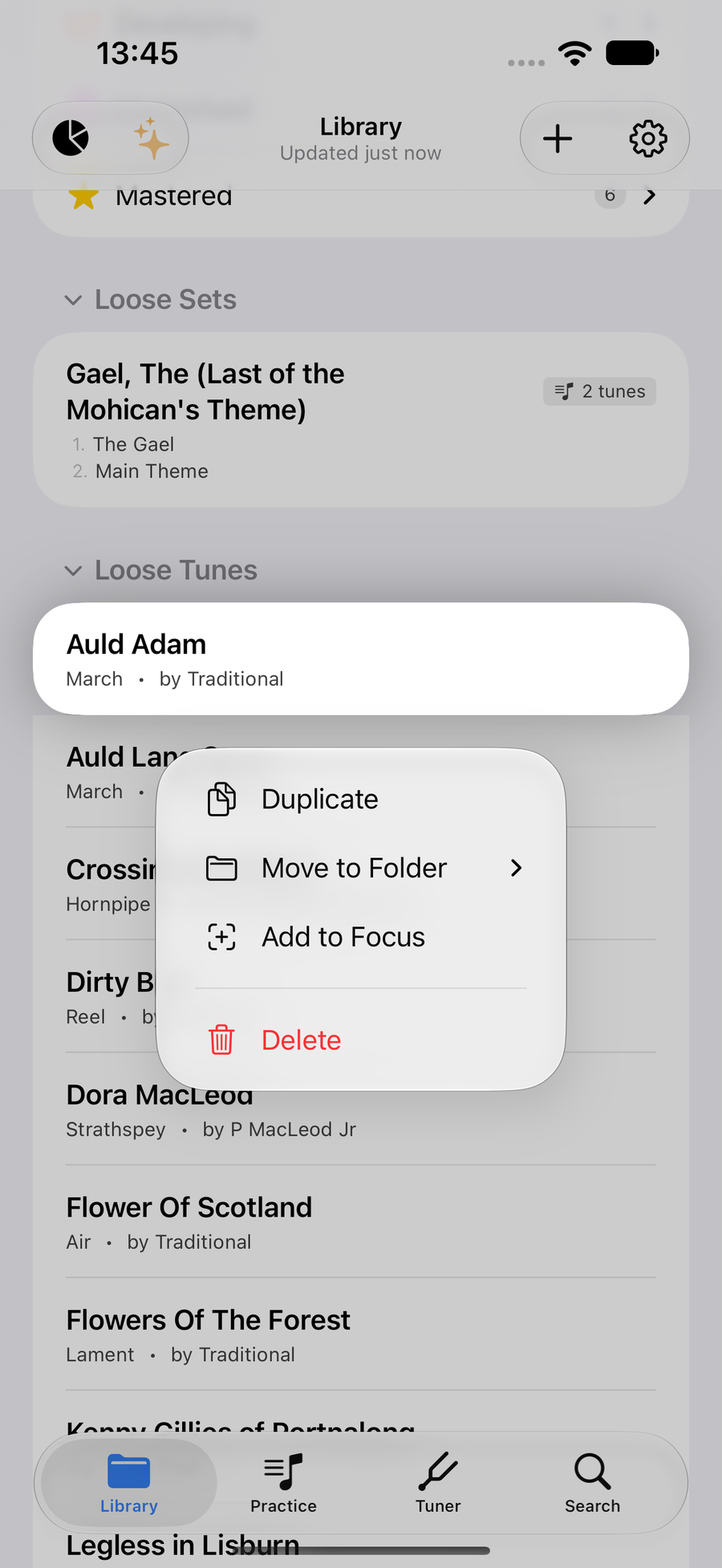
Add to Focus in a tune’s menu in the library -
4
Or add it from the tune itself
With the tune open, open the menu at the top and chooseopen the menu at the top and chooseclick Add to Focus.
When a tune is ready, choose Remove from Focus in the same place, or touch and holdtouch and holdControl-click it under Focus in Practice. Its practice history stays.
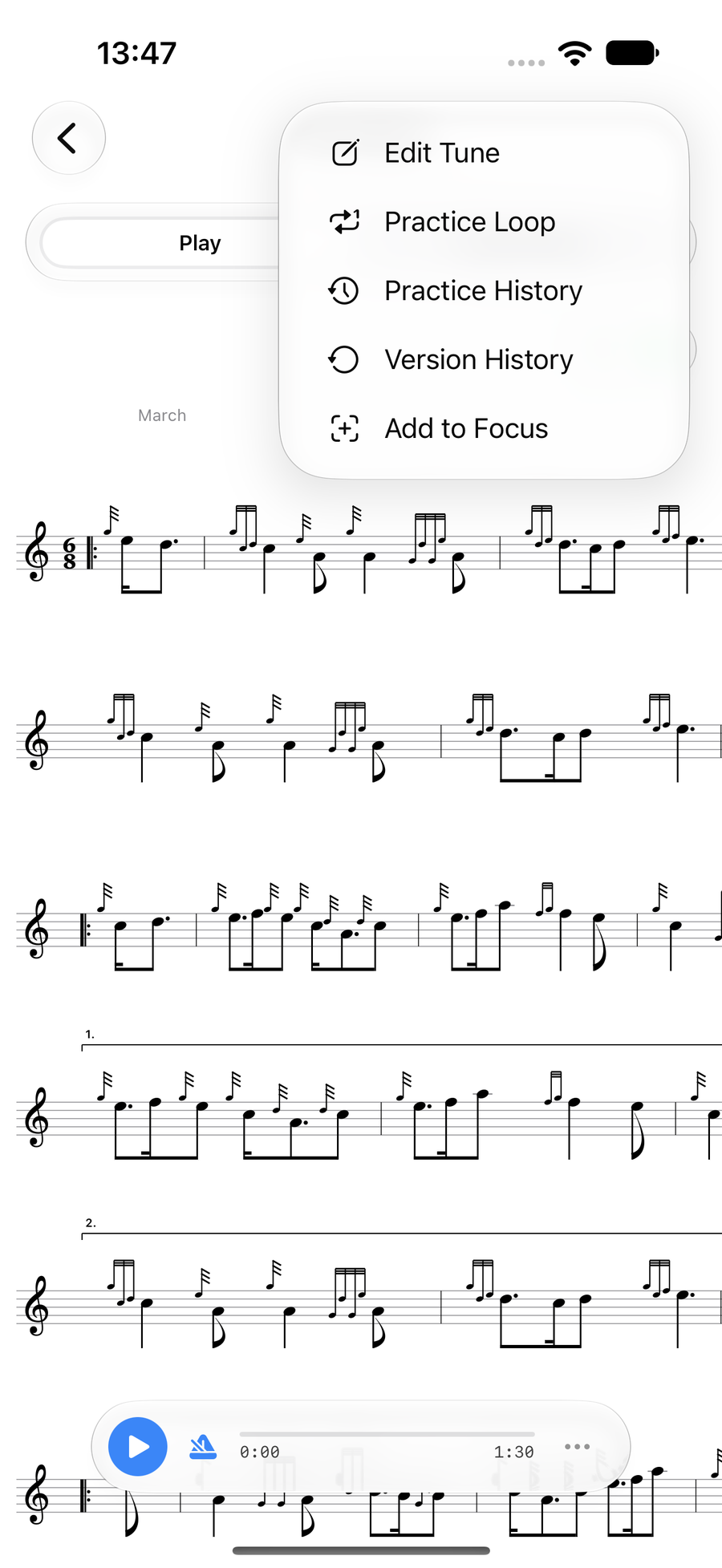
Add to Focus from an open tune -
5
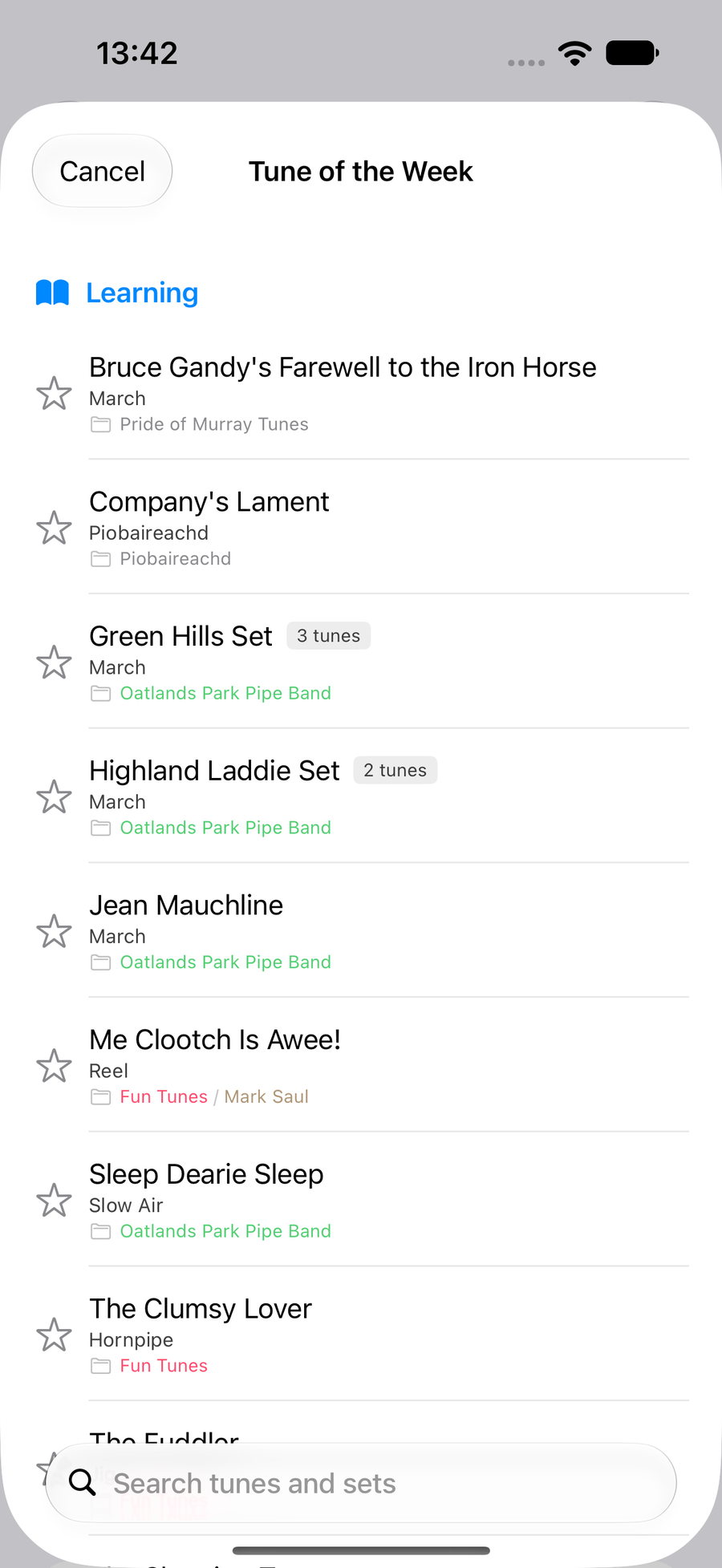
Pick a Tune of the Week
TapTapClick Set Tune of the WeekSet Tune of the WeekSet beside Tune of the Week and choose one tune to put in every session this week, perhaps one you are learning for the band or a competition.
To change it, touch and holdtouch and holdControl-click it and choose Change Tune of the Week, or Clear Tune of the Week to go without one.
Choosing a Tune of the Week -
6
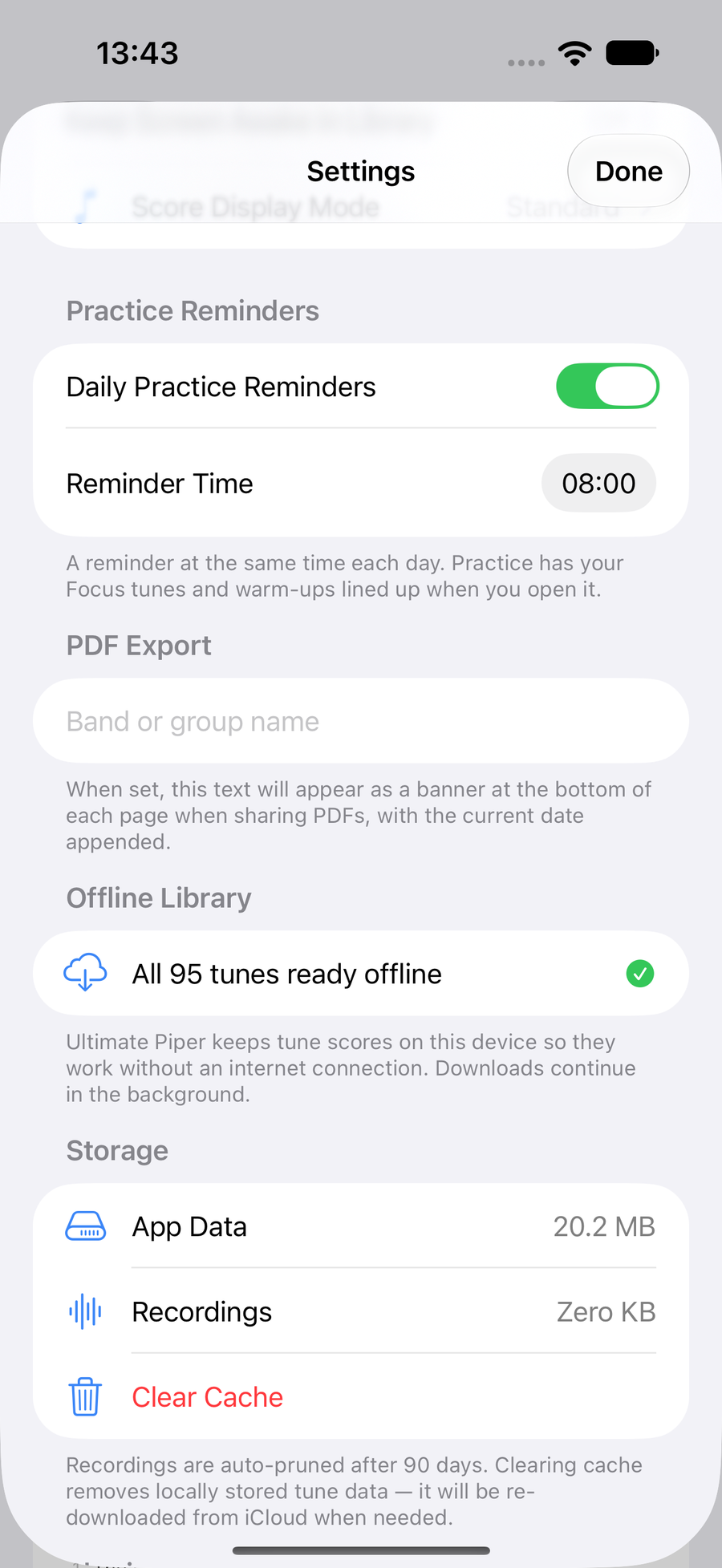
Get a daily reminder
In SettingsSettingsUltimate Piper ▸ Settings, go to Practice Reminders and turn on Daily Practice Reminders. Set the Reminder Time and you will get a nudge at the same time each day, on your Mac as well as your iPhone or iPad.
When you open Practice, your Focus tunes and warm-ups are lined up and ready.
The Practice Reminders settings -
7
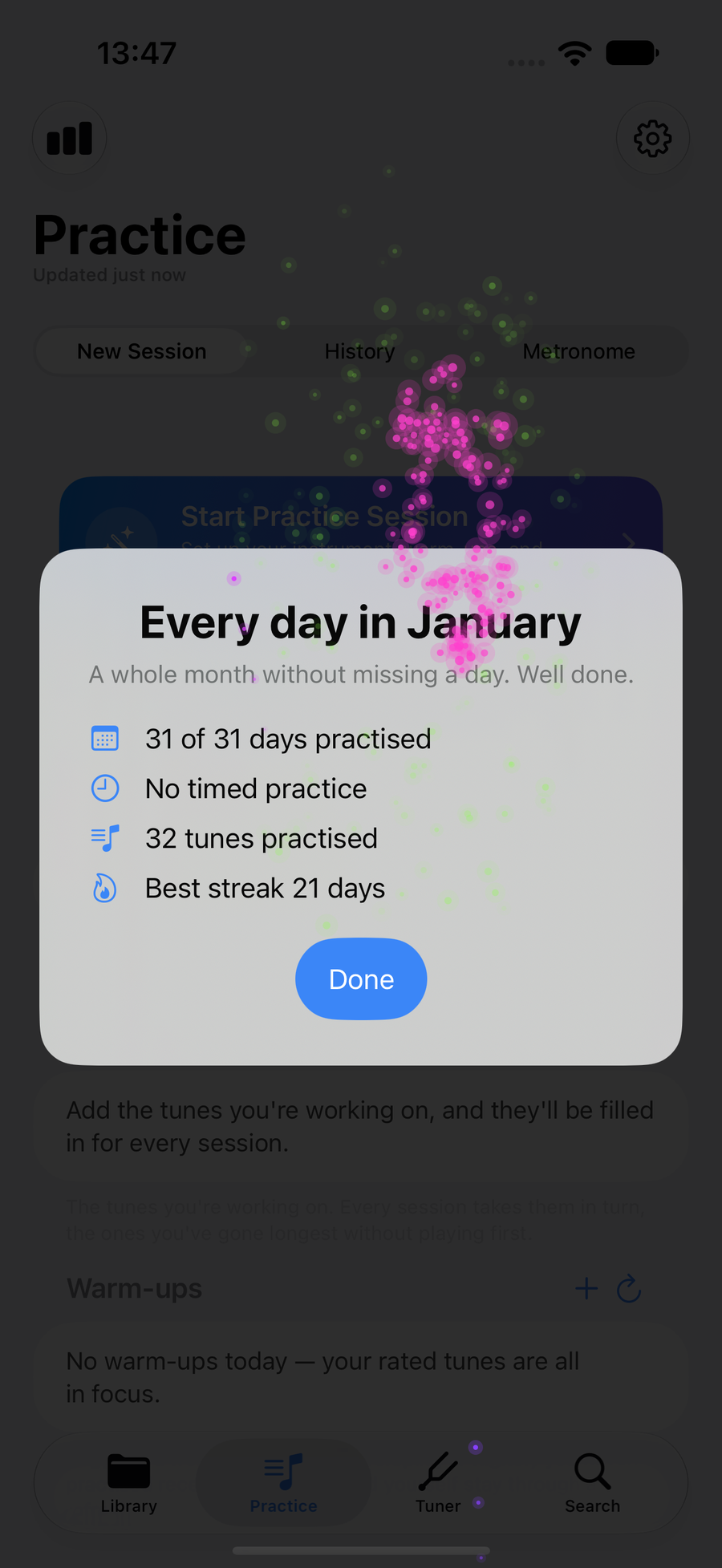
A month without a missed day
Practise on every day of a month and the next time you open the app, fireworks go up around a card of the month: the days you practised, the time you put in, the tunes you played and your best streak. A day counts the way it counts for your streak.
It shows once for each month, on whichever device you open first, and the calendar in Practice Insights marks the month with a star. With Reduce Motion turned on you get a still badge instead of the fireworks.
Fireworks for a month practised every day
Next
- Run a practice session with your plan.
- See your progress bar by bar.
- Tips and tricks you might have missed.